First start
At the first start of trace.check you automatically get to the workspace settings dialog (which can later be reopened in the menu at ).

Workspace selection
You can expand the dialog by checking the option Show workspace settings. By using the option Copy examples it can be chosen if examples should be copied into stored directories. This is recommended for working through the following sections.
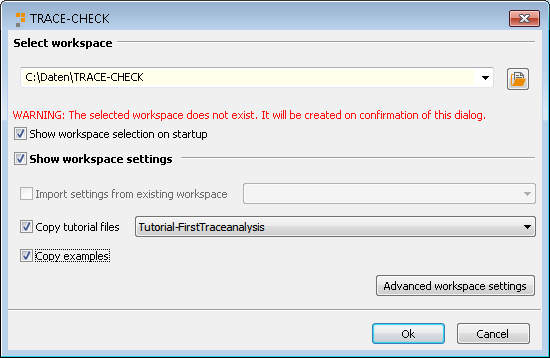
Workspace settings
trace.check suggests default directories for storing various kinds of data. The detailed workspace configuration is shown by using the button Advanced workspace settings. By default all subsequent directories are relative to the given workspace. (Directories can be viewed and modified again in menu in the section Directories)
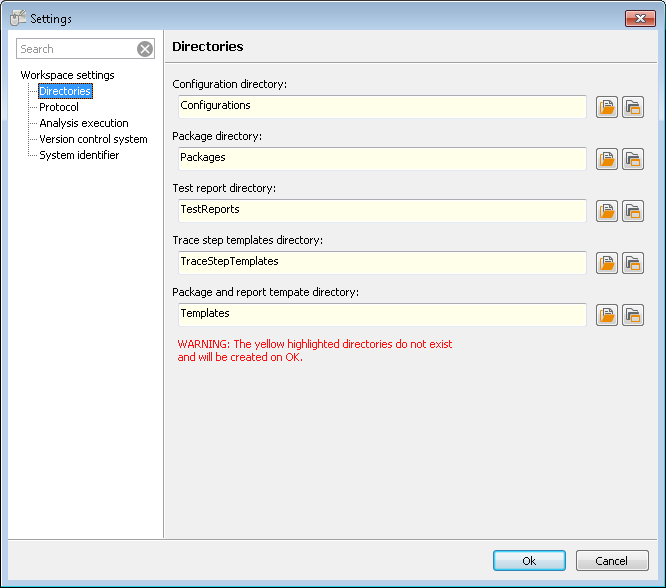
Configuration of directories
The Configuration directory stores files for
test configurations
(*.tcf).
The Package directory serves to store package files
(*.pkg).
In the Test report directory trace.check creates a separate sub-directory for
every analysis carried out that contains, besides the test report file itself (*.trf), also
all files which were generated during the analysis and are relevant to the test report.
The Trace step templates directory keeps template files (*.trcp) for analysis steps.
In the Templates directory you can store templates that will be offered for creating new files.
Info
The data directory, the package directory, the test report directory and the trace step templates directory can be overwritten, if necessary, by means of a test configuration.
Directories which do not exist yet are highlighted in yellow and will be created upon confirmation by OK.
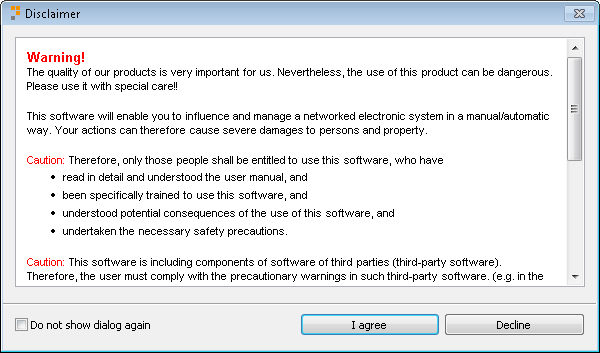
After successful workspace selection the disclaimer appears which must be accepted by selecting the button I agree.
Afterwards trace.check presents the main perspective:

trace.check starts with a page divided into four parts. The essential elements are the explorer view on the left side (1) (Actions) and the Editor (2). Under the explorer view are the window Configurations (3) and the window Messages, into which all messages during the work with trace.check are written. Not visible in the screen shot is the window Global mapping. It can be shown by using the entry Window of the main menu.
The explorer view uses the following tabs:
Workspace (available analysis packages, analysis projects and test configurations),
Trace step templates (available trace step templates),
Trace files (available trace files),
Bus access (access to configured signal catalogs; only for bus database loaded).
The Editor has a separate tab for each open file (in the figure above exactly one for the newly created package Package 0). There are editors for analysis packages, projects and test configurations. The editor for analysis packages is additionally divided into the following tabs:
Signal recordings (Selection of trace files and signals to be analyzed)
Trace analysis (specification of the analysis to be performed),
Test report (display of analysis results),
Properties (display and editing of package description),
Variables (display incoming and outgoing variables),
Mapping (display and editing of signal name mappings).
Using the window Configurations a test configuration can be activated or deactivated. To select a test configuration it can be dragged into the are (3) or the entry Select test configuration from the context menu of the explorer view can be used. After a test configuration is chosen it can be activated.