ecu.test lab
Summary
With ecu.test lab users can create web-based user interfaces for intuitive access to an ecu.test test bench.
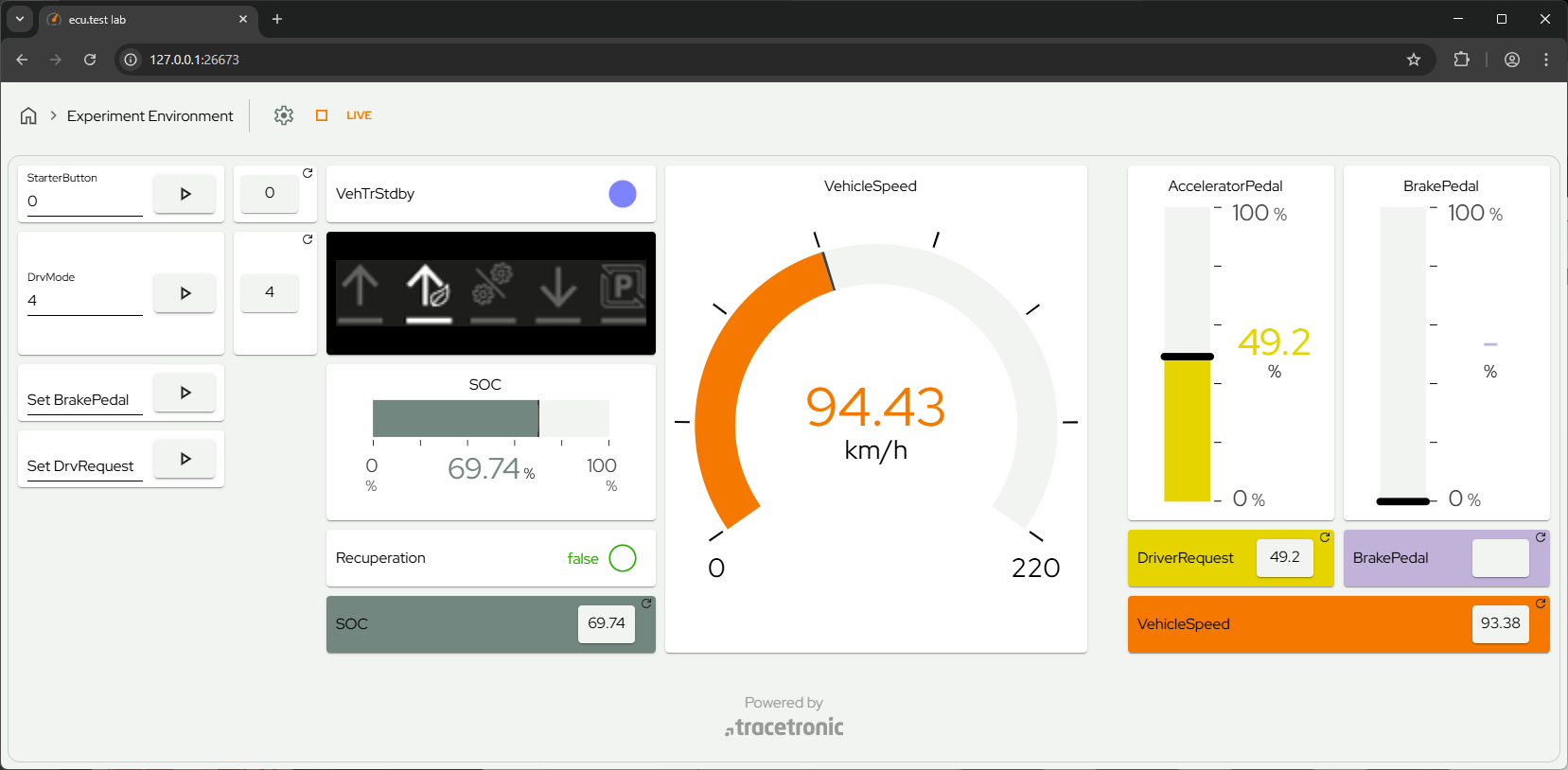
The user interface can be configured depending on the needs of a certain user group. It provides different widgets to display information or to allow manipulation of values and states of the test bench.
The widgets are always linked to ecu.test
global mappings
packages or
expressions.
ecu.test then performs either tool access, package execution or a expression evaluation.
License
ecu.test lab requires the license option “ecu.test lab”.
A demo mode of ecu.test lab is included in ecu.test. All functionalities can be used and tested. However, a view may only contain five widgets in demo mode. Demo mode will be active from January 2026. Until then, all features can be used without restriction, even without the “ecu.test lab” license option.
Setup in ecu.test
ecu.test lab is a web application and requires a running web server. This web server must be started in ecu.test before ecu.test lab can be used. The ecu.test lab dialog can be opened by clicking on the ecu.test lab icon in ecu.test. It can also be reached from the Extras menu.

In the ecu.test lab dialog you can now start the web server for ecu.test lab by clicking on the Start server button.
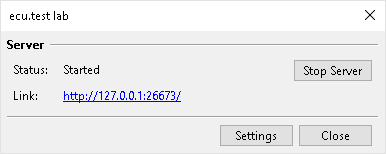
The dialog shows a link to the running ecu.test lab web interface. A click on the link now opens ecu.test lab in a web browser.
If the server is running, clicking the ecu.test lab item of the Extras menu also opens ecu.test lab in the browser.
Info
If a specific port should be used, it can be set up in the settings for ecu.test lab. It can also be configured in the settings whether the ecu.test lab server should be started automatically with ecu.test,
ecu.test lab landing page
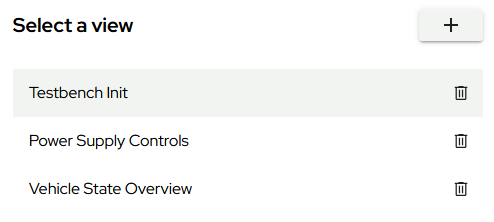
When starting ecu.test lab, the landing page is shown. All available views are listed on this page. A view is a customizable layout containing different widgets. Any number of views can be configured. Only one view can be active at a time. From the landing page, views can be
opened,
deleted or
added.
Working with a view
Once a view is active, it shows a navigation bar on the upper part of the screen and the working area underneath.
The navigation bar contains:
- Landing page
A click on the Home button opens the landing page again.
- Name of the view
Shows the name of the current view.
- Edit mode
A click on the cogwheel in the navigation bar enables or disables edit mode for a view. More details on editing views and widgets can be found in the section on editing a view.
- Start or stop configuration
Most use cases require an active configuration in ecu.test. To start the configuration, you can use the play button in the navigation bar of ecu.test lab.

Clicking on this button starts the ecu.test configuration that is configured for the current view (see Views). If no configuration is defined for the current view, the configuration currently selected in ecu.test is started.
- Start or stop monitoring
ecu.test lab provides live monitoring of tool variables via ecu.test. To activate monitoring, click on the LIVE button in the navigation bar. You can tell that monitoring is active by the orange color of the LIVE button. Clicking on it again deactivates monitoring.

Monitoring mode updates only widgets with a Global mapping Read Configuration. The values are then updated periodically. The update interval depends on the “Acquisition Rate” set for each widget.
The work area shows the configured widgets. This area can be freely configured in edit mode.
Editing a view
Now you can rename the view and optionally set an ecu.test test configuration and test bench configuration. If you click on the Start config button after leaving edit mode, these configurations will be started in ecu.test. If no configurations are set, the currently selected configuration is started in ecu.test.
In edit mode, the size and position as well as the configuration of the widgets can be edited.

Changes can be undone (Ctrl + Z) and restored (Ctrl + Y). A click on the Discard changes button discards all changes and exits the edit mode. A click on the Save changes button saves the current view and leaves edit mode.

New widget

|
In the edit mode, a bar with icons appears at the left side of the screen. Each of these icons represents a widget, see Widgets. When hovering the mouse over one of the icons, a tooltip is displayed, which shows the name of the widget. To use one of the widgets, the icon must be dragged and dropped to the desired location on the work area. If the icon is dropped, the widget configuration view opens. Once the new widget is configured and saved, the widget will be displayed in the desired location. |
Available widgets
ecu.test lab offers different widgets for different use cases. These are briefly explained below.
Widget type |
Icon |
|---|---|
|

|
|

|
|

|
|

|
|

|
|

|
|

|
|

|
|

|
|

|
|

|
|

|
|

|
|

|
|

|
Widget configuration
To configure an existing widget, you have to click on the widget. This opens the widget configuration side bar on the right side of the screen, where all widget-specific configurations can be changed.
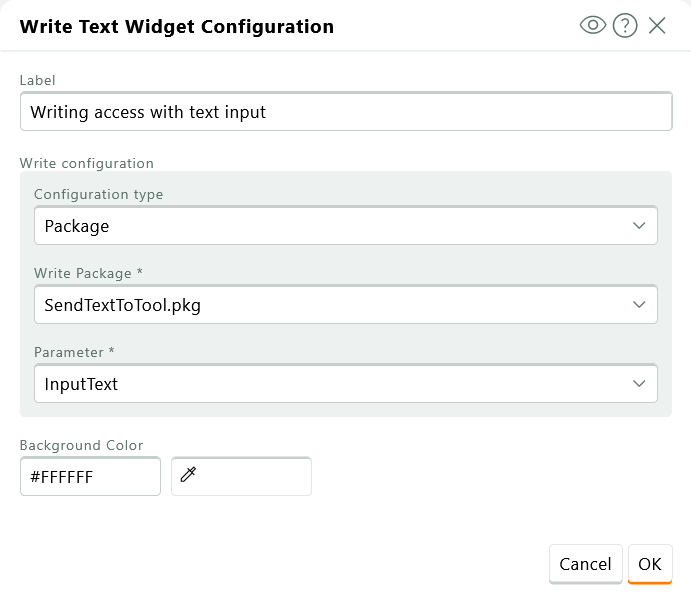
Finally, the configuration can be confirmed with a click on the OK button, an empty area on the canvas or a different widget. If the configuration is not valid, an error message is displayed and the configuration side bar can only be closed by clicking the Cancel button.
Access types in ecu.test
How values are accessed via ecu.test can be configured in the “Read Configuration” or “Write Configuration” of a widget. Which access types are available depends on the widget type.
Global mapping
ecu.test lab enables access to variables of a tool with high performance. The variables are accessed through the global mapping that is active in ecu.test.
Once a variable is available as a global mapping, it can then be configured in the widget as a Read or Write Configuration of type Global mapping.
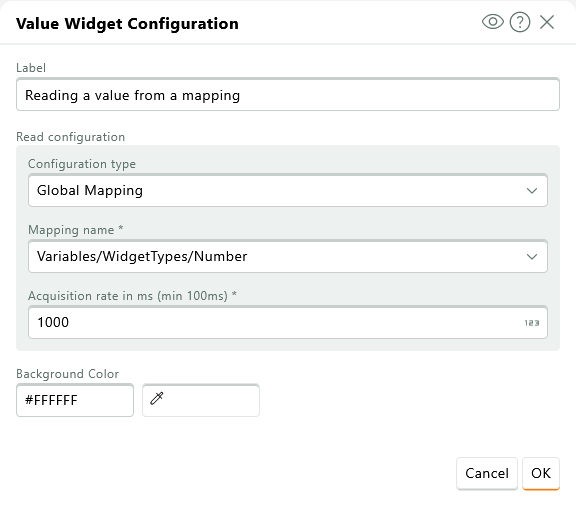
To prepare all relevant mappings, you can set them up in one or more global mapping files and add the .xam files to the test configuration associated with the view. This way, the global mappings will be available upon configuration start.
If the Read Configuration of a widget is set to a global mapping, it is updated periodically in monitoring mode.
If the Write Configuration of a widget is set to a global mapping, the value set by the user will be written to that mapping.
Info
As of now, only scalar values and images are supported for global mapping access.
Package
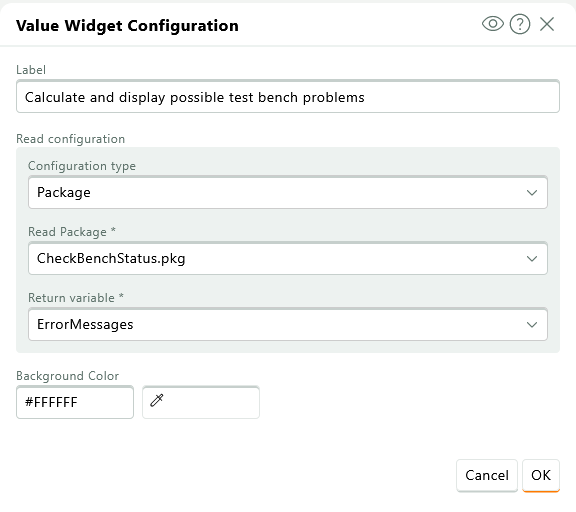
If the type Package is set in the “Read Configuration” or “Write Configuration”, a package for test case execution can be selected in the widget configuration. That package will be executed when the execution button of the widget is clicked.
For reading access, the name of a test case variable of type “return value” can be configured in the “Return” setting. After package execution, that value will be shown in the widget.
For writing access, the name of a test case variable of type “parameter” can be entered in the “Parameter” setting. The value entered in the widget will be used as the input value for that parameter when the package is executed.
Info
The execution dialog and the report are disabled for package executions via ecu.test lab.
Expression
ecu.test lab can evaluate expressions. These are similar to the expressions that can be used in ecu.test calculation test steps, with the limitation that only the Internal API (api.) and UserPyModules (user.) can be accessed.
When Expression is selected in the “Read Configuration” or “Write Configuration”, the expression can be entered in the text field below. For the Write Configuration, the name of the parameter of the function can be specified. The value of the widget is then passed as a keyword argument to the function.
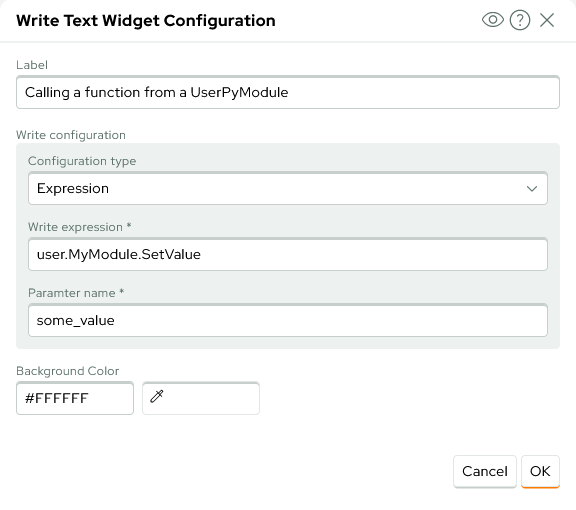
The above example with “test” as input for the widget would result in the following calls:
user.MyModule.SetValue(some_value="test")
Widget position and size
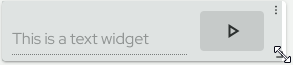
In the edit mode, the position of the widgets can be adjusted. Widgets can be placed along a grid. In addition, the size of the widgets can be adjusted. To do this, the lower right corner of the widget must be clicked and held with the mouse. Then, by dragging the mouse, the size of the widget can be set.
Copy widget
In view edit mode, widgets can be copied within the same view. To get a copy of a widget,
press the control key,
click on an existing widget,
move the in-place created copy to a new location, and finally
release the control key.
Configuration file
ecu.test lab stores the configuration in the ecuTestLab.json file in the .workspace directory. This configuration defines all views and their widgets.