Getting Started
This chapter tries to provide quick and easy insight into setting up ecu.test for your test and validation needs. After reading this chapter you won’t have a deep knowledge of every aspect of ecu.test but of the general steps included in working with the software.
Starting ecu.test for the first time will bring up a dialog asking you to define a workspace. In this chapter we will need some example data. To make sure the data is copied to your workspace, please select Show workspace settings and Copy tutorial files. Now select the entry GettingStarted in the dropdown menu. The Dialog should look like the following:
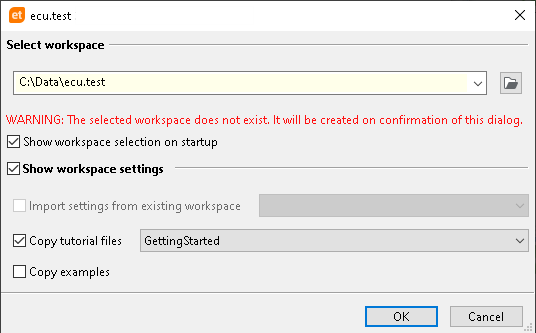
The workspace is a root directory for all files ecu.test is working with. At first this is all you have to know about it. If you want to read further about the workspace concept you can jump to this chapter. You can insert a path you would like ecu.test to use or simple use the suggested path.
After you clicked OK ecu.test will start and will create all needed files and directories. As soon as the start process is finished you should see the following screen:

In this chapter you will only work with the Action window, the Editor and the Configurations window.
How to implement a Test?
In this chapter you will learn how a simple test case is implemented in ecu.test. First, implementing a test always requires creating a so-called package. A package can be described as a container for all the test steps of a test.
To create a new package simply select File -> New -> Package -> Empty Package in the program menu. Now you should see a newly created package in the Editor-Frame on the right.
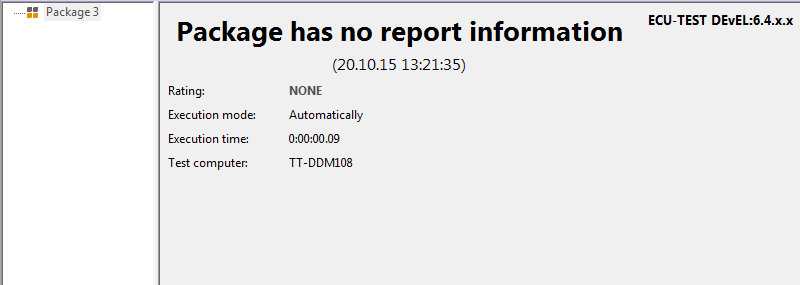
Let’s just execute this package and see what happens. Pressing F9 will trigger the package’s execution. After the execution is finished, ecu.test will jump to the Test report tab to display the test results. Of course the report is empty, because we did not add any test steps to the package:
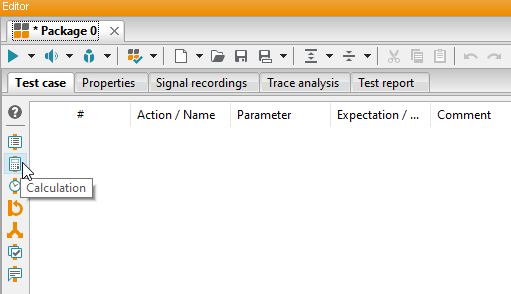
So, let’s add a test step. Imagine we want a test that checks whether 5 + 5 equals 10. The test should become SUCCESS or FAILED depending on whether this statement is true or false. This use case is perfectly met by the calculation test step. A new calculation test step can be created by clicking on the corresponding icon the package’s toolbar:
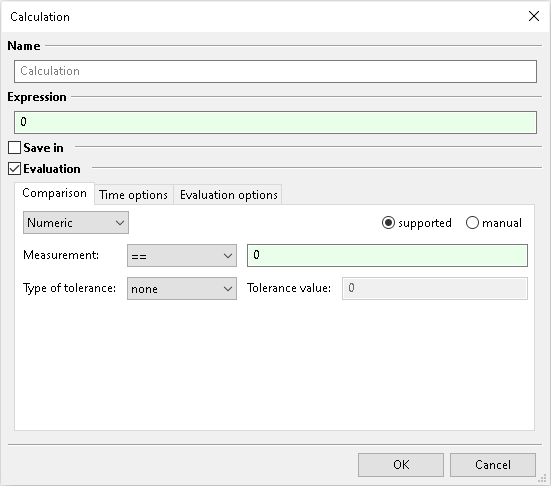
The Expression should contain the expression to be evaluated. In our example this will be 5 + 5. To define an evaluation simply activate the check box next to Evaluation and insert 10 in the text box on the right side of Measurement: ==. Now the dialog should look like the following:
Now confirm the dialog setting by clicking OK and start the test execution again. The test report should now display the test step evaluated to SUCCESS:

As you can see, the test report in ecu.test provides a direct relation to the test case. Therefore, it is very easy to identify the test steps responsible for making the test fail, if the test discovered any failures.
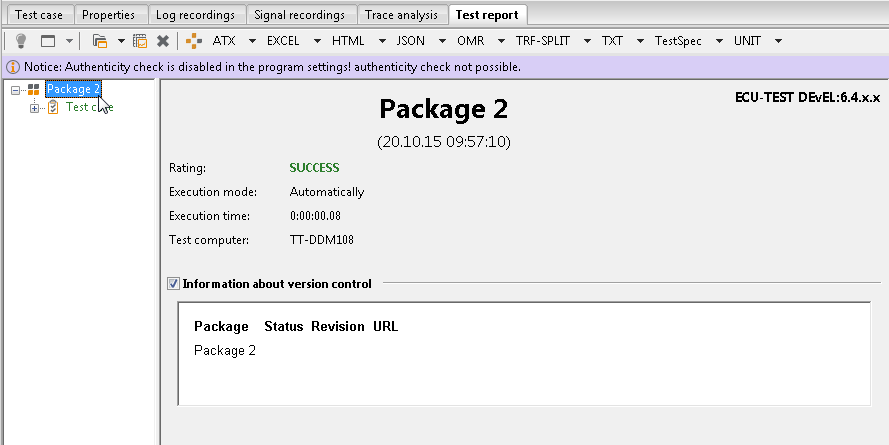
On the left side of the report there is a tree representing the package’s hierarchy. If you click on the root node of that tree, you will see a summary of the test results:
In this chapter you learned how to create a test, execute it and exploit test results out of it. However, the given example is not very close to reality because there is no access to any values of a system under test. Therefore you will learn the steps necessary for accessing such values with ecu.test in the next section.
How to access values of a System under Test?
Testing an ECU will almost always follow the same principle: Stimulating various values of a system under test (SUT) and validating its new state afterwards.
For this purpose ecu.test offers two generic test steps “read” and “write”. Those test steps relate to a certain SUT value. However, before you can reference those values ecu.test has to know what values actually exist.
The standard case is that all SUT values are stored in a database, meaning a file of a standardized or proprietary format. Those files can be parsed by ecu.test to make the values accessible.
For this purpose there is a specific file called Testconfiguration in ecu.test. Before we start creating a new Testconfiguration, let’s think about an example we would like to achieve. Let’s say we want to write the value “5” to a model value and directly after that we would like to check, if the value has been written correctly on the SUT. Implementing such a test case requires a database for model values. So our goal is to create a new Testconfiguration delivering access to our model database.
Let’s start by selecting the menu item File –> New –> Testconfiguration. Now an editor for the Testconfiguration will show up presenting several tabs:

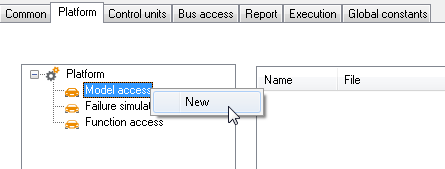
For now we will only focus on the tab Platform. Here you can configure the model databases by right-clicking on Model access and then on New:
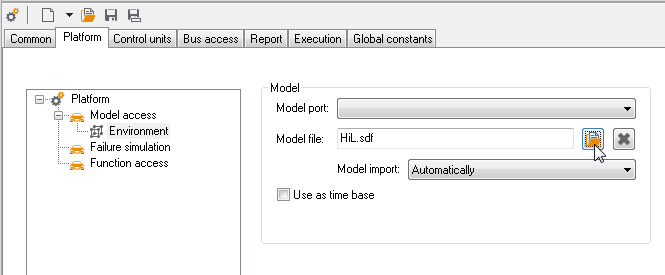
ecu.test will now ask you to select a name for the system. In the future this name will be used for referencing the corresponding model. At this point you do not have to worry about the name. Simply select Plant model and confirm the dialog. To select a new model file simply click on the button placed on the right of the text control and select the file “HiL.sdf”. This is all that has to be done to set up your model database. Your configuration should now look like the following:
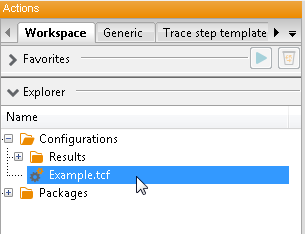
Save the configuration using a name of your choice and close the editor. The newly created file should now appear within the explorer on the left side:
The test configuration now must be selected and afterwards activated. To do so right-click your test configuration and select the menu item select Testconfiguration making it appear in the window Configuration below the Explorer. Clicking the blue arrow of that window will activate the configuration and finally load the model values.
After the loading finished a new tab will appear next to the Workspace tab:
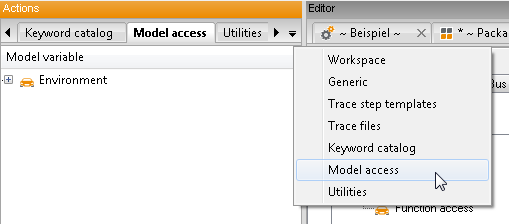
Within this tab you will find all model values included in the loaded model database.
Expanding the node Plant model will reveal the model values placed directly under the root node. Now we have everything we need to create the test we previously planned. Start by creating a new package once again. Now we choose a model value to use, let’s say stimState. So, create a writing test step by right-clicking stimState and selecting Write.
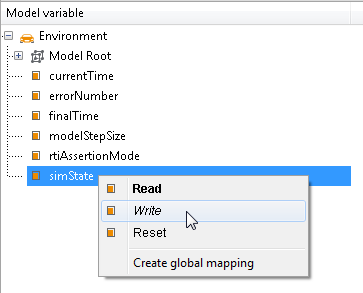
You should now see the Parameterize write dialog allowing to give an expression for the value to be written. We had the idea to write the value 5, so simply type 5 in the expression field an confirm the dialog with OK.
Now you have written the value but we still need to read it in order to verify that everything worked as expected. To do so, once again right-click the model value StimState and this time pick the menu item Read. Type in the value 5 as the expectation and close the dialog with the OK button.
Finally, our test case represents a realistic (but still quite simple) example of an ecu.test using a model interface. Unfortunately we are still not able to execute this test step successfully since ecu.test does not know where to run the model. We still need to configure the tool we would like to work with.
Nevertheless, run the test case and have a look at the error message placed in the report. It says Missing port assignment for MODELACCESS:
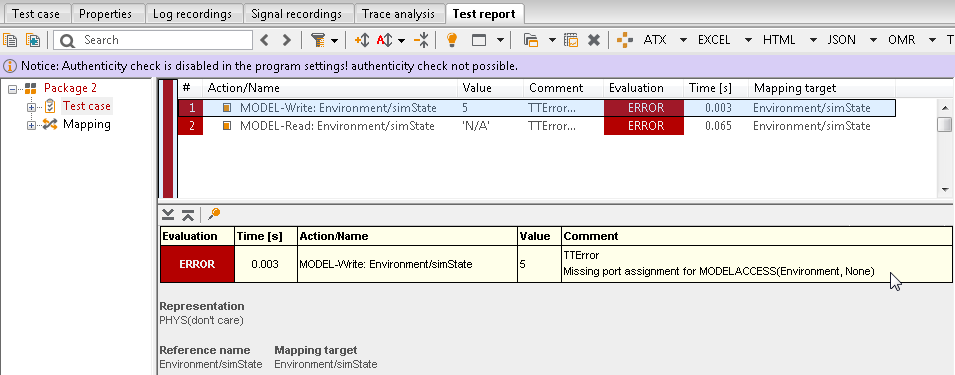
ecu.test tells us, that a so-called port assignment is required for running the test. This assignment is what connects the SUT values of your test with the tool of your choice. How to create such an assignment is the subject of the next section.
How can tools be accessed?
To specify with which tools a test case can interact, a so-called test bench configuration needs to be created in ecu.test.
In our example model quantities are accessed, so the access to a model tool is necessary. ecu.test supports a multitude of different tools that support such an interface. Since we cannot take a special tool as given in this tutorial, we use the so-called MODELDUMMY.
This leads to the following target: Create a test bench configuration that configures the access to the MODELDUMMY. The creation of a new test bench configuration file can be done via , similar to package and test configuration.
A new editor is opened, this time to edit the test bench configuration. Until now the new file only contains the main node Tool configuration. Further tools need to be added to this node. But first it is important to know on which computer the respective tool will be executed. In our example we have a local connection, which means that the tool (the MODELDUMMY) is running on the same machine as ecu.test.
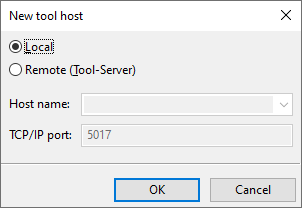
With a click on the symbol  in the toolbar, the dialog New tool host opens.
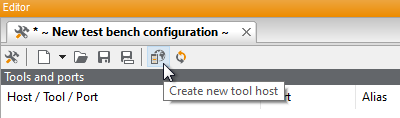
As already mentioned this is a local tool connection. Please choose the option Local and confirm with OK.
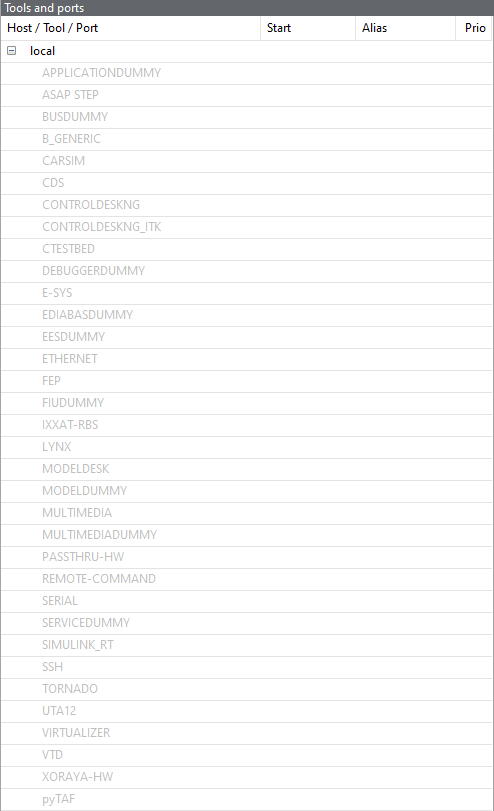
Now all local available tools are listed:
Info
For some tools ecu.test can probe whether the tool is installed on the host or not. Those tools will not be shown in the test bench configuration, if they were not found. Other tools this decision cannot be automatically detected. Such tools will always be offered in the configuration, even if they are not installed.
To use the MODELDUMMY right-click the entry and select . The meaning of the term Port is not needed here (In “What is a test bench configuration?” you can look-up the terms Tool, Port and Host, if required). You can confirm the dialog Create new port without doing any changes.
Now the MODELDUMMY is displayed in black font and has the sub node MDL01 (MODELACCESS). The MODELDUMMY is accessible as soon as the test bench configuration is active:
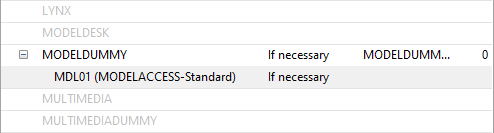
Now the configuration need only be saved and, similar to the test configuration, selected by a right click. If both configurations would be started now the test would not succeed at all. The last step is to link the created model port with the model identifier Plant model in the test configuration.
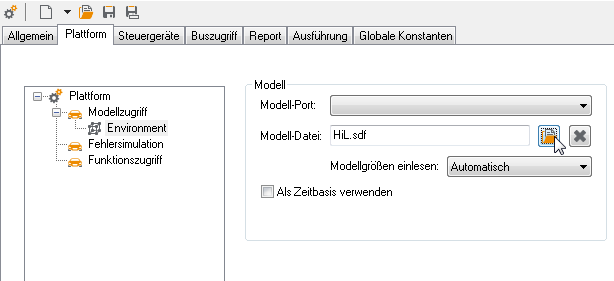
To do this, open your test configuration and change to the tab Platform. Select the node Plant model below Model access. On the right side you can now choose the model port from the list. In this case MDL01 is selectable:
Info
If MDL01 is not available, you have not selected your test bench configuration until now. You can see if it is already selected if it is shown in the window Configurations on the right side.
Please choose the port MDL01 and save the configuration. Now the configuration is ready. Click on the arrow in window Configurations. ecu.test now reloads the model database and connects to the MODELDUMMY.
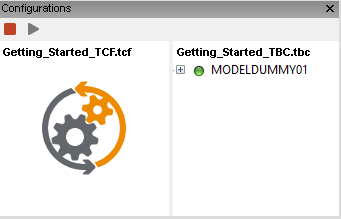
Please rerun the test that contains the model read and write test steps. If everything is configured correctly, the test will now run successfully. The read test step should evaluate to SUCCESS:

The report shows that ecu.test read and wrote the test quantity correctly on the MODELDUMMY.
Summary
In this chapter you got a quick start into ecu.test. You now can create test cases and know which steps are necessary to access databases and tools. The shown procedure concerning the MODELDUMMY can be applied to any model tool.
In the following chapters you get a deeper insight into the structure and the most important artifacts of ecu.test.