Example for Working with Real-Time Tests
This chapter references the example workspace “RealtimeTesting” delivered with ecu.test. This workspace includes configuration files and a package for demonstrating real-time testing.
Info
The given example demonstrates how to create and execute real-time tests. However, since it is executed using the build-in ModelDummy it is actually not executed in real-time. If you want to use this feature on a real platform you have to configure a testbench holding a model port for ControlDesk.
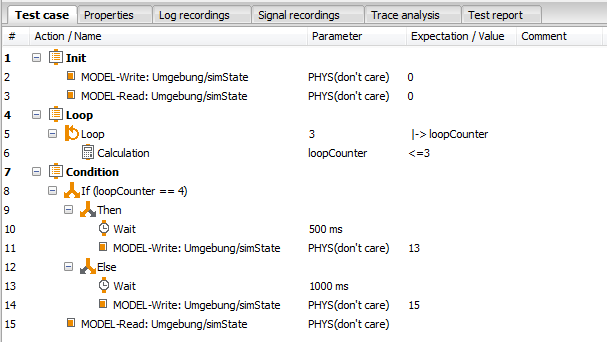
The package RTT.pkg includes all test steps that should be executed in real-time.
Its content looks as follows:
First select ModelDummy.tbc and RTT_Tut_Model.tcf if they are not already selected
and start them via clicking Activate Configurations. Then open the RTT.pkg in the
package editor and press the play button the execute it. This will result in a test report similar
to this:

This package was just executed in a “normal mode” and NOT in real-time. If we want to execute it in
real-time, we have to create another package to reference it. To do so, one selects
in the context menu of ecu.test.
Save the newly created package and
name it Caller.pkg, since it will call the real-time package. Now, select the Workspace-tab on the
left site of ecu.test. Insert a real-time reference to RTT.pkg into Caller.pkg by using the
explorer’s context menu:
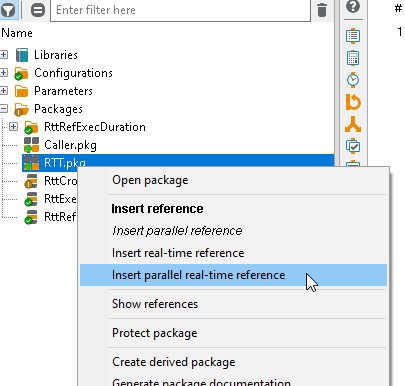
Now, Caller.pkg should look like the following:
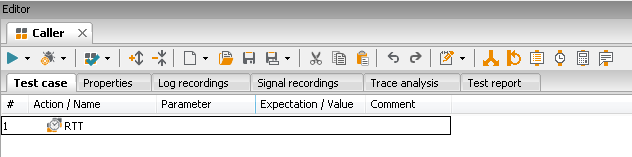
The used reference type determines that the referenced package has to be executed in real-time. Which type of reference was used is symbolized by the respective test step icon.
If you execute Caller.pkg, the initial preprocess of the test package will take some time
to generate real-time code. This will be much faster the next time you run the test, because the
generated information will be cached.
Anyways, if the test execution is terminated, you will see the real-time reference evaluated as
SUCCESS. The internal results of the executed real-time package can be seen selecting the “1 - RTT”-note
under “Test case” on the left side of the report.