Search
ecu.test possesses a central search function which provides the contextual possibility of looking or filtering for properties of elements existing in that context. That search function allows to choose and combine different properties.
Info
The search criteria depend on the properties of the searched items. You can use the search function for example in the workspace tab, in the global mapping, for test steps or, like in the given image, for calibration variables.
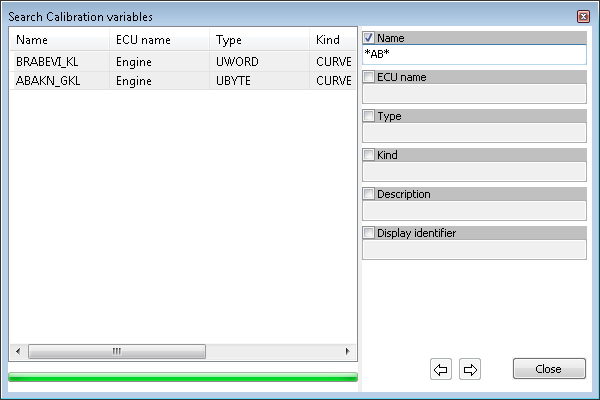
Open the search dialog by using one of the following possibilities:
via the main menu
via the following key combinations:
<Ctrl> + <F>: Open new search dialog
<Ctrl> + <Shift> + <F>: Reopen dialog of the last search
The search dialog opens, the first search criterion is selected without any restrictions (**). All elements are listed unfiltered.
Activate the search criteria and enter your search term.
Info
The asterisks in the input fields serve there as placeholders for any kind of strings. So if an expression is inserted between the two asterisks existing as a default, any appearance of that expression will be indicated in the result field. By removing the asterisk before an expression it can be specified that the expression looked for must be at the beginning of a string. In much the same way it is determined by removing the asterisk at the end of an expression that that expression should appear only at the end of strings.
The result field is updated at every change. The progress of updating is visualized by the progress bar to be seen on the status bar.
Choose an element to mark it in the respective context:
Double-click on an element in the list of results or
choose an element and then press <Enter> or
choose an element and press the button Select.
By doing this, the search dialog closes and the selected search item is marked in the active window. Furthermore it is possible to find the next search results by clicking <F3> without reopening the dialog.
If you reopen the dialog, use the buttons < and > for switching back and forth between the results of the last search actions.