Tool Server
Tool Server allows the use of programs and hardware not installed on the same computer as ecu.test. It serves as an exchange platform between ecu.test and peripheral software (software tools) and/or to connect hardware which is not available locally. Supported software tools and devices are detected and provided automatically.
Tool Server has the following properties:
Process separation, whereby every tool interface is connected in an own process
Transmission of the tool state for the correct representation in the tool monitor
Logging with filters and annotations, where the log entries are transmitted to ecu.test
Backward channel, whereby files can be transported from the remote host to ecu.test (especially for streaming frames)
Using Tool Server
The remote connection of ecu.test is realized by Tool Server. Using the Test bench configuration editor, you can specify by means of the option Remote (Tool Server) (and the corresponding settings) that peripheral software or hardware of another computer should be used. A background connection is established with Tool Server, and that server identifies (through the Tools) the periphery existing on the selected computer.
The access to the periphery is usually configured in the Test bench configuration editor of ecu.test. If necessary these configuration can also be done in the configuration file ToolLibs.ini. These are settings like file paths or tool or device names. The settings of the Test bench configuration editor overwrite the settings from ToolLibs.ini.
During test execution the basic priority of Tool Server processes and the used peripheral software is raised.
Operation of Tool Server
Tool Server can be started from the Windows start menu of “ecu.test”. If the autorun option for Tool Server was selected on installation, the server is automatically available upon Windows startup.
The symbol ( ) in the task bar shows that Tool Server was started.
A right click on that symbol opens a context menu. The menu item Show window opens the
user interface of Tool Server. If the user interface is shown, a click on
Hide window closes it.
) in the task bar shows that Tool Server was started.
A right click on that symbol opens a context menu. The menu item Show window opens the
user interface of Tool Server. If the user interface is shown, a click on
Hide window closes it.
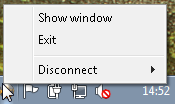
Exit quits Tool Server. A warning appears if there are still active connections, followed by the question whether you still wish to exit (all connections are cut). The item Cut connection shows all open connections with other programs. By clicking on one of those connections, it is quit and the interface is cleared again. That function as well as re-connection are available also via the Configurations window in ecu.test. This may be very helpful if there are problems of connecting other programs.
The Tool Server user interface consists of two windows. The left window shows all output messages analog to the Message window in ecu.test. A rightclick in the window opens a context menu which can be used to clear the windows content or to copy it to the clipboard. The right window shows the connected instances of ecu.test with the associated peripheral software or hardware. A rightclick on one of the nodes of the tree allows it to disconnect single tools or the complete instance of ecu.test.
General settings of Tool Server
The tool-independent settings of Tool Server can be configured by means of options in ToolLibs.ini and via command line options.
ToolLibs.ini settings (section [General])
- DebugLevel = <level number>
Determines the amount of (debug) messages displayed and logged by Tool Server. Allowed values are 0 (Off), 1 (Minimum), 2 (Normal) and 3 (Maximum). The higher the debug level, the more messages are issued. Debug messages may help to find the cause of problems in tool connection.
Default: 2
- TsPort = <port number>
Determines the TCP port to which Tool Server is to be connected.
Default: 5017
- TempDir = <folder path>
Determines the temp directory used by Tool Server (and so, implicitly, also the Toollib processes) for exchanging files. Tool Server should possess read and write permission in that directory.
Default:
Windows:
%TEMP%/ecu.test 2025.3/ToolLibTempLinux:
$TEMP/ecu.test 2025.3/ToolLibTemp
- SSL_ENABLED = <0|1>
Determines if the connection between ecu.test and Tool Server should be encrypted. If this setting is activated, it is only possible to connect ecu.test to Tool Server if a certificate was previously generated using Signing. This certificate then has to be exported and placed on the computer running Tool Server in a specific directory (see next item) on the computer running Tool Server.
Default: 0
- CertificateDir = <folder path>
Determines the directory where Tool Server looks for client certificates in order to verify them upon a connection attempt. If SSL is activated, and the ecu.test instance trying to connect is unable to present a private key corresponding to a certificate stored in this directory, the connection attempt is turned down.
Default: Path to the folder containing the ToolLibs.ini file.
- SynchronizeLog = <0|1>
Determines that
tool_server_out.logis written synchronously, i.e., log entry by log entry. A high log volume can lead to longer test execution times when synchronous logging is enabled. Therefore synchronous logging should only be enabled when necessary or for debugging purposes.Default: 0
Command line options
--toollibsini <path to ToolLibs.ini>
Allows the explicit designation of ToolLibs.ini to be used. Without that indication the ToolLibs.ini will be used in default directory.
--port <port number>
Determines the TCP port Tool Server is bound to. This command line parameter overwrites the setting from ToolLibs.ini. If nothing is specified, the default value 5017 will be used.