Test bench configuration editor
In the test bench configuration software to be controlled is selected and configured. Also specific ports are created for use in test configuration. Explanations concerning the different settings can be found in section Tools.
Links to the software can be made by local or remote connection via Tool Server.

Hosts and Tools
On the left side is the area for configuring tool hosts, tools and ports. Initially it contains a local tool host and a greyed out list of available interfaces.
Right-click on an empty area and select , or use
the symbol  in the toolbar, the dialog for creating a new tool host opens.
After selecting whether it is the local computer or a remote PC, the new tool host is created and
its available interfaces are displayed. A base path can be specified for the tool host. For some
tools, this can be used for path settings during configuration. Therefore it is sufficient for the
tool configuration to specify relative paths. For local tool hosts, by default the current
workspace is specified by the placeholder <workspace>.
in the toolbar, the dialog for creating a new tool host opens.
After selecting whether it is the local computer or a remote PC, the new tool host is created and
its available interfaces are displayed. A base path can be specified for the tool host. For some
tools, this can be used for path settings during configuration. Therefore it is sufficient for the
tool configuration to specify relative paths. For local tool hosts, by default the current
workspace is specified by the placeholder <workspace>.
Info
When using Library workspaces, a base path with the value <workspace> causes the library workspace in which the TBC is stored to be used as the base path.
Info
To use the tools of a remote computer, Tool Server must be started on the remote computer.
Gray entries mean that the interface is there, but is not set up at present.
For an interface to be used, it has to be activated. That is done by selecting in the context menu of the desired entry. Alternatively, with most tools (those providing ports) it is possible to select , which activates the tool and creates a port.
Ports
The option on each tool can also be used afterwards to create (additional) ports.
A port contains concrete settings so that the interface can later be used in ecu.test. When a port is added, the kind of port to be established can be selected depending on the interface (e.g. bus or application access at ETAS: INCA) and a name can be attributed (port ID). Automatic assigns a default name.
Start mode
In the column “Start”, each tool and port can be assigned a start mode. This specifies whether the tool should be started automatically when the configuration is started. The default value If necessary means that the tool is started if at least one of its ports is referenced in the current test configuration. If the start mode is set to Always or Never, the respective tool or port is always or never started automatically, regardless of references in the test configuration.
Alias
In the column “Alias”, an alias name can be defined for each tool. This alias will be used in Configurations window and Configuration change. However, the test report will still show the tool name. Aliases must be unique within the test bench configuration. If an already existing alias name is entered, the input field turns red. The input of an alias name can be aborted with the escape key. In this case, the previously assigned alias will be used. If the input field is left blank, a default alias will be assigned. The default alias is composed of the tool name and a number.
Priority
In the column “Prio”, each tool can be assigned a start resp. stop priority. This determines the order in which the tools are set up or shut down when the configuration is started or stopped via the configuration manager. Tools with higher priority (= lower number) are started before the tools with lower priority. When stopping, the order is reversed: Tools with lower priority (= higher number) are stopped before those with higher priority. For tools with the same priority, the order is not defined. The prio value 0 marks the highest priority.
Apart from the configuration manager, the priority is also evaluated by the project step Configuration change in certain cases.
Properties
Different settings can be made depending on the interface. A distinction is always made between interface-specific and port-specific settings. The former appear when the interface is chosen, the latter at the selection of the port. The parameter Timeout for tool call is provided generically by all tools and determines the maximal waiting time for tool calls.
Info
More information about possible settings can be found at Supported software and interfaces.
Referencing settings specified in the test configuration
It may be necessary, in part, to specify settings in accordance with the test configuration used, e.g. the name of the INCA database. In order to avoid setting up a specific test bench configuration for each variant, the settings can also be specified by way of ${Const.Konstantenname}.
The name of the constant is replaced during start by an entry of the same name in global constants (Global constants tab). If such an entry does not exist, the port or tool start is disrupted as a fault. The referenced constants must be of the “string” type.
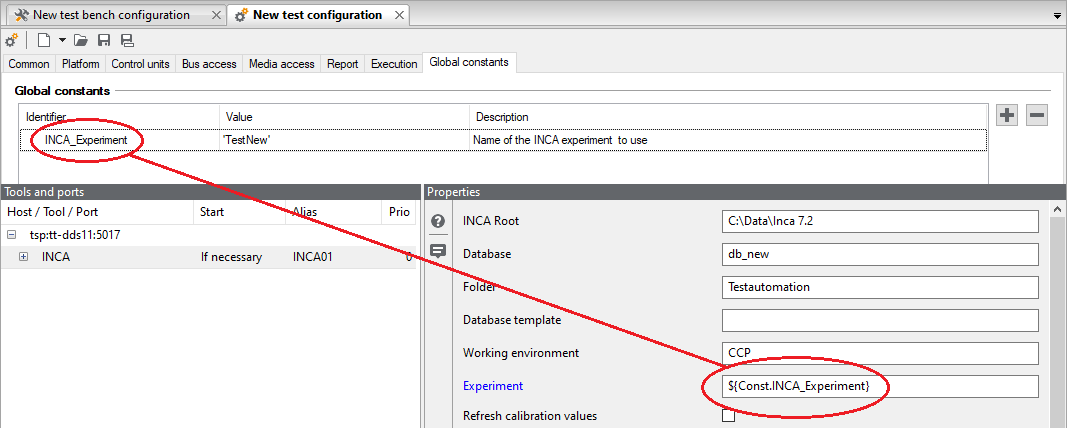
Using the test bench configuration
When all ports are set up and the corresponding settings are made, the test bench configuration file can be saved and activated according to Using configurations.
Info
Every port can be used only once per test configuration. If, for example, several CAN buses are available at one interface, a port has to be set up for every one of them.
Info
Settings of the test bench configuration can be made by global constants of the test configuration.