Project management
If a new project is created or an existing project is opened the project edito will be opened. This editor is used to aggregate several packages into one project to be run one after the other. In this way large trace analyses can be created which are independent of one another and can be executed over a longer period of time (e.g. overnight) without any user input. Project management then allows a clear and detailed evaluation of the trace analyses.
Packages from the tab Workspace are put in the project editor by drag-and-drop.
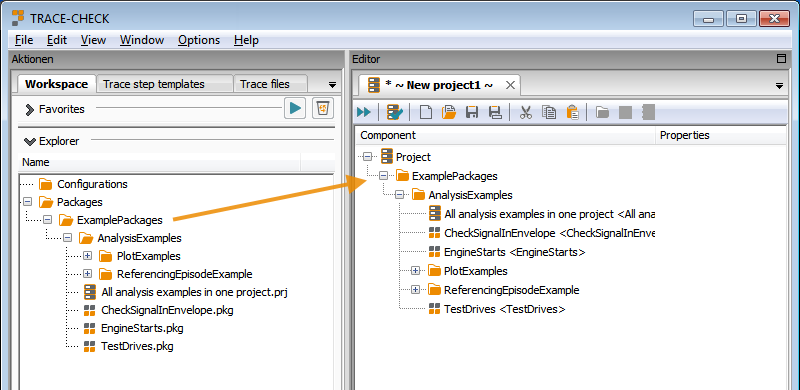
Adding packages (or entire folders) to a project
Parameterization of packages
After right-clicking on a package in a project a new parameter set can be added to this package via
Parameter sets serve to execute the package with redefined values for its variables.
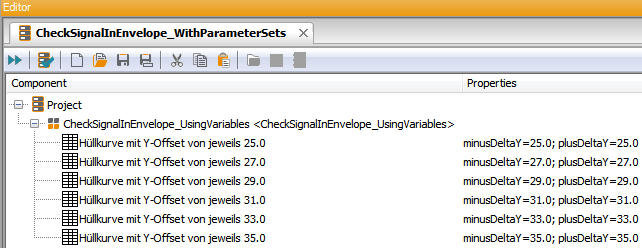
A package with different parameter sets
After double-clicking on a generated parameter set of a package a dialog opens. In column
Parameter all variables are listed that have been created in the package and that have
furthermore been marked as “Parameter” (checkmark in column “ ” in the
Variables tab. In the column Value / Variable the initial values of the package
are specified (gray and in brackets). These can be left as they are or be replaced by new values.
” in the
Variables tab. In the column Value / Variable the initial values of the package
are specified (gray and in brackets). These can be left as they are or be replaced by new values.
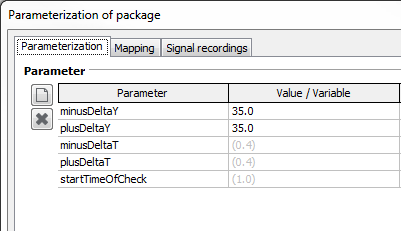
The dialog for parameterization of the package
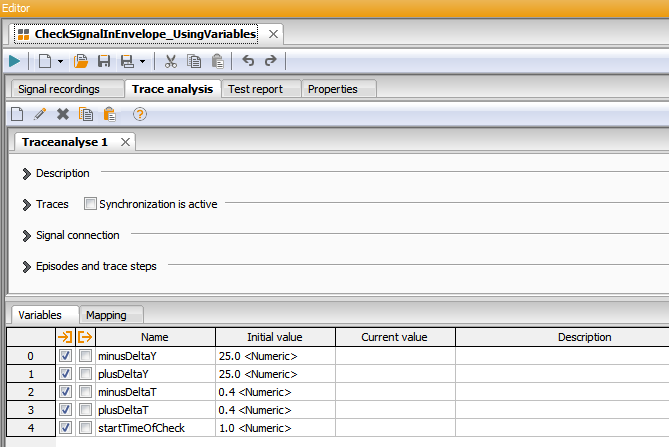
The inserted package
A package can contain any number of parameter sets. The package (with the redefined values) will be executed exactly once per parameter set.
In the tab “Mapping” the assignment of signals from the trace file to the generic signals is replaced.
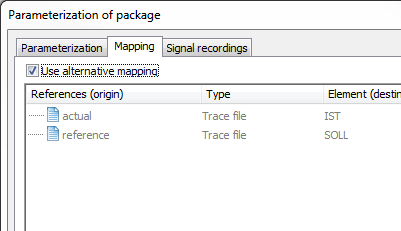
Tab “Mapping” for the replacement of signal mappings
In addition to the mapping recordings of a package can be replaced by a parameter set.
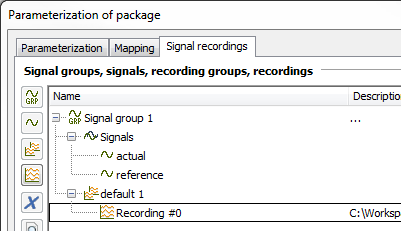
Tab “Signal recordings” for the replacement of recordings
For this the tab Signal recordings is used. In contrary to the tab Signal recordings of a package only the recordings can be edited in this dialog. Signals cannot be modified, hence the upper three buttons are deactivated.
Execution of a project
Project execution is started by means of the symbol ( ) on the far left in the
symbol bar above the loaded project, or via the context menu
.
) on the far left in the
symbol bar above the loaded project, or via the context menu
.
Now trace.check treats the inserted packages in their order and produces corresponding test reports. The project window shows the results of executed packages already while treatment is still going on. So you always have an overview of the status of project execution.
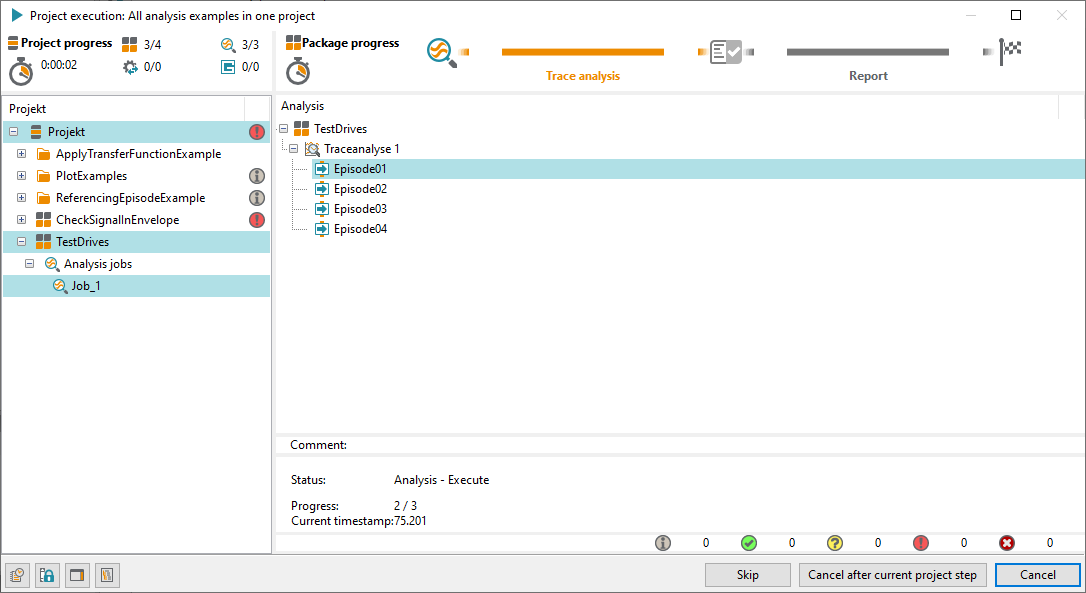
Execution of a project
Clicking on the double arrow at the right margin of project execution opens the familiar package execution dialog. At the bottom of the dialog there is a button for aborting the project as well as for calling up the test report which, however, is not active until after the end of project execution.
Evaluation of a project
After project execution is completed a click on the button Report, opens evaluation in the “Report Viewer”. On the left side there is a tree showing the structure of the project. The window on the right displays the corresponding surveys and/or the respective test report.
The start page gives an overview of the status of the executed packages. If the details of the project elements are opened (by clicking on the “plus” sign) a statistical survey of execution is provided.
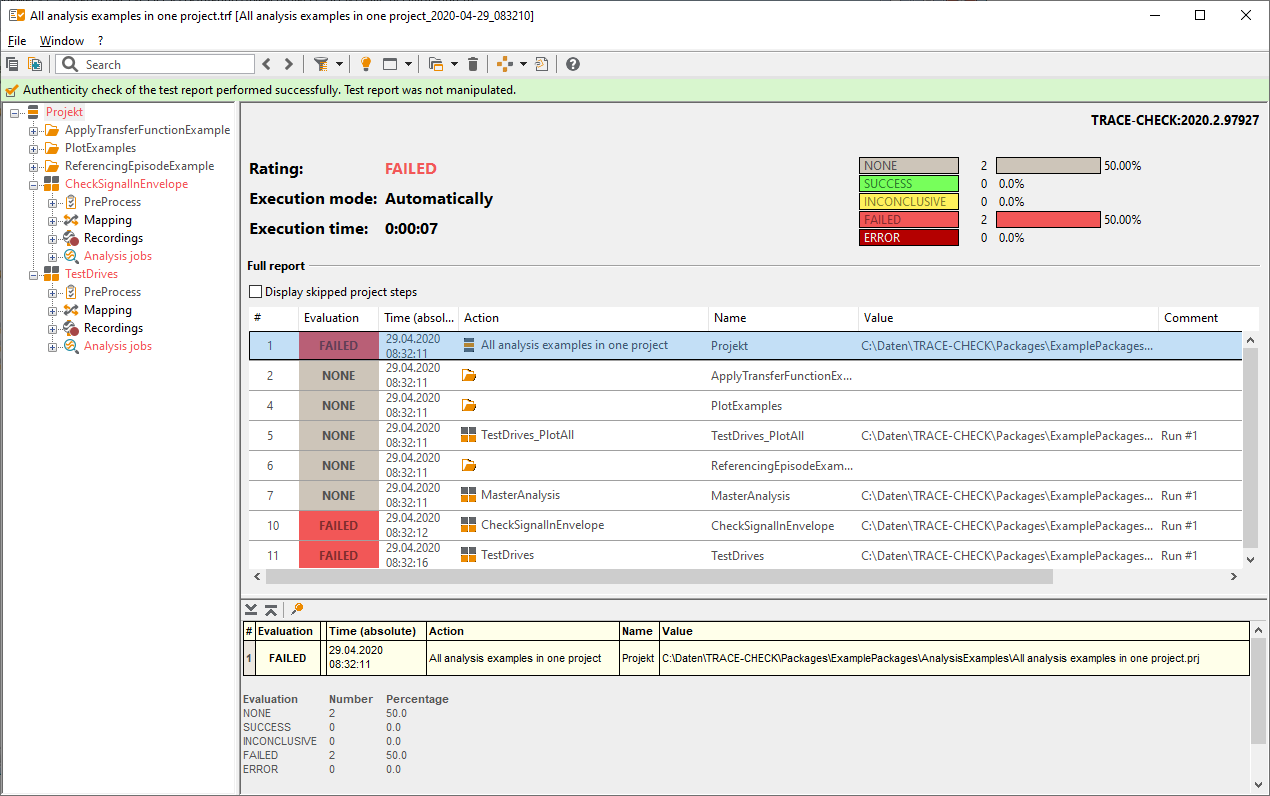
Execution of a project