Creating a configuration
The configuration in ecu.test is split in two parts to fast and easy switch test benches and systems under test independently.
Further steps:
Creating a new test bench configuration
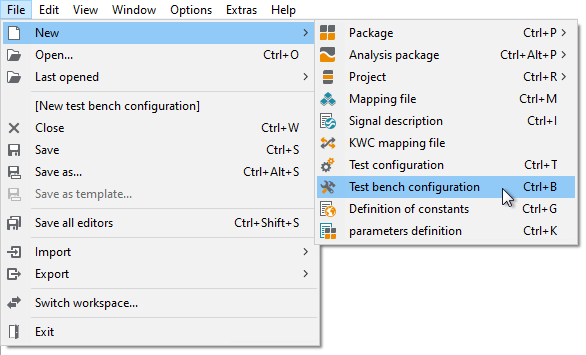
Select from the main menu.
Click the symbol
 in the toolbar.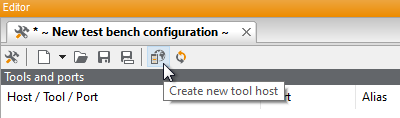
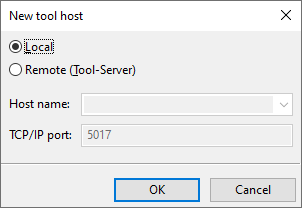
Select Local and confirm with OK.
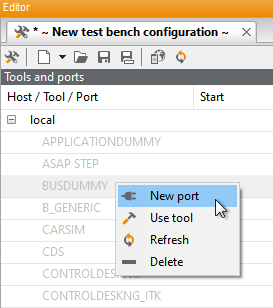
Now you can see the list of available tools. Right-click on the entry BUSDUMMY and select in order to create a new port. If necessary, select the type and confirm with OK.
Now you can edit the settings of the tool and the port. Additional information about this topic can be found at Tools.
After creating and configuring ports, save and close the test bench configuration.
Further steps:
Selecting a test bench configuration
Drag and Drop the test bench configuration from the explorer onto the configuration window. The file symbol on the right side of the configuration window changes and the filename is shown on top.
Creating a new test configuration
Select from the main menu.

On the new opened tab you can find several tabs for configuring the test setup. Enter your name in the tab displayed Common.
In order to configure, for example, a new bus you click on the tab Bus access.
Click on New, choose a bus system and confirm the dialog with OK.
Now select the attached bus database
<workspace>/BUS/powertrain.DBCby clicking on the left one of the two symbols on the right side , choosing it on the hard disk.
Enter, if they have been created already in the test bench configuration, the interfaces to be used under ports.
After having established everything, save and close the test configuration.
More detailed information about the displayed tabs can be found at: test configuration editor.
Info
In case the bus database cannot be found in the workspace, please repeat the steps described in Preparing the workspace.
In the next step you will learn how to create a test case with ecu.test.
Further steps:
Selecting a test configuration
Drag and Drop the test configuration from the explorer onto the configuration window. The file symbol on the left side of the configuration window changes and the filename is shown on top.