Creation of a package
In order to enable you to manage the following steps, it is assumed that you have established a test configuration with bus access as previously described. The use of other interfaces is similar.
After pressing the play button on top of the configuration window ecu.test loads the settings of the configuration and displays the contents of the specified database in the action tab in new tabs. In our example the new tab Bus access appears.
Select that tab and you will see the contents of the specified bus database.
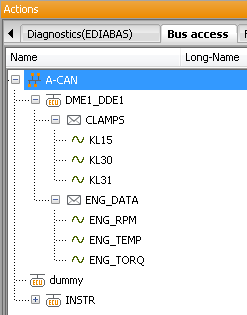
ecu.test displays the contents in the form of a tree view. On the top level you can see the established buses, below them the messages and under those messages the current signals.
Create an empty package
Select from the main menu.
Enter and describe a new signal
Right-click on the desired signal.
Select from the context menu .
Enter a numerical value (e.g.
0).Close the dialog by clicking OK.
Enter a new signal and save the value
Right-click on the signal you selected before.
Select from the context menu.
Activate Save value and enter into the field below the name of a variable in which that value should be saved. That variable will be created automatically by ecu.test.
Specify at Evaluation what kind of value you expect. That will lead to an automatic evaluation of this step.
Close the dialog by clicking OK.
Enter a condition
Select the action tab Test steps.
Open the subtree and double-click on then item If-Then-Else.
Now you can enter the condition. Delete the default value (True), press key <F8> in order to have the variables in the package displayed and select by pressing <arrow keys> and <enter> the variable you had created before at .
Write behind it “== 0” in order to compare the value with zero. If the value is identical with zero, the THEN branch will be executed, if not, the ELSE branch. Of course, you may compare the value with any other value as well.
Close the dialog by clicking OK and then click in the step inserted on the right side on THEN.
Pick the comment test step (the bottommost symbol) from the toolbar on the left side of the package editor or select the action tab Test steps and insert the test step from .
Enter within ‘’ : “value equals 0!” and then close the dialog by clicking OK.
Click on ELSE and repeat steps 6 and 7. Enter this time: “value is unequal 0!”.
Execute test case
Click on the green arrow above the package to execute the package which has just been created. When that is done, ecu.test switches automatically to tab test report of the current package and displays the test report. Click on Test case to go back to the test development view.

If your test case has not been evaluated as SUCCESS, you can now go over it and execute it again until it is successful. The test report will inform you about the results of the individual test steps, thus making it easier for you to trace errors.
Save package
If you are satisfied with your first package, click on in the menu and enter a name for the package. Now the package will appear in the Workspace tab from where it can be re-opened later on.