Select traces and signals from trace files
The tab Trace files displays the contents of trace files relevant for trace analysis as a tree structure. Moved by drag-and-drop to the tab Signal recordings, those elements can be used there to define or complement signal groups. Details of how this is done are described below:

Drag-and-drop of trace files and signal group entries
Trace files and the general folder Signal groups containing the individual signal groups show the same behavior for drag-and-drop. If a file with just one recording is dragged and then dropped at an empty place, a new signal group with a recording group is automatically created and the recording is added to this recording group. The name of the signal group corresponds to the recording group in the trace file. If a file is dropped on an existing signal group or recording group it will be added to the recording group or the first recording group of the signal group.
If a file contains several recordings, dropping it at an empty place opens a dialog allowing the selection of recording groups to be set up. If a file is dropped on an existing signal group or recording group it is possible to select which recordings to add.
Drag-and-drop of signal groups and recordings
Signal groups and the general folder signal groups containing the recordings show the same behavior for drag-and-drop.
If a signal group with just one recording is dragged and then dropped at an empty place, a new signal group with a recording group is automatically created and the recording is added to the recording group. The name of the signal group corresponds to the recording group in the trace file. If the signal group is dropped on an existing signal group or recording group the recording will be added to the recording group or the first recording group of the signal group.
If the signal group contains several recordings, dropping at an empty place opens a dialog allowing the selection of recording groups to be set up. If a file is dropped on an existing signal group or recording group it is possible to select which recordings to add.
Drag-and-drop of recordings
Drag-and-drop of individual recordings works the same way as drag-and-drop of signal groups with just one recording.
Drag-and-drop of several signals
If the entry above the signals is dragged and dropped on a signal group, all signals under that entry are added to the signal group unless they exist already.
If the entry is dragged to an empty place a new signal group with all signals is set up.
Drag-and-drop of individual signals
If an individual signal is dragged and dropped on a signal group, the signal is added to the signal group unless it exists already.
If the signal is dragged to an empty place it is added to a new signal group.
Configuration of trace files (CSV format)
Certain types of trace files require configuration. This concerns, for example, CSV files. A double click on a CSV file in the tab Trace files or drag-and-dropping such file shows a dialog with the available settings. Affected settings are stored alongside the trace file in a .info file of the same name.
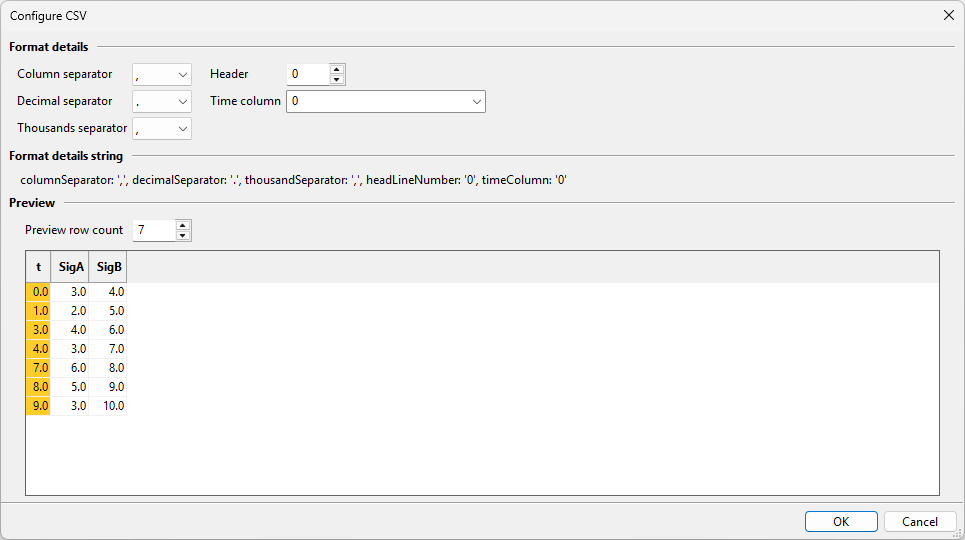
Import of a CSV file