Creating signal groups and recording groups
Signal groups, signals, recording groups and recordings are managed via the tab Signal recordings. The tab Signal recordings is shown in the following figure with a sample package.

Example for the display of signal groups, recording groups, signals and recordings.
The tab Signal recordings lists all signal groups (“ECU1” and “Model” in the example). For each signal group the signal names (grouped in “Signals”), as well as the contained recordings assembled in recording groups (“Recording group ECU1” and “Recording group Model” in the example), are shown.
Five buttons are available for setting up elements:
Create signal group (3)
Add a measurement list (4)
Create signal (5)
Create recording group (6)
Create recording (7)
The currently selected element (signal group, signal, recording group, recording) can be deleted by another button (8). If a recording is selected, the button (9) allows jumping to it directly in tab Trace files (see Section Select traces and signals from trace files). Button (1) will show this help page. With Button (2), you can show or hide automatically adopted elements from default groups.
Setting up signal groups
Signals must be organized by the user in such a way that a signal group contains only the signal names of quantities of one device. Thus, if signals of three different devices are to be considered, three signal groups must be set up. Signal groups can be created either automatically when a signal is drag-and-dropped (for an exception, see Signal recordings tab) or using the button (3).
If a signal group is selected, the name and its descriptive text can be edited via the context menu (right-click).
Adding signals to signal group
If a signal group is selected, the list of its signal names can be edited. Signals can either be created via the corresponding button (5), be drag-and-dropped from the tab Mapping or be extracted directly from trace files (e.g. in MDF or CSV format, see Section Select traces and signals from trace files) or signal databases (e. g. Fibex or DBC, see Section Select signals from databases).
If a new signal is created via button (5), the signal name can be chosen freely. For recordings the system identifier and the mapping target can be set. For bus logging signals a selection of all pseudo signals being supported by ecu.test is provided (see Supported file formats).
For every signal in a signal group there is a corresponding entry in tab Mapping of the package.
Info
If signals are recorded by a tool, each signal group may only contain signals from a single port. If signals from different ports are recorded, a dedicated signal group must be created for each port.
Adding a measurement list to a signal group
If you want to record a large number of signals, you can add a measurement list in the form of a .xam file (button (4)). Please note that only mapping targets from the .xam file are processed. There are no overrides, for example, by the global mapping. Only one measurement list can be set per signal group.
Adding the entire bus to signal group (SUT-only recording)
Alternatively, the entire bus can be inserted by dragging it from the Bus access tab into the list of signal recordings. This function is not available for signal-based systems.
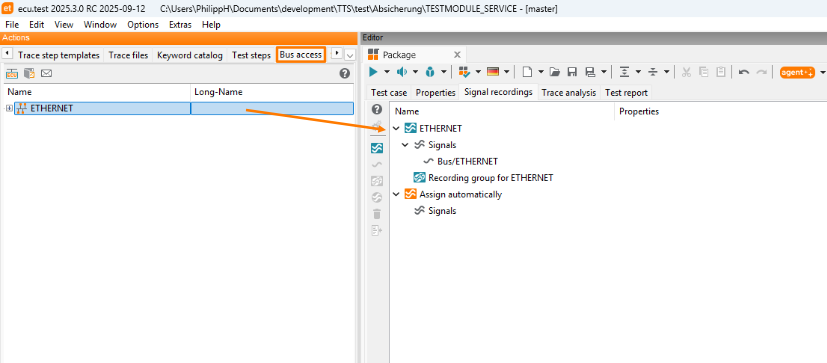
Signal recording of the entire bus.
Setting up recording groups
With every signal group set up a corresponding recording group is created. Further recording groups can be added to a signal group via the button (6). Recording groups can be renamed via the context menu or by key F2.
It is necessary to use more than one recording group whenever recordings principally have signals with the same signal name (thus belonging to the same signal group) but are to be analyzed differently.
Recording during test runs
In ecu.test recordings are added to recording groups during test runs.
That can be done via the test steps
 ),
),
 )
or
)
or
 ).
Alternatively, the recording group can be marked as either an Auto-Start/Stop group
or a Trigger-Start/Stop group (via the context menu or edit dialog). The mode Auto-Start/Stop
corresponds to using “Start trace” and “Stop trace” test steps, depending on the setting either
at the very beginning and the very end of a test case (“Complete test case”) or after the pre-
and before the postcondition (“Without pre-/postcondition”). The Trigger-Start/Stop mode is
only supported by some tools and offers the possibility to specify conditions for the
recording. The conditions are then evaluated by the tool during test case.
).
Alternatively, the recording group can be marked as either an Auto-Start/Stop group
or a Trigger-Start/Stop group (via the context menu or edit dialog). The mode Auto-Start/Stop
corresponds to using “Start trace” and “Stop trace” test steps, depending on the setting either
at the very beginning and the very end of a test case (“Complete test case”) or after the pre-
and before the postcondition (“Without pre-/postcondition”). The Trigger-Start/Stop mode is
only supported by some tools and offers the possibility to specify conditions for the
recording. The conditions are then evaluated by the tool during test case.
Info
When using variables in the trace analysis, the variable value at the time of the “Stop Trace” or “Add Trace” is used. Thereby, it is possible to perform a trace analysis for several recordings with the valid variable values in each case.
The name of the recording file to be created can be freely configured as described in Template for naming of recordings.
In addition to this possibility of adding recordings dynamically to a recording group as the result of a test run, it is also possible to use recordings from existing trace files.
Template for naming of recordings
If a recording group is edited, it is possible to enter a name template for the recordings created in the test case in the recording control tab. Within the template, placeholders can be used to access current package information, package variables and global constants.
Info
The template is evaluated at the end of the test case, so unless otherwise noted, the placeholders are the values at that time.
Access to current information: ${NAME}, where NAME is one of the following identifiers:
time The time. Example: 133048
date The date. Example: 2019-12-24
recordingStartTime Time at which the recording was started (for example, by a “Start trace” test step). Example: 132030
recordingStopTime Time at which the recording was ended (for example, by a “Stop trace” test step). Example: 133048
packageName The name of the package containing the recording group. Example: MyPackage
mainPackageName The name of the main package. Example: MyMainPackage
projectStepName Name of the current project step. Example: ParameterSet 1
logFolder Current report folder. Example: MyPackage_2
signalGroupName Name of the signal group. Example: Signal group ABC
recordingGroupName Name of the recording group. Example: Recording group of ABC
Access to package variables: ${Var.VARIABLE}
Access to global constants: ${Const.CONSTANT}
By default, the signal group name (${signalGroupName}) is used as the name for the recording file if the template is left empty.
Info
Depending on the operating system, certain characters are not allowed in file names. Those characters are replaced with an underscore in the generated file name.
Error when starting without signals to be recorded
This option is set by default and causes an error if the recording group is started but does not contain any signals that can be recorded.
If signal groups are used only as placeholders in combination with the automatic assignment of signals to signal groups, it can happen that a signal group and thus its recording groups remain without signals to be recorded. If this state is to be tolerated when the recording is started, the option must be deactivated.
Error when starting with only generic signals
This option is set by default and causes an error if the recording group is started but only contains signals with a generic mapping target.
If signal groups are used only as placeholders in combination with the automatic assignment of signals to signal groups and a synchronization is specified, it can happen that a signal group and therefore its recording groups only contain the generic signal necessary to indicate synchronization. If this state is to be tolerated when the recording is started, the option must be deactivated.
Error when starting with all signals referring to an undefined system identifier
This option is set by default and causes an error if the recording group is started but only contains signals whose mapping targets refer to an undefined system identifier.
If signal groups are only used as placeholders in combination with the automatic assignment of signals to signal groups and the package is designed in a way to be used for different software variants of the test object, it can happen, that a signal group and therefore its recording groups contain only signals, whose mapping targets refer to system identifiers that are not defined in the currently loaded test configuration (*.tcf). If this state is to be tolerated when the recording is started, the option must be deactivated.
Info
Even if neither “Error when starting with only generic signals” nor “Error when starting with all signals referring to an undefined system identifier” is set, there will always be an error when a recording group is started that contains both generic signals and signals whose mapping targets refer to an undefined system identifier.
Synchronization of recordings
See Synchronization of traces.
Adding recordings
There are two possibilities of adding recordings from available trace files to a recording group for analysis: on the one hand the button (7) can be used, on the other, recordings can be drag-and-dropped from the Trace files tab (see Section Select traces and signals from trace files).
Using button (7) to add new recordings opens the following dialog:
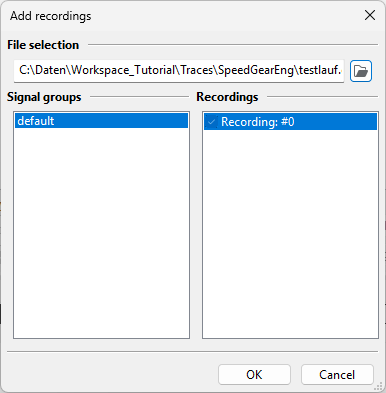
In that dialog a supported trace file can be selected. All available signal groups are displayed in the left column, and the right column is used to determine the recordings of the selected signal group to be added. The recordings will be added to the currently selected recording group or the first recording group of the currently selected signal group.
For some recordings it is possible to supply further information. This information is stored in a string with the different settings separated by underscores. When creating or editing recordings in the tab Signal recordings, entering these settings is assisted by dialogs.
A more detailed overview is available at Supported file formats.
Info
Recordings added in the Signal recordings tab or by parameter sets are only taken into account, if no recordings are added in the test case.
Signal group “Assign automatically”
Each package already contains a special signal group named “Assign automatically”. Signals of this group are automatically assigned to other (existing) signal groups during execution. For this reason no recording groups can be added to this special signal group. Consequently, no recording control is available for this group.
The determination of the appropriate signal group is attempted based on the following rules in descending priority:
A signal group is already supplying the mapping. (For concrete mappings, name and target must match.)
A signal group is named after the SUT key of the addressed mapping target (e.g. ‘A-FlexRay’).
A signal group already supplies a mapping pointing to the same SUT.
For mappings of type “Trace file”: If there is only one signal group, it will be used.
If a signal cannot be assigned to a signal group or cannot be assigned unambiguously, a warning is displayed in the messages window. However, this has no effect on the result of the test case. If such a signal is to be used in a trace analysis, subsequent errors may occur.
Signal group of test case variables
The signal group of test case variables is automatically created as soon as at least one test case variable is marked for recording. It is automatically removed when no more test case variables are marked for recording. Adding and removing signals can only be done by marking test case variables for recording. Recordings can be added analogously to other signal groups.