Tab “Trace step templates”

The tab “Trace step templates”
The tab Trace step templates presents an overview of available trace step templates. They are created and managed by means of the two windows My templates and Default templates. Both windows can be expanded or collapsed by a click on the identifier with a double arrow that is arranged on top.
The window “My templates”
In this window all trace step templates contained in the directory of the same name can be managed and edited. It is also possible to create and delete elements. The type of template can be recognized by the respective symbol:
 … timing diagram-based trace step templates,
 … event-based Python trace step templates, created with version => 5.0,
 … event-based Python trace step templates created with version < 5.0,
 … stream-based Python trace step templates.
The window “Default templates”
This window displays the so-called default templates ( ). They can be parameterized
and used but not edited, contrary to the trace step templates in the window My templates.
). They can be parameterized
and used but not edited, contrary to the trace step templates in the window My templates.
Context menu in both windows
A right click on an entry opens a corresponding context menu with the following options:
Use trace step template
After confirmation of the menu entry the dialog Trace step configuration is opened in which a trace step template can be parameterized and then used.
Edit trace step template (only in My templates)
Choosing this menu item opens the dialog “Edit trace step template” in which the template can be edited and parameterized. The actual analysis instruction is also specified in this dialog.
New (only in My templates)
A new folder or a new trace step template can be created.
Rename (only in My templates)
This option serves to rename a trace step template.
Delete (only in My templates)
The trace step template is put in the recycle bin.
Update (only in My templates)
The window My templates is updated.
Cut (only in My templates)
This command marks a selected trace step template/folder for moving. It will then be moved when the command paste is carried out.
Copy
This command marks a selected trace step template/folder for copying. It will then be copied when the command paste is carried out.
Paste (only in My templates)
This command moves or copies a trace step template or folder marked before with cut or copy.
Show in Windows Explorer (only in :guilabel:`My templates`)
Opens the Windows Explorer and selects the chosen trace step template or directory.
Drag-and-drop
It is possible to move or copy trace step templates and folders by drag-and-drop. An entry is selected by means of the left mouse key and, with the key held depressed, moved to the desired target folder. When the key is released an input dialog appears offering the options Copy, Move and Cancel. The selected option will be carried out. The option Move corresponds to cutting and pasting by means of the context commands described above.
Adjust references after renaming
When the name of a trace step template is changed in the tab Trace step templates references to this template can be destroyed. This concerns those packages that use the renamed trace step template. The same behavior occurs when moving or copying trace step templates. If a folder in the trace step templates directory is renamed, copied or moved several trace step templates can be affected as their relative path is changed.
After the renaming, copying or moving of a trace step template or a folder a dialog appears demanding if the references shall be adapted. Since all packages are analyzed the adaptation of the references can take some time.
After confirming the dialog with Yes another dialog appears if packages have been found that use the concerned trace step template(s).
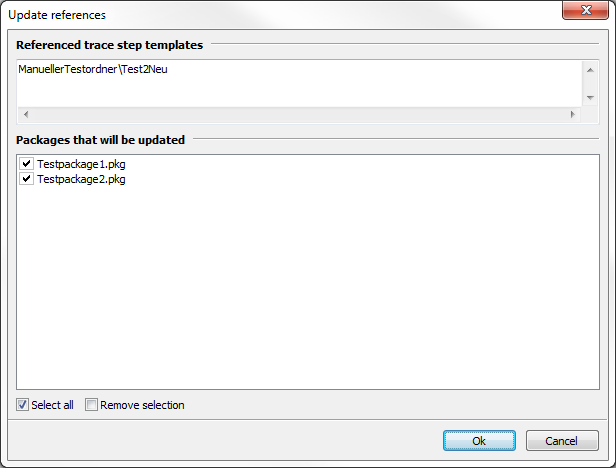
In the upper part of the dialog the concerned trace step templates are listed. In the lower part those packages are listed that use one or more of the referenced trace step templates. Here the packages that shall be adapted can be selected.
By confirming the dialog all selected packages are adapted in such a way that the trace steps point to the new name or the new relative path of the trace step template(s).