Configurations window
In the window Configurations the chosen test configuration and test bench configuration are shown.
The following chapters describe how a configuration can be created and used.
Test configuration editor to create test configurations
Test bench configuration editor to create test bench configurations
Connection states of the test bench
The tree that is shown in the test bench part if the configurations are started, shows the latest known status of availability of the various interfaces.
The colors of the markers in the first column have the following meaning:
- Green:
Interface is connected and ready.
- Red:
Interface could not be connected successfully.
- Gray:
Interface is not connected because it is not needed or it has been disconnected.
By means of a right click on an interface the connection can be disconnected, started or restarted.
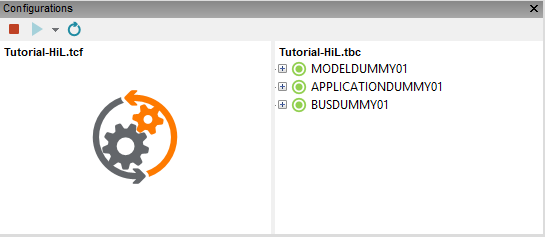
Ports of an interface can be expanded with the + icon. All ports are started and stopped together with their respective interface. The markers supply information on the port’s current status.
- Green:
The port is connected and available.
- Red:
The port is not correctly connected. Either the port’s main interface connection or the port itself are in an erroneous state.
- Gray:
If its main interface is not connected, the port is not connected otherwise the port is connected but not referenced in the test configuration.
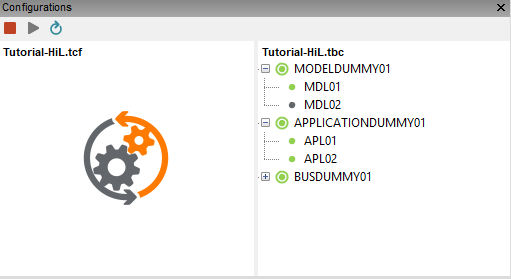
The interface and port states are updated before every package or project execution in order to ensure a valid presentation of connections.
Management of configurations
Configurations can be managed in the workspace explorer in their own directory.
To edit a test configuration, select a file using a double click. The user interface now opens within the editor.
A test bench configuration can be edited in the same manner, but the Test bench configuration editor is opened in the editor.
Using configurations
If no configuration is selected for use, this is indicated in the configuration window by a pale display of the file symbols of test configuration and test bench configuration.
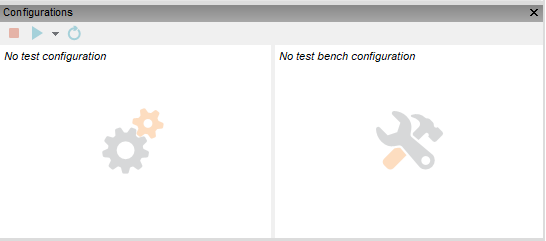
Selecting a configuration for use
Configurations can be selected the following ways:
Dragging the file from the workspace explorer into the configurations window
Via the context menu of a configuration file
In case the desired configuration is opened in an editor window, it can be selected by using the respective tool bar button
The configuration window indicates that a configuration is selected by showing the file name and more saturated symbols.
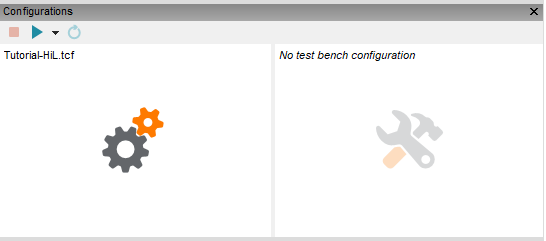
Info
The recently used configurations can be accessed and selected using the context menu in the configuration window.
If a configuration is already a selected, it is replaced automatically. However, if the current configuration is started, it will be replaced. It might be necessary to stop the currently running configuration firstly. This will happen if:
a new test bench configuration was selected or
a new test configuration was selected, which contains changes requiring a restart
The latter point happens, if
there was a modification of any data source or
at least one global constant has been modified, which is referenced in the test bench configuration respectively
A dialog will show up after selecting a configuration indicating whether a restart is necessary or not.
Start configuration
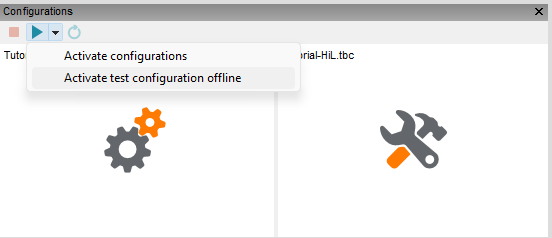
The currently selected test configuration and/or test bench configuration can be started using the Activate configurations button on top of the configuration window.
A started configuration is indicated by the test configuration symbol framed with an arrow. The test bench shows the list of configured tools with the current connection state of each tool.
Start test configuration without starting the test bench configuration
Test configurations can also be started without starting the selected test bench configuration. This is particularly useful when the tools and ports used in the test bench configuration are required for test case creation but are currently unavailable, and you do not want ecu.test to attempt to establish a connection at all. To start a test configuration offline, use the Activate test configuration offline button in the drop-down menu on top of the configuration window.
The tabs Diagnostic, Diagnostic (EDIABAS), Diagnostic (DTS), Calibration, Measurement and Model access will then appear in the action window, provided the necessary information has been specified in the test configuration. It should be noted, however, that in this case ecu.test cannot synchronize the data with the tools and ports of the test bench configuration, nor can it retrieve data from them.