Workspace tab
The workspace tab provides an overview of available packages, projects, test configurations and test bench configurations. Furthermore it shows Library workspaces. Files are created and administered by means of the integrated workspace explorer and the favorite explorer above it. Both explorers can be opened and closed by clicking on the identifier on top with the double arrow. So you can choose to work with one or both explorers.
Favorites explorer
The favorites explorer is arranged in the upper part of the tab. By default it is collapsed and only the identifier is visible. Important packages, projects, configurations and directories can be added to the favorites explorer for quick access. They remain available also after a new start of ecu.test because they are stored in a separate file called favorites.xml. Except for operations at file level and the test management, the favorites explorer offers all options of the workspace explorer and mirrors any updates in case of modifications in the workspace explorer.

In the top right corner the favorites explorer has a row of buttons. The left button with the arrow symbol can be clicked to execute the package or project that is marked in the favorite explorer. The execution result of a package is only shown if the package returns FAILED or ERROR. If a directory has been marked, that button is deactivated. The button with a recycle bin on it removes the selected favorite.
Workspace explorer
The workspace explorer is the heart of the workspace tab. It shows the following folders within expandable nodes:
Library workspaces (only visible if these have been configured)
The contents of the configuration and package directories, according to the current settings in the workspace settings.
The existing packages, projects and configurations can be copied and moved as in any other file explorer. It is also possible to create and delete elements. For that purpose the explorer provides a comprehensive context menu as well as allowing drag-and-drop operations (this does not apply to elements in Library workspaces).
Creating new files
Creating new packages, projects or configurations can be done in any of the following ways:
Via the context menu in the workspace explorer
In the menu bar under
By doing a right-click on a tab of a file that is opened in the Editor or by doing a double-click on the empty space beneath the tabs
Clicking the New symbol in the Package editor toolbars button bar of a file that is opened in the Editor opens a new file of the same type.
Version control
If a version control system is selected in the settings under Version control, actions such as moving, copying and deleting files under version control are forwarded to or performed directly by the version control system.
If the option Add automatically new files and directories is enabled in Version control, all in the workspace explorer newly created or copied files are automatically added to the selected version control system.
Editing files
A file can be opened for editing by double-clicking or selecting the respective option in the context menu.
Filter

The elements of the workspace can be searched and filtered by typing filter expressions into the search bar on top of the explorer.
There are two versions of the filter available, which can be toggled by using the button to the left of the search bar.
- Simple Filter
Searches only for file names. It checks whether the file name contains the provided string.
- Extended Filter
Also searches for file attributes. Multiple criteria can be combined (see Filter). When typing an extended filter an auto-completion shows available criteria and a history of recent expressions.
The results of both of the filter variants can be displayed in also two variants. These can be changed using the funnel left of the search bar.
- Show matches only
All elements which do not match the filter are hidden
- Highlight matches
All elements of the workspace are shown, but only the matches are highlighted
Context menu in package and favorite explorer
A right click on an entry in the workspace explorer opens a context menu, corresponding to the type of the currently selected element. The available options are described in the following.
Open package/project/configuration
Opens the file in a new tab in the Editor.
Package references
If packages are used in other test cases, only a reference to the package is inserted.
The references of a package to other packages are saved relative to the package directory. To ensure that these references are not destroyed when a package is moved, ecu.test offers the option of automatically adjusting the references in the moved package and the affected references in the other packages in the package directory. When moving a package, a corresponding confirmation prompt appears in which the user can select automatic reference adjustment.
Caution
If the references are not adjusted, there is a risk that the moved package or other packages can no longer be executed without errors.
When copying, the user can also specify whether existing references should be adapted and refer to the copy from now on, or whether existing references should remain unchanged and thus continue to refer to the original.
Insert reference (only for packages and if a package is opened in the editor)
A test step with a reference to the selected package (in the action window) is put into the current package (in the editor window). If parameters or return values were defined for the selected package, a dialog will appear as shown below.
Info
During drag & drop of packages into a test case using the left mouse button inserts a Reference and by pressing the Alt-Key you can directly insert a Parallel reference. Dragging a package file by using the right mouse button a menu let you select whether a Reference or Parallel reference will be inserted.
Package path
A relative or absolute path is saved for the referenced package. Depending on the locations of the referenced and the calling packages, three types of path references are possible:
A <workspace.packages> reference is created for references within the packages directory of the current workspace. Paths are stored relativ to that direction in the form <workspace.packages>/Tests/TestCase.pkg.
A <libraries.(MyNamespace).packages> reference is created for reference to a configured library workspace. References within library workspaces are also treated as library references. Paths are resolved relative to the packages directory of the library workspace as, for example <libraries.(MyNamespace).packages>/Tests/TestCase.pkg.
In any other case, an absolute path reference is created. An absolute path is saved in the current system representation.
The target path used for the package reference belongs to the package mapping item linked to the test step. When a package reference is created, such a mapping item is created automatically in the local mapping. The target path of the package reference can be overwritten by changing the mapping item: Dragging a package in the workspace explorer onto the target path of the package mapping listed in the mapping tab of the local mapping will change the referenced package path.
Info
The mapping concept allows modifying the target paths of all package references with a given mapping name. This way, a package reference can be named by its general functionality. Its package implementation can then be configured in a global mapping for the current configuration. So depending on the current software version, variant or bench type, it can point to a specific package designed for the current context.
Parameterization
Every package possesses its own name space for variables. An exchange of values between individual packages can be carried out only by means of parameters and return values. Values are transferred to other packages via parameters; values from other packages are transferred by means of return values. It is a condition for this functionality that the exchanging packages should be nested. Exchanging values across several nested scopes poses no problem.
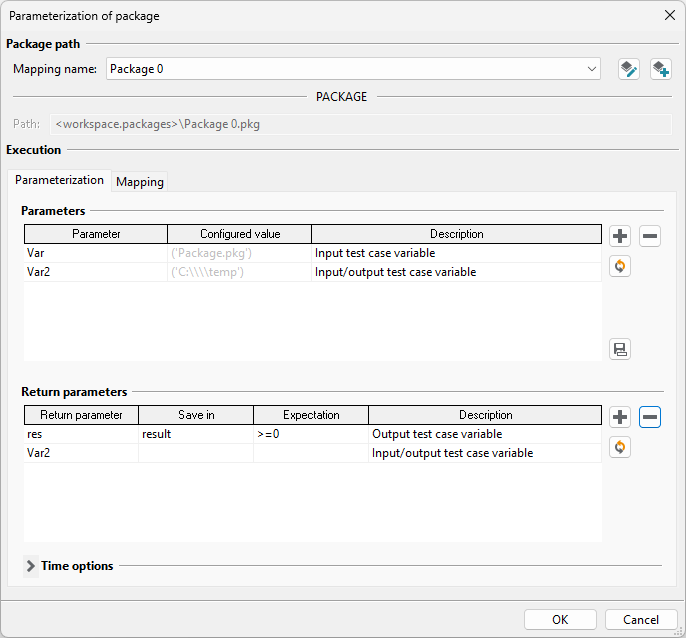
Inputs are possible as string values (in apostrophes), integer values, floating values (with a point as separator), variables or API function calls.
A right click on an active cell opens a context menu which serves to delete inputs and reset default values. A context menu may appear during typing for automatic selection of available variables. That menu can also be opened by hitting F8. In addition, on the right side of the text field there is a down arrow that allows to choose from three default assignments:
- api.GlobalConstants.variablenname
Assigns to the package parameter the value of the global constant that carries the same name.
- api.MainPackageVars.variablenname
Assigns to the package parameter the value of the main (test case) package’s variable that carries the same name.
- variablenname
Assigns to the package parameter the value of the calling package’s variable that carries the same name.
These three default assignments are always suggested, regardless whether the corresponding constant or variable exists. Its nonexistence will be detected during execution, preventing the package call.
Under return values it is possible to specify variables to which the return values of the referenced package will be assigned after its execution.
For the example shown above, this means that parameter Var2 of the called package receives the value
C:/Temp. After the execution of the package, the value of the variable res is transferred to the variable result of the calling package.In addition, an expectation can optionally be specified for each return value. All specified expectations are evaluated sequentially after the package has been executed. The results of the individual evaluations are then available in the test report. The overall evaluation of the package call is influenced by the results of the evaluations.
Example: A package is executed and receives the evaluation “SUCCESS”. Afterwards the expectations of the return values are evaluated. One of the expectations is not fulfilled. The evaluation of the package call is therefore changed to “FAILED”.
Mapping
A parameterized mapping can be assigned to the called package.
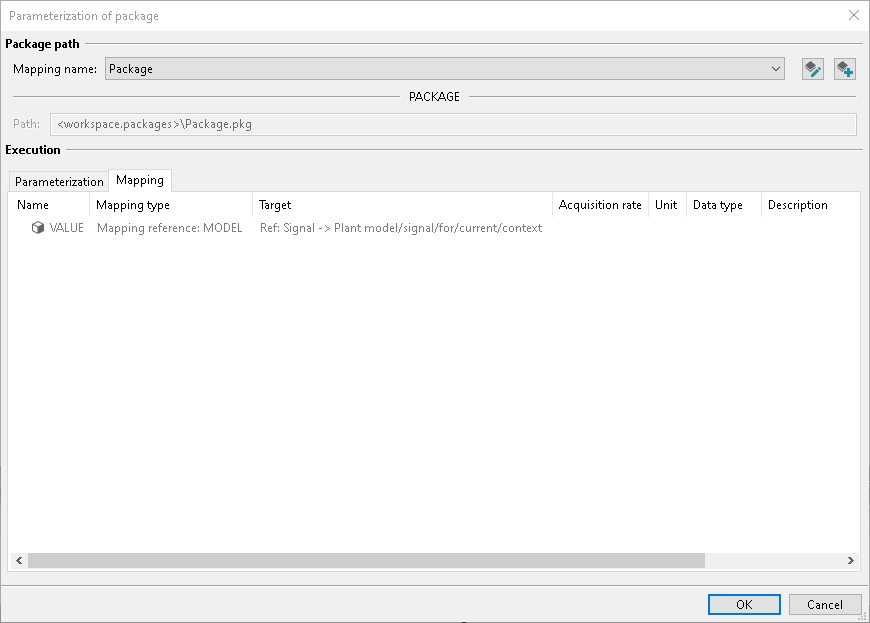
The mapping entries of the package that are mapped to generic test values in the group “Test values” are offered in the parameterized mapping. A mapping entry from the global or local mapping of the referencing package can be dragged to one of the listed mapping entries. The new mapping will then be used when the referenced package is executed. In this context, a mapping name references a mapping name. So if the mapping entry that was dragged onto the generic test value is changed or will be overwritten by (another) global mapping, the new value will be used.
Info
Restriction: If a package reference to a package P is again inside a parallel executed package and if the package reference to P has a parameterized mapping, the package P cannot be executed in another test thread at the same time.
Insert parallel reference
Parallel references are created similarly to regular references. The difference is that they run simultaneously to other packages (see section of parallel test threads).
Display references
Shows all packages and projects that are referenced by the current package or project, and all that are referencing it. A list of all dependencies is created and shown.
Generate package documentation
Saves the package to an HTML document which can be made available to other users. The HTML document may be adjusted freely. A template can be found in the folder:
~ecu.test installation directory~/Templates/TestDocBy right-clicking on a folder, Generate package documentation creates HTML documents for every package contained therein.
Entries only in favorite explorer
Show package/project/directory/configuration in explorer
This menu item causes the selection of the chosen favorite in the workspace explorer. If it is a directory, this directory is expanded at once. The workspace explorer will open up in case it was closed.
Remove from favorites
Removes the selected element from the favorites.
Entries only in workspace explorer
Sign package and/or Sign all packages in folder
This menu item allows the signing of packages. It is visible in packages and/or folders only when signing packages is activated.
Edit package attributes
Allows simultaneous editing of the attributes of several packages. If one or several directories are selected, the attributes of all packages contained in those directories are edited; sub-directories are searched for packages as well.
Add element to favorites
Selecting this menu item in the workspace explorer adds the element to the favorite explorer. For directories, only a link will be created in the favorites, i.e., the elements in this directory cannot be accessed directly from within the favorite explorer.
Test management
Transfers test cases to a supported test management system. For further information see the corresponding help menu.
New
Creates a new empty element or a new preconfigured element, based on a template.
Rename
Renames an element. For packages, ecu.test offers to search all packages for references to the renamed package and to adapt them as well.
Remove
Moves the element to the recycle bin.
Update
Updates the entire workspace explorer.
Cut
Marks the selected element for moving. Moving is executed as soon as Paste is selected on another directory.
Copy
Marks the selected element for copying. Copying is executed as soon as Paste is selected on another directory.
Paste
Moves or copies an element that had been marked previously with Cut or Copy.
Drag & drop
It is possible to move or copy elements by drag & drop. This is done by left-clicking an entry and moving it to the desired target folder with the left mouse button held down. When the mouse button is released, the element is moved to the target folder.
Library workspaces
Library workspaces are shown in a separate folder, as soon as they are defined in the workspace settings under Libraries.