Package editor toolbars
Main toolbar
The main toolbar provides direct access to frequent editing and execution tasks. If one hovers over an icon, a tooltip explains the assigned function.

Main toolbar in the package editor
- Execution, file handling and editing
The execution area starts package execution variants, including interactive and debug runs. File operations cover creation, loading and saving, including template-based workflows. The view and editing areas control expansion states and common editing actions.
- Check package
The check command starts validation of the current package before execution. Typical findings are unresolved package references, missing mapping references or undefined variables.
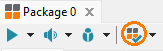
Check package action in the package toolbar
Before a package run, the check helps detect issues that could affect execution. The action can be started with Check package in the toolbar. By default, the check covers package references, mapping references and variable definitions across the package, including referenced packages.
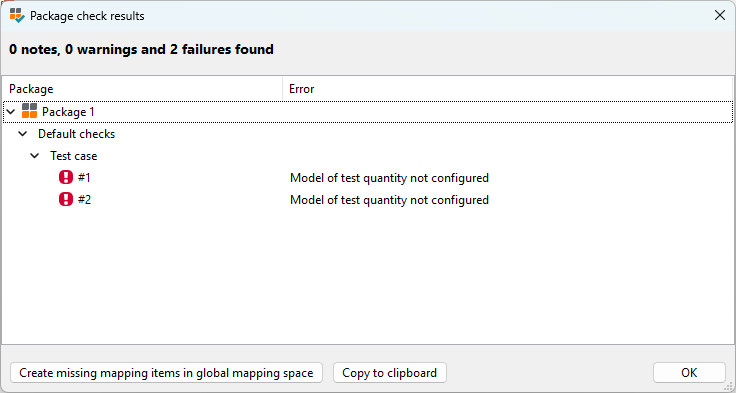
Package check result dialog
By means of the button Create missing mapping items in global mapping space all faulty mapping references are added to global mapping, so that the necessary adaptations can be made quickly across all subpackages. This is a fast and comfortable function for adapting a package to the specific conditions of a test site, especially if the package is to be carried out elsewhere.
If a problem is double-clicked, ecu.test opens the corresponding package in the background and highlights the test step concerned. It may be necessary to scroll manually to the respective point in the package. When all desired packages are opened, the check dialog can be closed with OK and the problems can be treated.
Important
We are simply talking about potential issues here. For example, ecu.test is currently unable to determine which test steps are not being executed at all due to certain conditions.
Info
It is also possible to implement own package checks. These custom checks create the possibility to also offer own fixes in a context menu which can be applied directly in the same check dialog. For this purpose the supplied examples can be copied into the workspace when starting ecu.test. The interface is included in the ecu.test Interface Python Library
ecutest-interface. Custom package checks can be placed in the workspace belowUserPyModules, so that they are recognized by ecu.test. A complete overview is available in Custom checks.
- Check test case language
The language menu in the toolbar switches the active test case language without a restart.
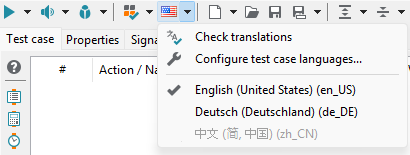
Menu for selecting the current test case language
The current test case language can be selected from the activated test case languages. The flag symbol on the toolbar icon indicates the currently set test case language. This setting takes effect immediately without a restart and affects name, parameter and expectation/value fields of block steps, step comments and initial values of string variables. Deactivated languages are grayed out and cannot be selected.
Languages can be activated and deactivated via the option Configure test case languages… or in the test editor workspace setting. This current test case language, along with other test editor settings, is stored in the file testeditor.xml.
- Check package translation
The menu also offers Check translations. If a package has been drafted for multilingual application, this option serves to show all translatable texts for reviewing. Texts from languages not enabled for test cases will not appear.
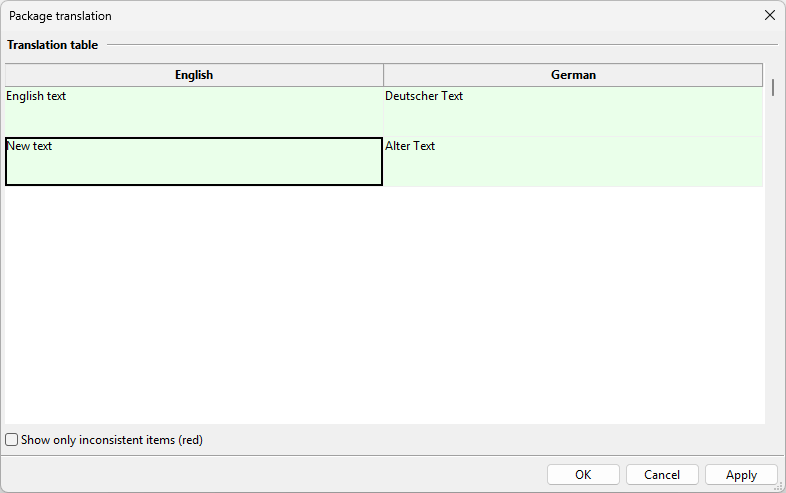
Dialog for checking package translations
Fields marked in red indicate inconsistent translations after edits in the active language without updating related translations. Fields marked in green indicate reviewed entries. Italic text indicates suggested translations for passages without translation. By hitting Apply or OK one approves all inconsistent and suggested translations.
- AI assistance
The toolbar also contains an agent button. Assisted editing workflows can be started directly from the package editor. Details on generating test steps are described in Button-based generation.
Test step toolbar
Frequently used test steps are provided on the left side of the package editor and typically contains structural and control-flow steps from Test steps tab, for example block, wait, loop, if-then-else and comment steps.
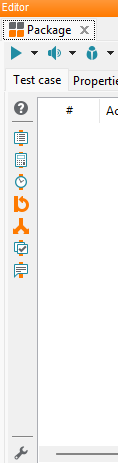
Test step toolbar in the package editor
The visible set of test steps can be customized via the configuration dialog that is opened by the button with the wrench icon at the bottom of the toolbar.