Test steps
A test step is a simple operation in which mostly just one instruction is carried out. A test step can be, for example, reading or writing a value or carrying out calculations or comparisons. All test steps are described in chapter Action window.
Expectation
In ecu.test it is possible to define an expectation for reading and calculation test steps as well as for job calls.
This can be accomplished by setting a checkmark before Expectation. This causes two additional tabs Expectation and Options to appear. The former allows specifying the expectation, for example that the result should be 0. So the test step will supply the evaluations SUCCESS or FAILED depending on whether the expectation is fulfilled or not.
First one has to select the data type. Supported data types include string and numeric. Additionally, there are the two special values “signal present” (~Present~) and “signal not present” (~Not Present~).
Info
Those two special values are not supported by all interfaces.
In the selection field below choose a relational operator determining the kind of comparison of read and expected value.
The expected value has to be entered into the text box. Its type must match the selected data type.
If “==” is used as a relational operator, a tolerance can be determined additionally for the expected value. In the selection box under tolerance value it can be specified whether the tolerance value is to be interpreted on a percentage basis, in absolute terms, or as the number of fractional digits both values shall be rounded before comparison. In the adjacent field the tolerance value is then specified without a unit.
If the selection box is changed from supported to manual or the data type is set to unspecific, the expectation can be specified as a python expression in a text entry field. The read value is referred to by the keyword value.
The following examples will make the manual entries easier to understand:
Example 1: The read value is to be greater than 5:
value > 5
The read value is compared with the expected value.
Example 2: The read value is to equal 10; additionally an absolute tolerance of +/-1 is specified.
10-1<=value<=10+1
This example includes the tolerance. The smallest and the greatest possible value are calculated. The read value must be greater than, or equal to, the greatest possible value.
Example 3: The read value is to equal 100; additionally a tolerance of 10 percent is specified.
(1-10/100.0)*100<=value<=(1+10/100.0)*100
Here again the smallest and the greatest possible value are calculated for comparison. However, the calculation also considers the fact that the tolerance is given as percentage.
Example 4: The read value (100.002345) is to equal 100.002; only 3 fractional digits are considered.
round(value,3) == round(100.002,3)
Both the read value and the reference value are rounded to the indicated fractional digit and compared.
Time Options
With time options it is possible to combine the test step’s expectation with timing conditions.
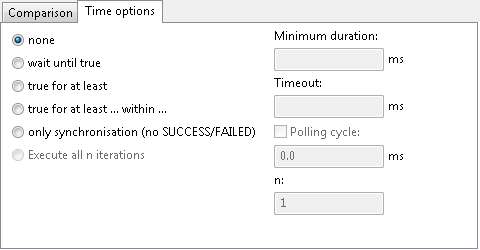
The option Wait until true has the effect that the specified expression (field Expression) is continuously evaluated until it’s result matches the specified expectation. In the associated text field a timeout value must be entered, that stops further processing if the expected value has not been reached when the timeout occurs. In this case the calculation test step yields the verdict “FAILED”.
The option True for at least has also the effect of continuously reevaluating the specified expression. In contrast to the other time options it is checked, that the calculation result always matches the expected value for a specified time span. If the calculation result does not match the expected value processing is cancelled and the calculation test step yields verdict “FAILED”. The time span can be entered in the associated text field. Please note, that the processing interval of the given time span principally begins with the start of the calculation test step.
The option True for at least … within … is a combination of the other two time options and hence requires two time spans. This option has the effect of checking if the calculation result matches the expected value for as long as the first time span (minimum duration) at some point within the second time span (timeout). It does not matter, at which point within the timeout interval the compliance starts, nor whether shorter periods of compliance have occurred earlier. The expression is always reevaluated before comparison with the expected value. Processing stops and yields verdict “SUCCESS” as soon as the calculation result has been consistent with the expected value for the specified minimum duration. Processing also stops but yields verdict “FAILED”, if the calculation result does not match the expected value and the remaining time until the timeout occurs is less than the minimum duration.
The option Only synchronization (no SUCCESS/FAILED) acts exactly like Wait until true, but does not rate the test step. Using this option, it is possible to optimize the waiting period for the occurrence of an expectation that later on can be used to decide whether additional test steps have to be executed.
The option Execute all n iterations is only available for reading and calculation test steps. Further it can only be activated if the test step lies within a Multi-Check test step. One can define that a certain test step should only be evaluated in specific iterations by using the text field labeled n. E.g. if the value 2 is given here it says “do only evaluate the test step in every second iteration of the Multi Check”.
Info
The option Execute all n iterations will not be interpreted, if the test case is executed in real-time. In real-time every test step within a Multi-Check will be evaluated in each step of the model.
The setting Polling Cycle influences the execution of the time options Wait until true, True for at least, True for at least … within … and Only synchronisation. If this option is activated, the specified time span determines the interval, in which the expression is evaluated and its result compared to the expectation. If the evaluation takes longer than the specified cycle time, or if no cycle time is specified, then the evaluation will be repeated as swiftly as possible. A default value for the polling cycle can be set as Waiting time after every I/O test step in the test configuration tab Execution in section Access test quantities.
Internal API
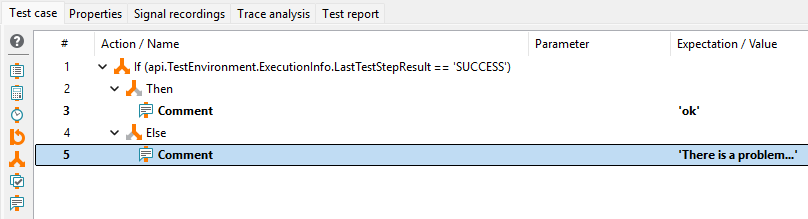
From inside all test steps in which variables are used it is possible to access certain internal
ecu.test functions. Thus it can be asked whether a preceding test step was evaluated as SUCCESS
or FAILED, or what the name of the current test report folder is. The Internal API is addressed in
the test step by the keyword api. As soon as that has been entered, followed by a dot, a dialog
comes up offering further possibilities. In the following example, an IF-THEN-ELSE condition is to
evaluate the assessment of the preceding test step:
Info
A collection of API commands is contained in the installation directory of ecu.test at Help/api/INTERNAL-API/index.html
User-defined Python functions
For certain test cases it may become necessary to use self-created Python scripts. To integrate and manage them comfortably, ecu.test provides a corresponding interface – see section User Python library in chapter Extensions.