Data operations
This category contains all test steps by which variables can be modified or evaluated.
Read from inbox
Read messages from inbox.
A detailed description of the test step reading from inbox can be found in chapter Parallel test threads.
Calculation
Selecting the test step Calculation opens the dialog window Calculation.
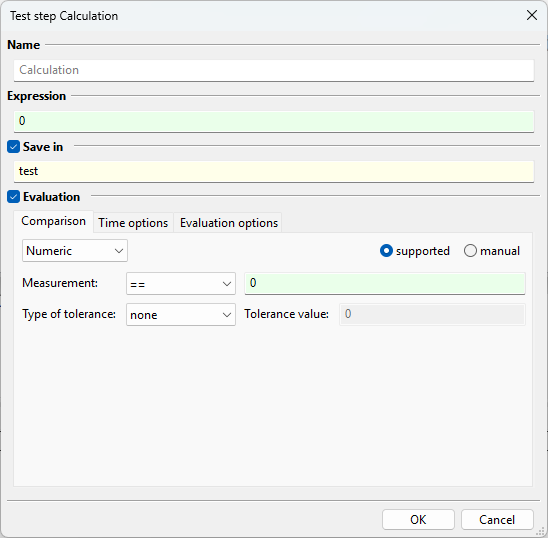
The calculation test step is designed for applying arithmetical or logical operations to variables contained in the variable window. Furthermore globally available standard Python functions as well as user specific Python functions from userPyModules can be accessed.
In the field Name a display name can be assigned for the inserted calculation test step. This name will be displayed in the package editor, the execution dialog and the report. If no value is entered for the name, Calculation is used as default value.
The expression to be evaluated must be entered in the text field Expression. In doing so variable names can easily be entered using the context menu by right clicking on the text field.
The result of the calculation test step can be stored in a variable whose name is entered in the field Save in.
Bit extract
Selecting the test step Bit extract opens the corresponding dialog window.

The test step serves to extract individual bits from a byte sequence. At Expression the variable or function is specified that contains the byte sequence. As far as possible its contents is then already shown in a preview (lower part). Start bit and Bit length determine how many bits are to be extracted from where onward. That is also shown in the display by an orange background.
Byte order shows if the byte sequence exists in Intel or Motorola format. Save in takes the variable in which the extracted bits are to be saved.
Write to outbox
Writing data to a outbox
A detailed description of the test step writing to outbox can be found in chapter
Parallel test threads.
Multi-Check
Writing an expectation for a test step that relates to the evaluation of a previous test step can be quite difficult in ecu.test. This is because every expression of an expectation only relates to the result of the corresponding test step.
The test step Multi-Check solves this problem. The Multi-Check is a container test step, whos result relates to the evaluations of its child test steps.
Info
A Multi-Check can only contain read, calculation and job test steps, adding any other type of test step is not possible. However, the number of child test steps is not limited. But keep in mind, the Multi-Check will execute each test step one after another and not in parallel.

Under Fulfilled for one can set up the general condition for the Multi-Check test step. Additionally one of several time options can be selected to connect the expectation on a temporal condition. To do this, the child test steps are repeated until the expectations of the Multi-Check have been met.
If every test step is selected, the Multi-Check will only become SUCCESS, when every underlying test step is evaluated to SUCCESS at the same time. (whereupon at the same time means “within the same polling cycle” of the Multi-Check)
The following table sums up the behavior of the option each test step:
SUCCESS, as soon as… |
FAILED, as soon as… |
|
|---|---|---|
wait until true |
every test step becomes SUCCESS at the same time |
the timeout is reached |
true for at least |
every test step consistently becomes SUCCESS for the specified minimum duration |
at least one test step becomes FAILED before the the minimum duration has passed |
true for at least … within … |
every test step consistently becomes SUCCESS for the specified minimum duration at any point of time within the timeout range |
the remaining time until the timeout is less than the minimum duration and at least one of the test steps becomes FAILED |
The option at least one test step has the effect, that the Multi-Check will be terminated as soon as one of its child test steps becomes SUCCESS. In this case the Multi-Check will be evaluated to SUCCESS as well.
This behavior is summed up by the following table:
SUCCESS, as soon as… |
FAILED, as soon as… |
|
|---|---|---|
wait until true |
at least one test step becomes SUCCESS |
the timeout is reached |
true for at least |
at least one test step consistently becomes SUCCESS for the specified minimum duration |
every test step becomes FAILED before the minimum duration has passed |
true for at least … within … |
the first time a test step consistently becomes SUCCESS for the specified minimum time |
the remaining time until the timeout is less than the minimum duration while none of the test steps become SUCCESS any longer |
The setting every test step at least once causes the test step to terminate as soon as each condition of its child test steps has been fulfilled once during execution. The conditions do not necessarily have to be fulfilled “within the same polling cycle” of the Multi-Check.
The behavior for the time options true for at least and true for at least … within is not defined.
The behavior is illustrated in the following table:
SUCCESS, as soon as… |
FAILED, as soon as… |
|
|---|---|---|
wait until true |
every test step returned SUCCESS at any given time |
the timeout is reached |
true for at least |
not defined |
not defined |
true for at least … within … |
not defined |
not defined |
With all options only synchronisation behaves the same way as wait until true does, but without evaluating the Multi-Check.
The Multi-Check test step can also be used without specifying any time option. In this case each test step will only be evaluated once.