Flow control
This category contains all test steps which can influence the test flow. That includes loops, conditions or waiting steps.
Break
The test step Break serves to stop the surrounding react-on test steps or leave the surrounding loop or Repeat-Until-SUCCESS prematurely. The test step must not be used outside those test steps; it would lead there to an error message. The execution of Break is not evaluated (except the mentioned case). Break possesses no parameters and therefore no input dialog either.
Continue
When this test step is used the remaining test steps of a loop are skipped in order to continue directly with the next iteration. Before that the iteration condition is checked. The test step may be used only within a loop or Repeat-Until-SUCCESS. The test step gets no evaluation.
Exit
The test step Exit causes the test to be stopped at its location. If this test step is located e.g. in a referenced package, then still the main package will be stopped. Therefore it is possible to end the test run prematurely in dependence on a certain condition (in combination with If-Then-Else). The evaluation is freely configurable. If the test is already stopped in the precondition, any possibly configured synchronization and trace analysis will not be executed (see also overview at The Interface between test and trace analysis). Apart from that, terminating the test case has no effect on the execution of synchronization and trace analysis.
Instead of ending the test, it can also be aborted. In abort mode the evaluation is fixed to
ERROR, any possibly configured synchronization and trace analysis is not performed,
and if the test configuration or the project specifies a package to be run in case of an abort,
this will be run.
In both modees the comment field “Abort code” offers an additional list of predefined results. This list is stored in the workspace file verdictmappings.xml an can also be defined at test management settings if a test management system is configured.
If-Then-Else
Selecting If-Then-Else opens the corresponding dialog window. It allows the execution of certain elements of the test case dependent on a condition specified at If. For comfortable creation of the condition, the auto-completion can be used to select e.g. variables.
Confirmation by OK inserts the test step into the test case, and further conditions can be added at Then (condition true) and Else (condition not true). If several contiguous test steps are selected while an If-Then-Else test step is being inserted, those selected test steps are moved into its Then branch.
IfDef
This test step allows direct access to the global constants of a configuration. So test steps can be carried out only if a certain global constant has been set on a particular value, or if the global constant generally exists or does not exist.
The IfDef command is checked before package execution. A change of the global constant for the IfDef condition in the current package has no influence on the IfDef command.
If several contiguous test steps are selected while an IfDef test step is being inserted, those selected test steps are moved inside it.
Loop
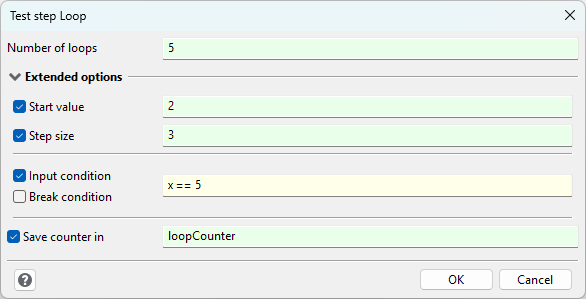
Selection of the test step Loop opens a dialog window.
In the field Number of loops it is determined how often that part of the test case is to be run (= maximum number of runs). For that purpose variable or arithmetic expressions can be used, too. It is not possible to get an endless loop by leaving out this parameter. The Number of loops must always be indicated.
Under Advanced options you can additionally specify a Start value and a Step size. If these two values are not set, they will be filled with a 1. A variable or arithmetic operations can also be used for these parameters.
The loop routine can be made dependent on an Entry condition or stopped by an Break condition. The conditions need to be formulated as Boolean expressions.
At Save counter in the current number of runs can be saved in a local variable. The variable is updated before every loop run.
Confirmation by OK inserts the test step into the test case.
If several contiguous test steps are selected while a Loop test step is being inserted, those selected test steps are moved into the loop.
React-On
Conditional execution depending on case.
A detailed description of the react-on test step can be found in chapter Parallel test threads
Repeat-Until-SUCCESS
This test step offers to execute test steps multiple times, until their overall result is SUCCESS. To prevent infinite loops, it is necessary to configure a maximum count of repetitions.
In contrast to a regular Loop test step, in Repeat-Until only the last execution of the test steps has an effect on the overall result of the test execution.
Return
This test step ends the current package at a given point. If during execution the test step is contained, for example, in a referenced package, only the referenced package is quit while the calling package continues normally. The evaluation of the test step Return can be chosen freely when entered.
Any possibly configured synchronization and trace analysis will not be executed if the package is already left in the precondition by a return test step (see also overview at The Interface between test and trace analysis). Apart from that, this test step has no influence on the execution of synchronization and trace analysis.
Switch-Case
The test step Switch-Case offers the familiar routine by the same name used in many programming languages. Certain steps can be carried out depending on the value of a variable.

The variable to be evaluated is specified in an expression. Branches (possible values) can be extended or deleted by means of the two buttons on the right. The special branch Default exists permanently and cannot be deleted. It is used only if no other branch is applicable. The value of all other branches can be added by double click.
The word behind a given branch indicates if the branch contains further steps (in use) or is currently
empty (not in use). If it is marked new, it has just been created and the dialog has not been closed yet.
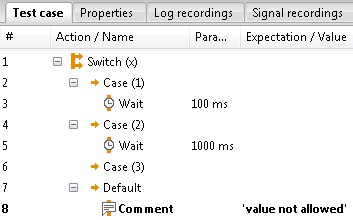
If several contiguous test steps are selected while a Switch-Case test step is being inserted, those selected test steps are moved into its Default branch.
SwitchDef-Case
Being a mixture between the IfDef and the Switch-Case test step, SwitchDef-Case combines the possibility to choose between certain branches in dependence of the value of a global constant and the check before package execution.
If multiple Case branches evaluate as True, only the first one of those is executed.
This behaviour can be seen in the picture as well, with test being a global constant
with value 1. If no Case branch matches the constant expression, test steps under the
Default branch will be executed.
In order to help with discovering unexpected constant values, the Default node can be configured
to always be evaluated as ERROR.
If the global constant does not exist, this always leads to an ERROR, and neither the
Default test steps, nor the test steps under one of the Case branches will be executed.

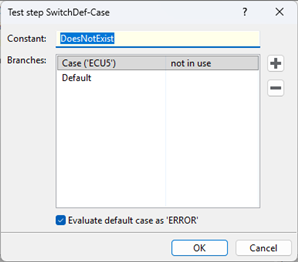
The Case statements and the Default cannot be deactivated manually.
Wait
Selecting Wait opens the corresponding dialog window. Here a time or a variable (or also a calculation with variables) can be indicated to delay execution of the following element in a test case. The time can be specified in milliseconds (ms) or seconds (s). For comfortable selection of variables use context menu by hitting F8.
- Section Enhanced
If the option Range is activated, a random value of a specified range of values can be parameterized. During execution the waiting duration is calculated by means of a discrete uniform distribution. The determined value may be stored inside a package variable.
Confirmation by OK inserts the test step into the test case.
Info
When using simulation tools such as MATLAB/Simulink, the Wait test step has no delaying effect. Instead, this test step executes a simulation for the specified time period. For compatibility reasons, please use the Simulate test step for this use case.
Wait for User
Info
This test step requires user interaction and therefore cannot be used when test execution is performed with the ecu.test Runner, as it does not provide options for user interaction.
In this case, the test step is evaluated as ERROR in the report.
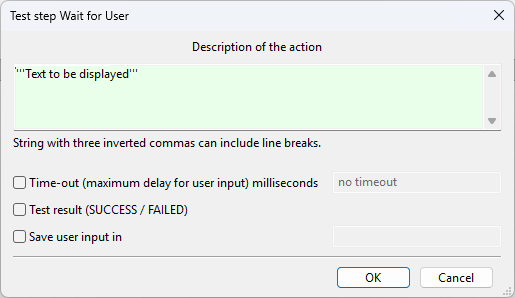
Selecting the test step Wait for User opens the displayed dialog window.
This allows interrupting the test run in order to, for example, carry out manually certain test steps which cannot be automated or make necessary modifications of the test environment while the test is being run.
For that purpose, Description of the action is specified and shown as a pop-up window at an appropriate point in the test. To work with descriptions consisting of several lines, those have to be put in triple inverted commas. Expressions with variables are also possible.
If the variable “TextVar” contains the value "Hello", the expression TextVar + "world"
will produce: "Hello world"
Time-out can be selected optionally, after which the test run is automatically resumed. If Test result is activated, the test step will yield SUCCESS if the pop-up window is confirmed with SUCCESS by the tester, and if the time-out (if indicated) has not been exceeded; otherwise FAILED will appear. If Save user input in is chosen and a variable name indicated, the comment written by the tester in the pop-up window will be entered into the indicated variable.
Confirmation by OK inserts the test step into the test case.
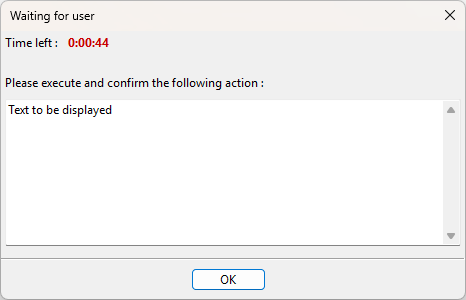
In the pop-up window appearing during the test run for the test step Wait for User, a comment can be written. It will be documented in the test report and saved in a variable if that option has been chosen in the test step dialog.
If it has been specified that there should be no evaluation, only OK can be chosen - no evaluation will be made.