Tab Media Access
The tab Media Access provides access to video and audio devices. Images that are captured by an image source, for example a webcam or a screen capture from an infotainment system, can be saved and evaluated. You can read the whole picture or only a part of it. These parts are specified by masks. With an audio port, audio signals can be read from an audio input device and replayed on an audio output device.
This tab will be shown if you have started a test bench configuration and the corresponding test configuration. In the configurations, the tool tracetronic: Multimedia has to be configured properly with a corresponding Image port.
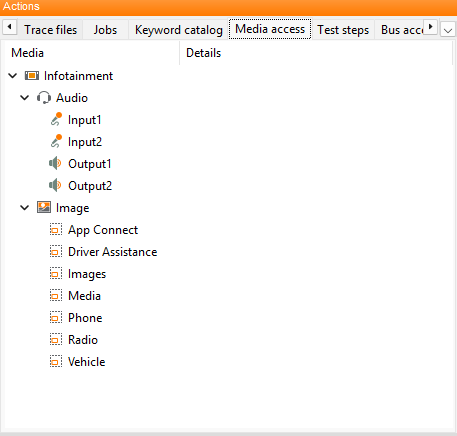
The first level of the tree lists the devices that are configured in the test bench configuration and the test configuration.
The elements that are shown below the root node can be divided into two types:
Image node: This element represents the image that is read from the camera. If you add it to your test case, the whole picture will be read. You can also add this element to a signal recording to capture a video. From the context menu you can create a touch input test step on the image node. For interactive definition of touch gestures and read areas, you can use the Interactive Input Recorder. Nodes below the image node represent the structure of the folders that are located below the base folder in your
Imagesdirectory. This allows organizing masks into custom groups. A differentImagesdirectory can be configured in the test configuration.Mask node: These elements represent specific parts of the image that is read from the camera. You can add a mask to your test case if you want to evaluate only a small part of the image.
Audio node: This node represents a configured audio device. Audio signals can be read (recorded) or written (played back) simultaneously for all channels of the device with this node. The nodes listed below the device allow access to the device’s specific channels. Audio read test steps can be created via drag and drop from a device or channel to the test case. It is also possible to add them to an audio element of a signal group. An audio write test step can be created from the context menu on an audio device and its output channels. This way, audio output can be sent to the configured audio output device.
Further information can be found here: