Reading and comparing images
This dialog will be shown if you add an image or mask element of the media access tab to your test case.
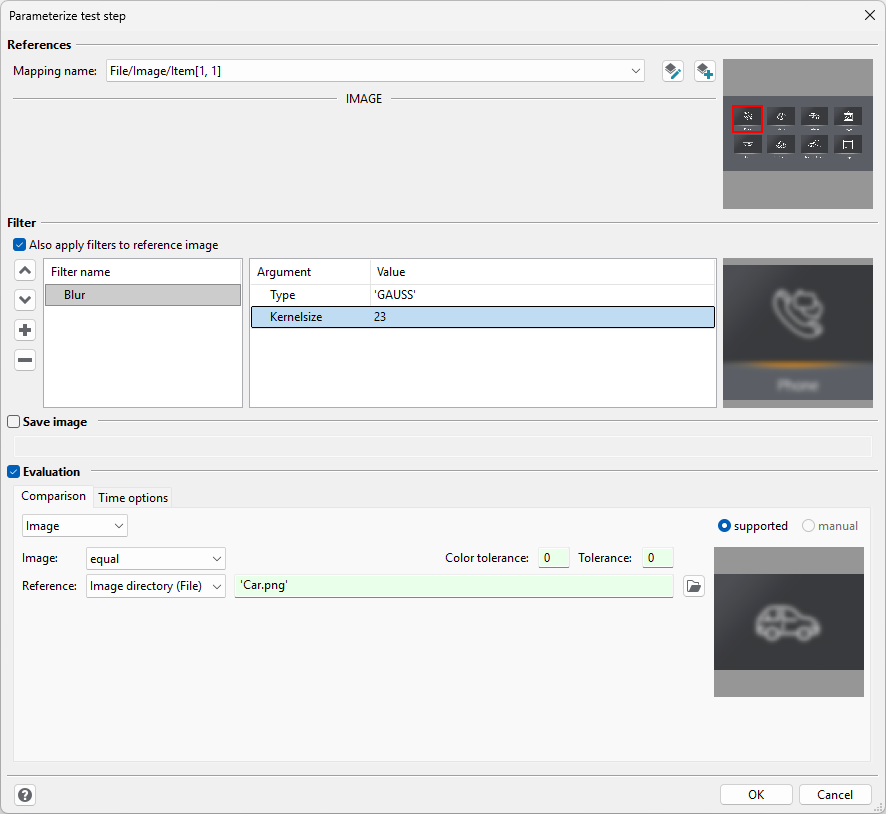
This dialog is divided into four sections:
References
Here you can change the mapping item or create a new one.
On the right hand side of the dialog you will find a preview of the whole image that is currently being read from the camera. If you have selected a mask, the boundary will be highlighted on the image. The preview can be refreshed by right-clicking the image and choosing Refresh from the context menu.
Filter
Here you can apply one or multiple filters to the image. With filters you can manipulate the picture, e.g. transforming it to black and white or improving its sharpness. Filters are applied before comparing it to an expected image or starting the optical character recognition. With the checkbox the application of the filters on the expected image can be optionally turned on or off.
In the left box, you will find a list of filters that are currently applied to the image. Filters are applied from top to the bottom of that list.
In the right box you can manipulate the parameters of a selected filter. In the column “value” you can specify simple values, such as numbers or strings, as well as references to test case variables or API calls.
On the right hand side of that section there is a preview of the read image with applied mask and filters.
Filters are also applied to the reference image if you choose the expectation type “Image” in the section “Evaluation”.
Save image
If you want to store the image in a test case variable for later reference, you can specify its name here.
Evaluation
In this section you can set an expectation that will be evaluated when executing the test case. There are different types of expectations that can be selected using the drop down menu in the top left corner of this section.
Expectation Image
This expectation compares the image that has been read from the camera with one or more image references. Expectation images can for example be created by using the Mask editor
Which images are used for comparison depends on the evaluation of the reference expression. The chosen reference type defines what type of values are valid.
Reference Type |
Valid Input Types |
Examples |
|---|---|---|
Object |
Image-Variable or a list of image variables. |
|
Workspace |
String or a list of strings. Those strings have to be glob patterns and will use the current workspace as the base directory. |
|
Image Directory (only avail. for Read Image test step) |
String or a list of strings. Those strings have to be glob patterns and will use the image directory of the corresponding media device as base directory. |
|
Additionally two different types of tolerances can be defined:
Color tolerance: When the color values of two pixels differ by less than X, they are treatened as “equal”. X can be a number between 0 and 255. If you choose 0, two pixels have to be exactly the same color. If you choose 255, every pixel will be treated as equal to every other pixel. The difference is calculated independently for each color channel (red, green and blue).
Tolerance: Here you can specify how many pixels may differ between two images, before they are treated as “not equal”. This value is given as a percentage. 0% means that all pixels must match. 100% means that no pixel has to match and thus will always be evaluated as “True”. This tolerance is applied after the color tolerance.
On the right hand side the image that will be used for comparison is shown. Filters are applied to this reference image too.
Expectation Prompt
Here you can define a prompt for ecu.test agent. If you choose this expectation type, the agent will check if the prompt was fulfilled at runtime. For example, you could define the prompt “There is a car in the image.” and the agent will analyze the read image and evaluates the prompt as SUCCESS or FAILED. It is also possible to combine the prompt with reference images for more complex analysis. In this case, the reference images will be shown to the agent together with the prompt. The sources for the images are defined in the same way as for the “Image” expectation type. However, the reference images are not used for a pixel-based comparison in this case, but rather to support the agent in fulfilling the prompt. Evaluations like “The reference image is in the read image.” or “The read image is similar to the reference image.” can be defined here. For multiple reference images, you can refer to them with a zero based index, e.g. “The reference image 0 is in the read image and reference image 1 is not in the read image.”.
Expectation String
If you choose this expectation type, ecu.test will start an optical character recognition (OCR) after applying the filters. You can compare the recognized text with the one specified in the input field of this section.
If not all text was recognized adequately, it might be necessary to preprocess the image using filters or masks. Generally a black font on white ground leads to the best detection rate. The scaling of the image, and thus the text size, also affects the detection. The height of a lower case “x” should be in the range of 10-30 pixels, although the used font can cause a shift in the values here. Cropping the image to contain only the respective region using a mask may also improve text recognition. Alternatively you can use the API-method FindText on an Image variable. This method applies various preprocessing steps to look for text regions.
Expectation Unspecific
Here you can manually define a condition. In this case, “value” is an Image object. The interface of the Image object can be found in the API documentation.
Further information