Inserting test steps
Each entry of a tab in the action window represents one or more potential test steps. For inserting these test steps into the test case several ways are available.
Using the context menu
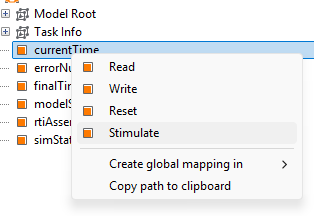
To insert a test step it is possible to open a context menu for the desired entry in the action window by means of a right-click. In this menu all available possibilities to use this element as test step are listed. By clicking on the desired entry the test step is inserted in the test case editor at the currently marked position. Should a parameterization of the test step be necessary a respective dialog opens before the test step appears in the test case.
Drag & Drop
An alternative to using the context menu is the possibility to drag an entry from the action window into the test case editor via drag & drop. In doing so the test step is inserted at the position where the mouse button is released.
In this case, the first option that is written in bold in the context menu is inserted automatically into the test case. In order to insert the second option (marked in italics in the context menu) as test step a drag & drop needs to be performed by holding down the [ALT] button
To insert one of the remaining options using drag & drop, the drag & drop needs to be performed by holding down the right mouse button instead of the left. In this case a context menu opens at the position where the mouse button is released and the desired option can be selected my clicking on it. Afterwards the relevant parameterization dialog appears if necessary.