Variable window and data types
Variable window
ecu.test provides different data types for efficient work. This type is only related to the current value contained by the variable and can be changed during runtime by writing the variable. ecu.test does not make any restrictions in that regard, which means that the data type is just changed.
It is possible to generate variables manually in the variable window or to change their initial value and data type. In addition there are variables generated automatically by ecu.test. They are used, for example, if in a dialog a variable is entered at save as that is still unknown. Those automatic variables are mostly of the type “undefined”.

By putting in a tick at parameter/return value the variable is defined as parameter/return and thus becomes available for an exchange of values with other packages (when inserted as reference). If the tick is set in the column “Recording”, any change of the variable value, including the current simulation time, is written into a CSV file in the test report directory.
A right click opens the variable context menu:
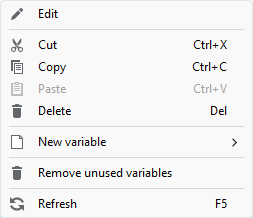
New variable
Opens the dialog for generating a new variable opens after the variable type has been chosen.
Edit
This option opens the same dialog filled with the data of the currently selected variable. In order to edit a variable the dialog can also be opened by a double click on the variable concerned.
The following options serve to , , and variables. So variables can also be exchanged between different packages.
Remove unused variables
This option removes all variables not currently used in any test step.
Refresh
This option updates the window view.
By clicking on the number of a variable (first column) and dragging upward or downward the order of the variables can be changed. That may be useful because in the parameterization dialog of the package (while entering them as references) the variables are shown in the order established in the parameterization dialog.
Types of variables
Numeric
Provides numbers; valid entries are e.g. 12, 0xc or -12.234.
Info
Fractional digits are written as “.”.
String
Provides a variable for text entries. Any kind of character can be used.
Strings entered in control fields have to be encased with ` or “.
Standard values can also be determined in several languages (see Tutorial for multilingual texts). The currently used language can be selected in the workspace settings (see Test editor) and is indicated by the flag icon in the Variable properties dialog.
Info
A string is not included in ‘ or “. It may be entered directly.
Warning
If entered directly into control fields, all occurrences of the control sequence like “\*” are replaced. To print “\” it is necessary to enter “\\” instead.
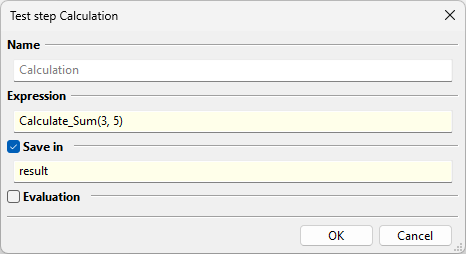
Function
Provides a window into which any kind of Python code can be entered. The function name is specifies as “func”. Parameters and return values may be determined as is customary with Python.

That variable (in our example “Calculate_Sum”) of the function type can be called up, for example, in a calculation step:
PyObject
Provides an original Python variable. It may be used as an initial value as is customary with Python.
Map
Provides an “n by m” matrix with the possibility of labeling the x-axis and the y-axis (“sampling points”). The size can be defined directly on the left side. Values can be entered by double-clicking on the respective supporting points.
Matrix
Provides a matrix. The size can be defined directly on the left side. Matrices are stored in the column layout. This entails that to index a matrix variable, the column is specified first and subsequently the row.
Vector
Provides a one-dimensional matrix. The size can be defined directly on the left side.
Curve
Provides a one-dimensional matrix with the possibility of labeling the x-axis (“sampling points”). The size can be defined directly on the left side. Values can be entered by double-clicking on the respective supporting points.
FileList
Opens an explorer view for file selection. Those files are then saved in the variable as a list. This makes it possible to save easily several files of a list in a variable. The dialog is shown also if a user inserts a package containing a parameter of that type. This prevents another user from making false entries.
Folder
Opens an explorer view for selection of a folder which then is saved in the variable. This makes it possible to save easily a folder in a variable. The dialog is shown also if a user inserts a package containing a parameter of that type. This prevents another user from making false entries.
Boolean
Provides a variable which can contain a logical value. If the variable is a parameter, the logical values are provided as suggestions in the value field.
Enum
Variables of the Enum type represent a number (value) for text assignment. When it is being generated, the texts belonging to the numerical values are put in. An initial value (“IV”) has to be determined in the first column. While the user only sees the text in the parameterization window, ecu.test uses a representative enum value object during the test execution. Thus the package can be edited in a user-friendly way without special “conversion steps” needed.
Alternatively it is possible to dynamically create an enum variable via a global constant
(api.globalConstants), via UserPyModules (user) or a Python expression of format
dict[int, str].The initial value of the generated enum is always the first element.
In expressions, variables of the Enum type can be compared or changed directly with their numerical
values or texts. In addition, .int and .str can be used to explicitly request the
corresponding numerical value or text. Furthermore it is possible to display the full Enum
definition by calling .enum. The input is supported by autocompletion.
Info
The texts of enums should not contain any spaces or special characters so that a simple attribute access via the dot notation (e.g. MyEnum.enum.xyz) is possible. For certain use cases, such as the text representation of bus signals, this may not be possible under certain circumstances. The enum value can then still be accessed via the notation with square brackets (e.g. MyEnum.enum[‘X Y’]).

Text table
Variables of the type “text table” represent a choice of values. Possible values are entered when generating that variable. Then the user can choose from possible values in the parameterization window. An initial value (“IV”) has to be determined in the first column.
Instead of a fixed list it is also possible to use dynamic lists. Therefore just write an expression in the provided text field. It will be evaluated upon use. The initial value of the generated list is always the first element.
Info
The values are always treated by ecu.test as a Unicode string, and the values are always considered “in”. So it is not necessary to use quotation marks when entering text. Numbers, too, are “transferred” as strings during text execution.
BitStream
Provides a comfortable possibility of entering dual or hex numbers. The one not entered is generated automatically. Hex numbers are entered without a leading “0x”.
See also API documentation for BitStream
ByteStream
Enables the entry of a byte sequence. Each byte is specified hexadecimal without leading 0x. The individual bytes are separated by :.
See also API documentation for ByteStream
Inbox
See Inbox and “Read from inbox”.
Outbox
See Outbox and test step “Write to outbox”.
Relay
See Relays - Exchange of messages between parallel subpackages.
Structure
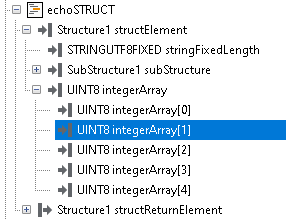
Structure composed of individual components. Components may be scalar elements, arrays or structure nodes. Structure nodes in turn may be composed of individual components as described.
This Structure variables are compatible to NumPy-Arrays and can be used accordingly.
This type of variable is especially used in conjunction with Service test steps. There it can be used as parameter or to save return values in.
Each variable is bound to exactly one Service mapping and represents a substructure of its parameters or return values. The mapping must exist prior to creation of a corresponding variable. It is recommended to create variables with drag and drop of method and service elements or their substructures from Service tab to the variable panel. With this a matching mapping is created or an existing one is used automatically. The substructure the variable uses is defined with the structure path.
Info
When the name of structure elements collide with built-in NumPy identifiers (e.g. count,
item, sum) those elements have to be accessed with for example item['count']
instead of item.count. There will be a notification if this is necessary.
Info
Arrays described as variable-size in the Fibex or ARXML file are represented in ecu.test as numpy arrays with the specified minimum size. The arrays are resized automatically on demand.

This Structure variable is bound via mapping to the echoSTRUCT service method:
Undefined
Provides variables without an initial value. Variables get that type if they are generated automatically by ecu.test.
Info
An overview of advanced operations for ecu.test variable types can be found under API references.