Workspace settings
In the workspace settings, meta information about the current workspace (main workspace) can be stored.
For information about using the compatibility settings, see Compatibility mode.
A title and a version for the main workspace can be specified. The option Is a library determines that the current main workspace can be included by other workspaces as a library workspace. In this case, an unambiguous Namespace must be defined, through which the elements of the workspace can be accessed. This should be an identifier that would also be a valid variable name in Python.
Info
So far, the title and version have no functional significance and are only displayed, for example, in the title bar of ecu.test and as meta information when configuring library workspaces.

Directories
Here the ecu.test default directories for configuration, packages, test reports, trace step templates and utilities are set.

Where possible, all path specifications are specified here as relative. This makes it possible to completely move the workspace without additional adjustments. If a default directory outside the workspace is specified via the button Choose directory, the absolute path is stored.
The directories are used for the following purpose:
- Configuration directory:
This directory contains the test configuration and test bench configuration files
- Package directory:
This directory contains package files and project files
- Test report directory:
This directory is used by default as destination for test reports (can be overwritten through Test configuration)
- Parameter directory:
This directory contains global constant files and mapping files.
- Trace step templates directory:
This directory contains templates for analysis steps for trace analysis
- Trace file directory:
This directory contains trace files which can be used for trace analyses.
- Utility directory:
This directory contains (User-) Utilities
- Project generators directory:
This directory contains parameter set and package generator to be used in the project (see Project elements)
- User python library directory:
This directory contains User python library
- Template directory:
This directory contains templates for packages and projects as well as report generators (see Templates). They need to be reloaded via if the directory is modified.
- Offline model directory:
This directory contains all files necessary to deal with models (Model access - Model simulation):
*.cfg,*.sdfand*.trcfür ControlDesk*.mdl,*.slxand*.mfor MATLAB/Simulink*.dbc,*.xmlfor Vector: CANoe / CANalyzer
- Offline SGBD directory:
This directory contains
*.xrgfiles for EDIABAS- Offline failure simulation directory:
This directory contains all files needed for Failure insertion (
*.fss,*.xml)- Images directory:
This directory contains masks and image files. These files can be used in tools that support reading images, such as tracetronic: Multimedia.
- External Python libraries:
External Python libraries are installed in this directory. The python libraries it contains are available in ecu.test for the user. Only subdirectories of the current workspace or an empty directory should be configured. For further information see External Python libraries.
- ecu.test agent customization directory:
In this directory the customizations and extensions for ecu.test agent are stored.
If the directory is not stored on the local PC the specification of a network drive via UNC path
(//server/share) or via fixed drive letters is possible.
These settings are stored in the file directories.xml.
Libraries
Dependencies to other library workspaces can be defined here.
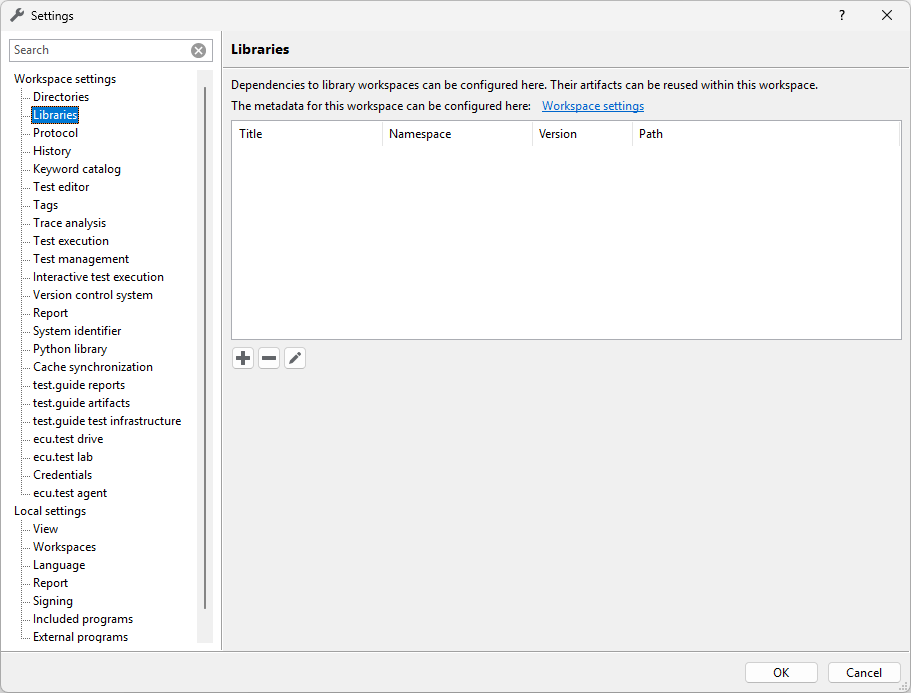
Using the  button at the bottom, a dependency can be added. This is done
by specifying the path to the respective directory. This can be an absolute path or
relative to the main workspace.
button at the bottom, a dependency can be added. This is done
by specifying the path to the respective directory. This can be an absolute path or
relative to the main workspace.
The  button removes an entry.
The path of the currently selected entry can be changed using the  button or by
double-clicking the entry.
button or by
double-clicking the entry.
Info
When specifying the path to the library workspace, it does not matter whether it is located outside or, as in the tutorial, inside the main workspace.
Protocol
Here it can be determined, which messages are shown in the log window. This is done firstly by selecting the step:
Off: no ecu.test messages are displayed
Minimal: only error messages are displayed
Standard: error messages and important information are displayed
Maximum: all ecu.test messages are displayed
The level Maximum should only be used in exceptional cases, as it leads to a large number of messages that are usually not needed.
Using the option Write output log files synchronously, it can be specified whether entries in the log file should be written in a blocking manner. This ensures that the log file always contains the current status of the messages, but can affect performance, especially when many messages are created during test execution.
Messages are always displayed in the message window and written to the ecu.test log files. Under Additional targets you can specify whether messages should be logged to the standard output or the Windows Logging Api as well.
Additional log content can be activated in section Content. Generally, this is only necessary if demanded by the support.
These settings are stored in the file protocol.xml.
Changes to the protocol settings are only applied to active tool connections after a restart of the tools.
History
The first point serves to clearing up the list of last used test and test bench configurations in the configuration perspective. Cleanup only deletes faulty entries (missing or corrupt files), whereas Clear deletes all elements from the lists.
Note: With this only the elements from the lists are deleted, but not the files from the hard drive.
In the second part you can specify how many files in the list of last used files shall be displayed. Furthermore, the existing list can be deleted or cleared up (no longer existing elements are deleted from the list).
These settings are stored in the file history.xml.
Test editor
- Check packages automatically
Here it can be determined, if a package reference shall automatically be checked when inserted. This shows errors, such as missing variables or mapping references, instantly.
- Check translation consistency on package save
This option causes the translations to be checked for consistency every time the package is saved.
- Recursive package check
Sets the default behavior for Check package.
- Recursive project validation
Sets the default behavior for Check project.
- Run supplied check
Specifies whether to run the checks provided by ecu.test.
These settings are stored in the file testeditor.xml.
- Test case language
In the setting Selectable test case languages possible languages for the test case editor can be activated and deactivated. This setting takes effect without a restart. At least one test case language has to be activated at all times. Therefore the last activated test case language can not be deactivated. The current test case language for the test case execution can be selected in the toolbar of the package editor. If the current test case language is deactivated, the first activated test case language will automatically be selected as new test case language.
These activated languages are stored in the file testcaselanguages.xml.
Tags
Test steps and trace steps can be marked with special attributes - so called tags - to filter the information of the test report. The list of available tags can be configured here.
When a tag is renamed or deleted, the test steps and trace steps that use that tag will not be updated. In case a package contains tags which are not defined in the settings, those tags will be available in the corresponding editors additionally.
The tags are stored in file tags.spec.
Test execution
- Common
Here, the following can be specified:
Open real-time log window on test execution
if the realtime log window shall be opened automatically with each test execution
Generate test report documents in separate process
if the generation of additional report formats (e. g. HTML, TXT) should be executed in a separate process
This can speed up the execution of projects if they contain separately executed subprojects (Project reference), as the generation of the report formats is executed in parallel to the subsequent project steps.
It also enables you to use ecu.test right after your test execution finished, no matter if there are reports being generated.
Execute analysis jobs even if the test is aborted
if analysis jobs are executed although the corresponding test case was aborted or failed
If the user manually aborted the test, then no analysis jobs are executed.
Delete analysis jobs and reports after merging into main report
if the files of analysis jobs (
*.ajob) and their corresponding test report files (*.trf), which are created during the execution, are deleted after all information is transferred into the main report.if during the supported evaluation for the type numeric (e. g. during read test step) whole floating point numbers or only 14 significant points of the floating point number shall be considered
Accurate floating point number comparison for “supported Expectation
Through this, problems that arise due to the floating point arithmetic, can be prevented (example: the Python expression ‘50.1-50.0==0.1’ is evaluated wrong)
Attention: this does not influence manual evaluation!
Check wether configuration was started
if on test execution start, the user shall be prompted with a warning, in case a test configuration has been selected but not started
Check packages/projects before execution
if packages/projects are checked before running them
If error are found, then a dialog opens with these errors.
If no error are found, then no additional dialog opens.
If ecu.test is started in automatic mode, then no check is performed although the option is set.
- Project execution
Here, the following can be specified:
Refresh report after every project step
if the project report shall be updated after each project step:
Execute subprojects separately
If this setting is active, the project report can be opened during project execution without delay. Otherwise, you have to wait until the current project step is finished.
Activating this setting leads to a slower project execution speed the more project steps are executed.
The .prf project report format is always written after each test step, but its sub reports in .trf format will be influenced by this option.
The old .trf project report is influenced as well.
Close execution dialog of subprojects after separate execution
if subprojects are to be executed separately by default
if, on separate execution of subprojects, the corresponding execution dialogs shall be closed automatically
if the displayed tree depth in the execution dialog should be restricted in order to reduce the required memory.
Restrict the displayed tree depth in the execution dialog (reduces required memory)
This setting will be ignored for the interactive test execution.
- Garbage Collection
Here, it can be specified if there should be any optimization for better latency of the Python Garbage Collector operation during test case execution. This expert function should remain set to default and may only be utilized if unexpected lags are encountered during a test case. The optimization is at the expense of memory usage.
These settings are stored in the file testexecution.xml.
Interactive test execution
Specifies settings for the interactive test execution:
Whether ‘Action:’ and ‘Expectation’ shall be prefixed to the corresponding texts in interactive blocks
Whether the read instruction in an interactive step shall be repeated automatically and the length of the pause.
- Speech output
Here you can specify whether an instruction should be repeated after a certain time.
Also the available Text-to-speech voices for the interactive test execution can be set here. By default, the list contains all voices of Microsoft’s SAPI that are installed on the system. The list can be extended with custom text-to-speech services. For more information see Nutzerdefinierte Sprachausgabe. If a selected voice does not exist on the system (anymore), speech output falls back to the default voice.
- Key assignment
Here it is possible to assign keyboard shortcuts to commands for the interactive execution.
- Text blocks
It is possible to define text blocks that are inserted into the comment box of the currently executed test step. This can be triggered during the interactive execution by hitting the assigned keyboard shortcut.
These settings are stored in the file interactiveexecution.xml.
Trace analysis
Here it can be determined how the trace analysis shall react in different situations.
- Common
In this section you can make general settings for analysis execution.
- Round timestamps
Timestamps of read-in and calculated signals are rounded to a defined number of decimal places to ensure comparability of the time axes.
- Cache signals
If this option is active, signals are cached during the project execution. This speeds up access to signals when they are used in multiple episodes, trace analyses or packages and can have a positive effect on the execution speed of trace analyses. At the end of the project execution, the cache is emptied. For large projects that use a large number of signals, ecu.test may run out of memory. In such a case this setting should be deactivated. Alternatively, the cache can be cleared manually during project execution by calling the ClearSignalCache() method of the Internal API in a package.
- ASC, BLF, GIN: Fix duplicate timestamps in files
Determines, how ecu.test shall deal with duplicating time stamps in a file, since theoretically several measured values are now available for one signal for one time. If this option not active ecu.test will about the analysis with a fault. If the option is active ecu.test will separate identical time stamps by inserting micro time steps of 0.0000001 seconds.
- ETHERNET, DLT: Sort timestamps via moving window
Only PCAP, MDF4 and DLT: Due to internals of the network communication or the recording it can happen that messages in bus logging files are not sorted chronologically. With this option a moving window is maintained while reading the file, in which entries are sorted by time. The window size determines the count of subsequent packets after which a packet with an earlier timestamp can still be correctly sorted. Thus, a larger window provides more robustness.
The size of the window can influence the SOME/IP TP assembling and therefore the number of SOME/IP samples.
- PCAP: Intelligent filtering of SOME/IP messages
If this setting is activated, an efficient filter is trained based on the SOME/IP communication over the parameterized duration. By using the filter the duration of reading in SOME/IP messages is reduced.
Typically, a duration of about 2 seconds is sufficient so that all relevant service providers can be detected and included in the filter. Services that are only provided after the learning phase may be filtered out.
- Ignore PDU update bit
The update bit of a PDU indicates whether the contained data has changed. If activated, PDUs will be read and evaluated independent of the update bit. By default, this will only happen if the bit is set to 1.
This setting is only used when message-based data is read in.
- Suppress error messages for invalid PDUs
By default, bad PDUs, e.g. due to invalid length, will result in an error. This setting indicates that instead of an error, only a warning should be printed to the log and the corresponding PDU will be ignored.
This setting is only used when message-based data is read in.
- Suppress error message if payload area is too short
Determines whether signal extraction errors are suppressed if the actual payload length is shorter than the payload length specified by the database.
This setting is only used when signals are read in from message-based data (bus, DLT non-verbose).
- Fallback to raw values…
Specifies how to handle signals whose raw values cannot be converted into physical values. If the option is active, the raw value will be automatically used instead. Otherwise an ERROR with a corresponding error message is reported in the report. (Only MDF 3/4, PCAP, ASC, BLF, GIN, TTL)
- Executing analysis jobs in parallel for projects
This section allows configuring the number of processes and their priority. The number of processes is limited to the number of available CPU cores of the system.
- Reporting
In this category settings can be made that affect the resulting report of the trace analysis.
- Round displayed timestamps to decimal places
This setting can be used to specify the number of decimal places displayed for timestamps in the report.
Attention: Only a newly created report will be affected!
Relevant locations in the report:
Table of findings in report details
Automatically generated titles in plots
The accuracy of the representation is limited by floating point arithmetic (more precisely by the number of significant digits).
- Save used signals in trace.xplorer format
The signals used in the trace analysis are additionally saved in the
*.astracefile format. This option is recommended if trace.xplorer basic or trace.xplorer is used as the signal viewer (see section Included programs in the local settings).
- trace.xplorer format (
*.astrace) In this category, options can be set for the automatic conversion of data when writing
*.astracefiles. These settings are also effective when using the Signal export (signal recording) trace step.Save numerical signals that only contain the values 0 or 1 as Boolean signals
Save floating-point signals that only contain integer values as integer signals
Save string signals that only contain numerical values as integer or floating-point signals
Save string signals
These settings are stored in the file analysisexecution.xml.
Version control
Here you can define different options for version control connection.
- Version control systems
In the first section you can select the version control system used. Currently SVN and Git are supported. The programs are freely available on the Internet and can be downloaded on the respective websites.
- SVN
In order to use SVN, TortoiseSVN must be installed on the computer. ecu.test uses the “command line client tools” of TortoiseSVN. If these are installed, every SVN version is supported.
- Git
ecu.test needs an installation of the command line application “git” in version 2.11 or newer. To use the full git integration, TortoiseGit is also required.
- Git without TortoiseGit
The directory containing git respectively the git.exe needs to be listed in the PATH variable. Git is available for both Windows and Linux.
- Git with TortoiseGit
Additionally to the Git installation, TortoiseGit must be installed on the computer. TortoiseGit is available for Windows.
- Available features
If Git is used without Tortoise Git, the version control integration is available read-only. Status, revision and Url of used packages are stored in report. TortoiseGit is required for overlay icons, context menu options, file operations or additional features for automatic check, automatic additions of new files and the usage of ecu.test as diff tool.
Info
ecu.test detects automatically if Git or Git with TortoiseGit is available.
- Automatic check
In the second setting field Automatic check the automatic comparison of working copy and repository for individual directories (currently only the package directory) can be activated or deactivated. If the automatic check for a directory is activated, e.g. for the package directory, ecu.test checks with each start if the files in the repository are newer than those in the local directory. Furthermore, ecu.test checks before exiting the program, if the working directory contains changed files, that have not yet been transferred to the repository. A dialog informs about available updates or changes and offers through a button the possibilty to update or commit (update and commit are thus only executed upon user request).
Info
In order for Automatic check to be executed, the directory concerned (e.g. the package directory) needs to be under version control.
- Options
The settings field Options offers the possibility to configure version control systems. When activating the field Add automatically new files and directories files and directories that are newly created, moved or copied in ecu.test are automatically added for the repository so that these files are taken over into the version control system with the next commit/push.
- Diff tool
When working on a package at the same time by different people, conflicts can occur. These are marked by SVN respectively Git directly in the file. Due to these changes to the package, ecu.test can no longer open the package until the conflict is resolved and reports that the package is defective.
On this tab it is also possible to define the internal tool ecu.test Diff Viewer as external diff viewer to compare package files and other artifacts in TortoiseSVN respectively Git (see Diff Viewer).
These settings are stored in the file versioncontrolsystem.xml.
Report
Here it can be specified if test reports shall be checked for authenticity when being opened.
The settings regarding the report authenticity are stored in the file reportauthenticity.xml.
System identifier
Here, the system identifiers for use in the test configuration can be configured in the tabs Platform, Control units and Bus access
Firstly, select at the top right-hand side the desired group (model, fault simulation, control units, buses).
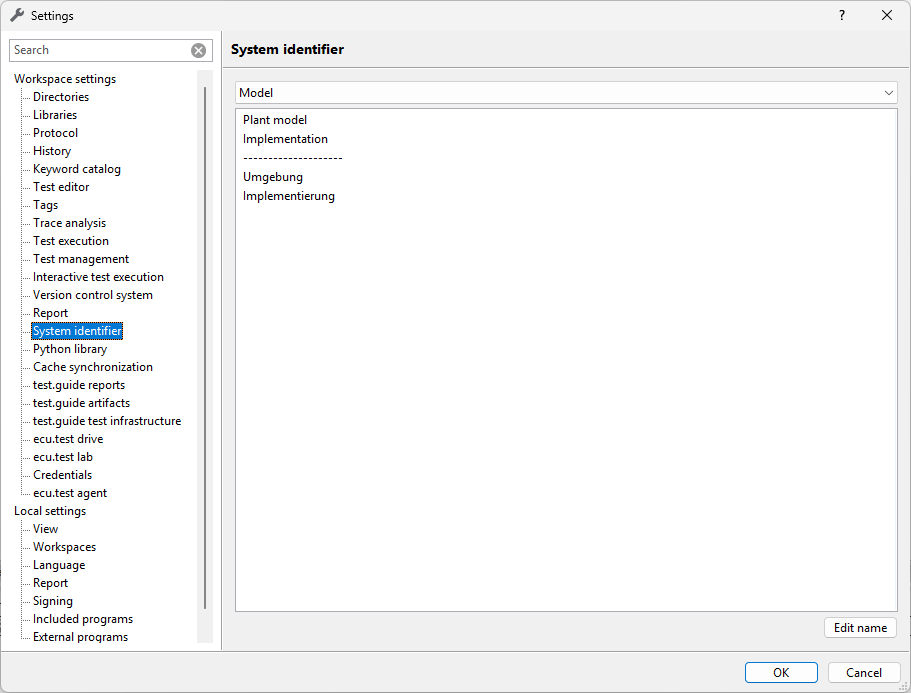
Below you can see the identifiers that are currently available in this group. On the bottom right click on Edit name in order to create a new identifier, to delete already existing ones and to change the order.
The opening window contains at the top right four buttons for editing the identifiers:
Create new
Delete
Move upwards
Move downwards
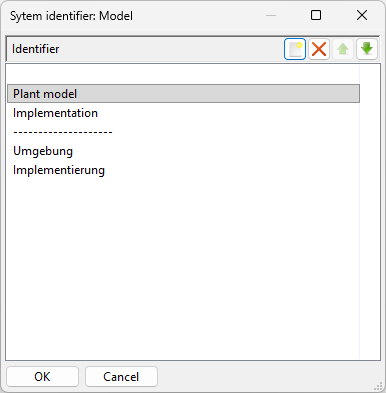
These settings are stored in the file systemidentifiers.xml.
Python libraries
At this point you can find the settings for importing python libraries.
These settings are stored in the file pythonlibrary.xml.
Further information can be found in chapter External Python libraries.
Cache Synchronization
To save local resources and avoid reading large databases unnecessarily often, cache files can be exchanged over a shared directory or a test.guide depository.
Info
If cache synchronization is not available, e.g. due to network problems, local caches can be created and used as usual.
Exchange directory
This directory can be located on a local machine or a network drive.
test.guide Depository
A test.guide Depository can be selected here. New depositories can be configured on the page test.guide artifacts.
test.guide reports
The automatic upload of reports can be configured in these settings. Details can be found in test.guide reports.
For connection settings, see Connection Settings.

test.guide artifacts
This settings page allows you to configure test.guide depositories. These can be used, for example, as storage for the cache synchronization.
Info
This setting is independent of the workspace setting for test report management in section test.guide reports.
For connection setting, see Connection Settings.

test.guide test infrastructure
This settings page allows you to configure the port on which ecu.test sends its execution status to the test.guide ResourceAdapter. To use this feature, the RestApiActivityPlugin needs to be enabled in the ResourceAdapter configuration. More information about the ResourceAdapter can be found in the test.guide help.
The settings are saved in the file testguideti.xml.
ecu.test lab
The server settings for ecu.test lab can be set here:
Start server automatically
Password (optional)
HTTP port
Default view
Signal access
These settings are saved in the file ecuTestLab.xml.
ecu.test drive
The server settings for ecu.test drive can be set here:
Start server automatically
Password (optional)
HTTP port
These settings are saved in the file ETdrive.xml.
Credentials
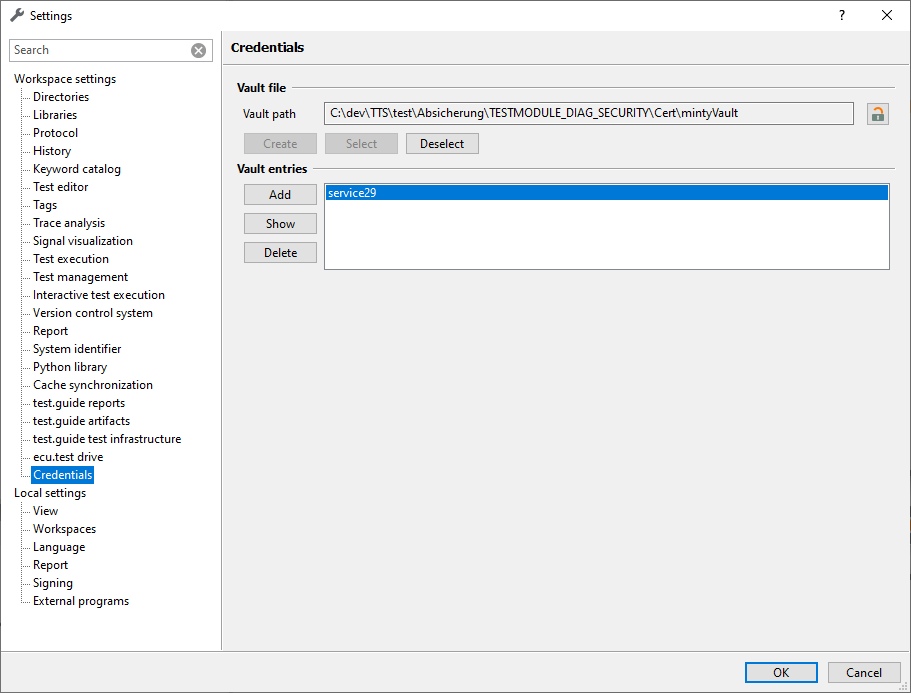
ecu.test offers the possibility to manage certificates, private keys, access tokens, secrets, etc. and store them securely in the workspace.
Vault
The vault is a password-encrypted file. Sensitive information, such as access tokens or passwords for PKCS12 files, can be stored in it.
The vault can be organized in the workspace settings. In the path settings a new vault can be created, an existing vault opened or a vault assigned to the workspace can be removed again. As soon as a vault is assigned to the workspace, it can be be unlocked or locked again using the password.
As soon as the vault is assigned and unlocked, entries can be displayed, added or deleted. All vault entries can be accessed dynamically via API during test case execution: credentials api.
Info
ecu.test allows a maximum of one open vault at a time.
Keystores
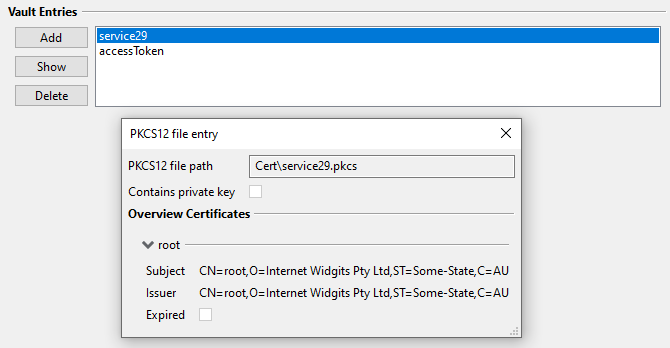
Certificates and private keys can be organized in keystores. The PKCS12 format is currently implemented, which can be provided with a password. During test case execution, the contents of the PCKS12 files can be accessed dynamically.
PKCS12 files can be integrated into the vault in two ways:
A new PKCS12 file is created with the corresponding certificates and the private key. The access data is then automatically stored in the vault.
An existing PKCS12 file is loaded into the vault. The corresponding access data is automatically stored in the vault.
Secrets
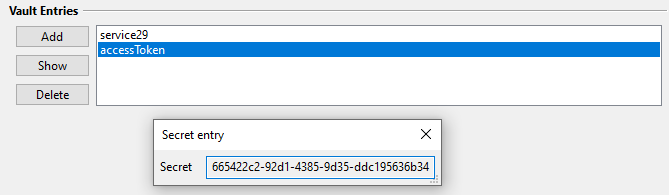
Secrets in the form of arbitrary python strings can be stored directly in the vault. This is of particular interest for access tokens, for example.
Tester Key
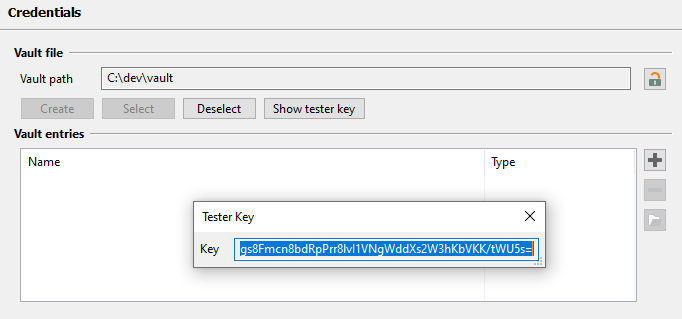
The tester key is a key generated by the vault that allows read access to the vault data as an alternative to the password. When opening the vault, this can be entered instead of the password.
The tester key is intended for use in test cases and thus enables more efficient and faster opening of the vault (for security reasons opening the vault with the password consumes about 2 GB of RAM for a short time). Unintentional modifications to the vault are also prevented, so that the password is still required to manage the vault, i.e. to add or remove entries.
Security
Once the vault has been opened, the data stored in it is freely accessible to third parties with access to ecu.test until the application is closed. The user is responsible for access protection while using the vault.
The tester key is not a cryptographically secured role system, but is intended to optimize and facilitate test operation and execution. The exclusive read access is essentially only enforced by the ecu.test runtime.
For the cryptographic methods, established libraries such as cryptography were used.
Info
When you set up the vault password, the password quality is not checked!
ecu.test agent
See ecu.test agent.
These settings are saved in the file agent.xml.