Local settings
View
Here you can configure the ecu.test view.
In the section Visibility of the action windows the view behavior of the action windows can be defined.
Automatic means the window will be shown, if it contains any data.
Show always shows the corresponding window, even if no data is contained.
Hide always hides the window permanently.
Workspaces
Here you can find an overview of the configured workspaces, where it is possible to delete workspaces from a short list. Additionally, it can be specified whether the selection dialog for the workspace to be used shall always be displayed when starting ecu.test or if the last used workspace shall be started directly.
Language
Here, the language of ecu.test can be specified. Please note that this change (in contrast to all others) only becomes effective after restarting ecu.test.
Report
Report filter settings
Settings concerning the internal and external report viewer can be defined here. It is also possible to create new filters and filter groups, that are used in the test configuration and test report.
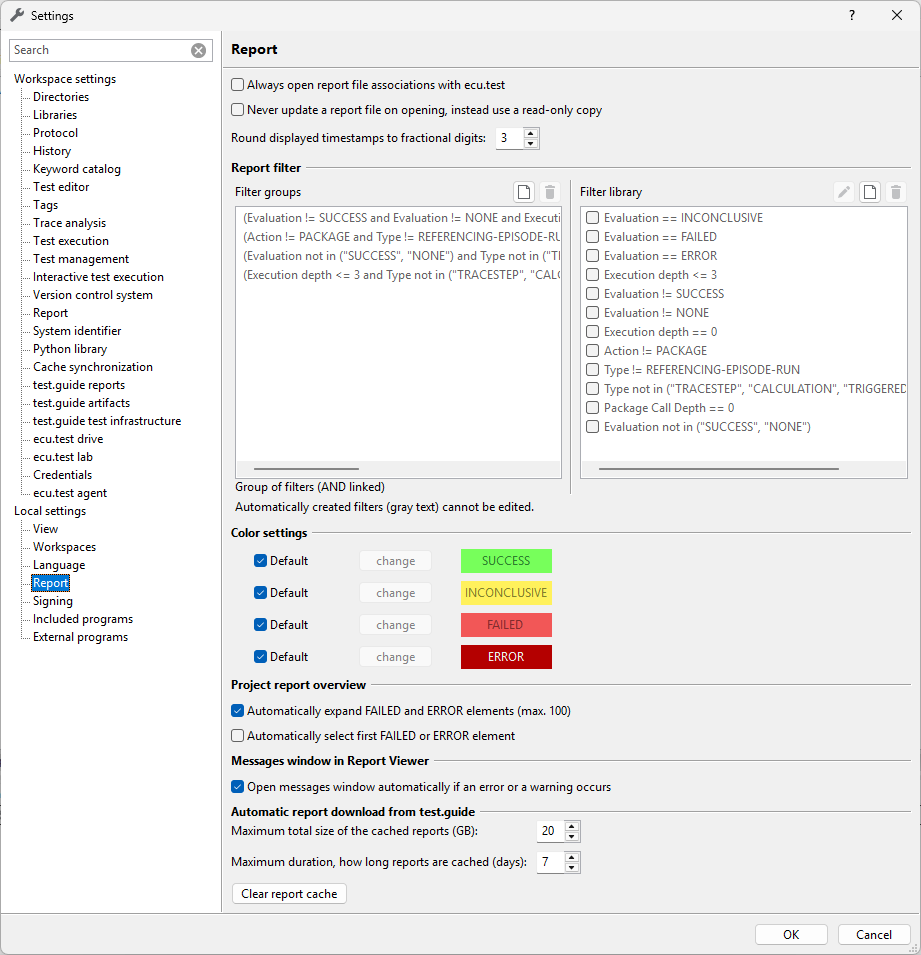
The right side is divided into two columns:
Filter groups: groups several filters (of the right side) to one mutual filter. The individual filters are thereby AND linked. This means both Filter1 and Filter2 as well as … need to apply in order to display the respective steps.
Filter library: creates (elementary) filters. Filters can be combined to filter groups on the left side. If you use them in the test report or if you select more than one, they are, in contrast to the filter groups, OR linked. This means that all steps, for which Filter1 or Filter2 or … applies, are shown.
The first button (A, only filter library) serves for opening the settings. With the help
of the button New ( ) a new filter group or a new elementary filter can be created. The third
button (
) a new filter group or a new elementary filter can be created. The third
button ( ) deletes the currently chosen filtergroup or the selected filter.
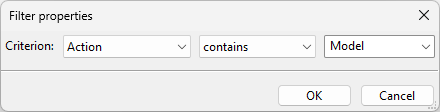
To create a new filter click at filter library on the New button (). In the
opening dialog you select, which package element corresponds to which criterion, e.g. action contains
model for showing all model steps (read/write) or Tag == DEBUG to show all steps that have been
marked with the tag Debug.
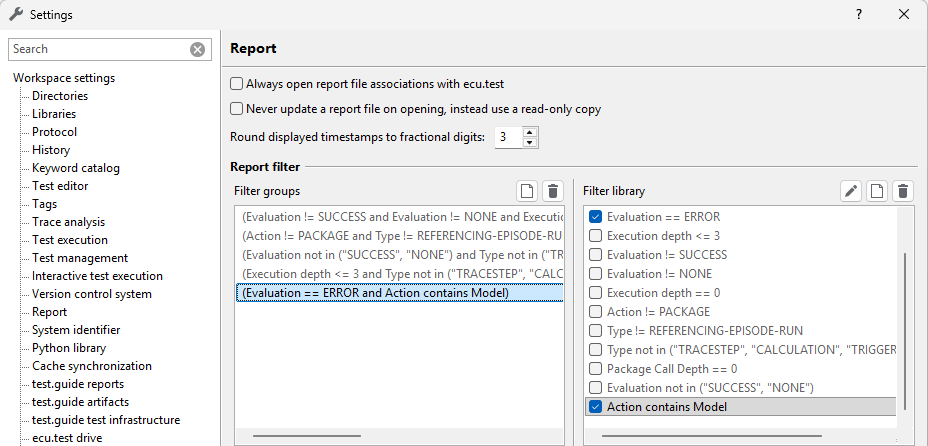
To create a new filter group click at filter group on the New button (). A new
group is created (“1”) and marked. Now activate on the right side those filters, that shall be combined
in this filter group. The selected filters will be logically AND linked. This means all filters that
exist in the filter group have to be fulfilled in order to meet the condition of the filter group.
The selection of a filter that contradicts to an already marked filter leads to deactivation of the previously marked filter.
Example: Evaluation == FAILED has already been selected and Evaluation == ERROR is now
selected. Since both filters check the evaluation in terms of identity, an unsolvable condition would
be the result with logical AND linking. To avoid this, Evaluation == FAILED is deselected.
To remove a filter group or a filter mark the corresponding entry and click on the
Delete button () above the respective selection field.
Color Settings
ecu.test supports the perception of the test results by coloring the results of the test steps. Section Color settings allows to define alternative colors. By default the standard colors are used. This setting only affects the test report inside ecu.test and the Report Viewer. Generated test reports, such as HTML-reports, are not affected.
Messages window in the Report Viewer
With the option Open messages window automatically if an error or a warning occurs you can choose, whether the Message window shall open automatically in the report viewer as soon as an error or a warning occurs. By activating this it is possible to easily recognize errors that occur while generating reports in further report formats or while exporting the reports to test management systems.
Automatic Report Download from test.guide
Reports from test.guide are cached locally (see Automatically downloaded reports from test.guide) to expedite subsequent access. To prevent storage issues, the following settings are automatically checked with each report download:
Maximum total size of all cached reports (GB): Once all cached reports exceed this size, the oldest reports will be deleted until the total size is below the limit (default: 20 GB). This also applies if the maximum duration has not been reached yet.
Maximum duration for which reports should be retained (days): Downloaded reports that have not been opened for a specified number of days (default: 7 days) will be removed regardless of their file size.
Signing
Access restriction
In this section you can find the settings for signing packages. Here it can be checked if the needed keys are available. If necessary they can also be created and imported.
Further information can be found in chapter Protecting packages.
Secure connection to Tool Server
In this section you can generate a certificate (*.crt) with a corresponding private key
(*.key) for authentication of a secure connection to Tool Server.
If a certificate with a private key is present, ecu.test automatically uses it to authenticate to any Tool Server instance with SSL enabled. In order for the certificate to be accepted by Tool Server, it must be copied to the computer where Tool Server is running (see General settings of Tool Server). For that purpose, the certificate can be exported here.
The private key is not needed by Tool Server. It should furthermore not fall into the wrong hands, because anyone with access to this key can connect to all Tool Server instances where the corresponding certificate is installed.
Included programs
The default program for viewing traces can be selected in this section. The trace.xplorer offers the widest range of functions, but requires an additional license. The trace.xplorer basic and the Signal Viewer can be used without additional licenses.
For the best possible use of the trace.xplorer variants, it is recommended to activate the option
to save the used signals in trace.xplorer format (*.astrace) in the workspace settings of
the Trace analysis section.
External Programs
These settings configure which external programs ecu.test uses to open files. For example, you can set a preferred editor for Python files.