Report tab

The tab Report contains the settings for documenting test results.
Directory
The upper sector shows the folder in which the documentation results are stored. The handling is similar to what has been described in section Platform tab for the selection of files, with the only difference that a directory is selected here.
Output format
At Output format the required output formats can be defined. An output format combines a report generator with a specific parameterization such as options and filters. Output formats are implemented both by mako templates and by report generators in Python. In ecu.test, mako templates are used for HTML and JSON output formats, while Python modules are used for additional formats such as EXCEL or TXT. For better readability, these format templates and report generators are referred to as report generators in the following.
A check box in front of a given output format serves to engage or disengage automatic generation. If a tick is put there the report concerned will be generated automatically after every test run. If the box is not ticked generation must be started manually at test report.
The first symbol ( ) serves to set up a new output format. With
  the settings of
the selected output format can be changed (as with a double click on the output format).
the settings of
the selected output format can be changed (as with a double click on the output format).  serves to delete the selected output format.
In order to create, for example, a new HTML-based output format for the test report, click on
and select HTML.
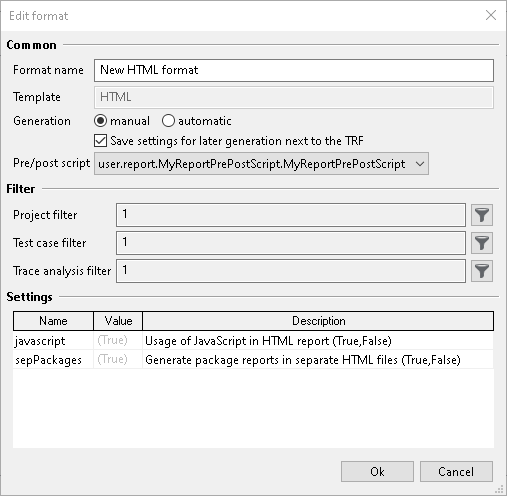
In this dialog, you can specify a name for the output format. Further, you can select whether the output format should always be created automatically after each execution. You can also choose to store these settings next to the TRF, so that the output format can later be generated, for example, via Jenkins or COM API ‘GenerateTestReportDocument()’.
Pre/post script defines a script that will be executed before or after the report generator. Such a script must be placed in the directory for User Python libraries and have the following structure:
MODULE_TYPE = 'REPORT_PRE_POST_SCRIPT'

class MyReportPrePostScript:
    def __init__(self, reportApi):
        self._reportApi = reportApi

    def ExecutePreScript(self):
        ...

    def ExecutePostScript(self):
        ...
By means of Project filter, Test case filter and Trace analysis filter the respective filters can be applied to the test report to be generated. The filters correspond to the filters for display in the test report.
In addition, it can be defined whether JavaScript should be used and whether a separate HTML file should be created for every subpackage. While in case of False all subpackages are put in a common HTML file, with True a separate HTML file is created for each subpackage and linked among each other. If separate HTML files are used, file sizes are smaller and large test reports with many subpackages are displayed much faster.
Custom report generators
Report generators in ecu.test are designed as plugins. This allows users to customize the
report generators (e.g. HTML and TXT) or to complement or replace them with custom report
generators. The report generators are located in the ecu.test program directory under
Templates/Report.
Custom report generators can be placed in the workspace in the subdirectory for Templates
(cf. Directories). Each report generator has its own folder. The folder name
determines the name of the report generator. In order to structure a large collection of report generators,
subfolders can be used. In this case, the innermost folder name is used as the name of the report generator.
To create a new report generator based on an existing one, only the corresponding folder needs to be copied. Afterwards, the copy can be edited and adapted to specific requirements. If there are several report generators with the same name, variants stored in the workspace take priority over those shipped in the program directory. If several report generators with the same name are defined in the workspace, the most recently loaded variant is used. In both cases, a warning is issued that identifies the report generator that is actually used.
Report generators are implemented either as mako templates (similar to the supplied HTML report generator) or as Python scripts (like the supplied TXT report generator).
Info
For rendering mako templates, ecu.test uses the mako template engine. Information about the structure and contents of mako templates can be found at http://www.makotemplates.org/docs/syntax.html.
The technical implementation of report generators is described in the Report API. In this context, the term report generator is also used synonymously for format templates and mako templates.
User-defined Information
The section User-defined Information lets you specify data displayed in the test report in addition to the commonly created report data. Such user defined data comprises of entries which contain a name, a value and a description. These entries can be specified in the table shown below. They will appear the test report of every package executed in combination with the corresponding test configuration. In the following screenshot two entries have been defined:

These entries will appear under the rubric User-defined Information in the test report for any package using this configuration. Starting the configuration and running an empty package will lead to the following result:

In addition, Python scripts can be referenced under Generator scripts by priority, generating dynamic data for the test report. These scripts will be executed as soon as the test configuration was started in the order they appear in the list:

Each script must provide a function called Init as shown below. The parameter userReportData references an instance of UserReportData, which can be used to add and edit entries. The following script demonstrates this for two added entries:
# -*- coding: utf-8 -*-

def Init(userReportData):
    # define new entries
    userReportData.AppendEntry('Name2', 'dynamic2', 'Description 2')
    userReportData.AppendEntry('Name3', 'dynamic3', 'Description 3')

    # evaluate if given entry exists (previously defined, e.g. in TCF)
    if "AnImportantEntry" not in userReportData.GetAllEntryNames():
      raise AbortConfigError('Value of AnImportantEntry is not set!')
Info
It is recommended to use the encoding “UTF-8” within the Python file.
Starting this configuration and running a package will bring up the merged static and dynamic information in the test report:

It must be pointed out that the entry with the name “Name2” was defined both in a static and a dynamic manner. However, it only appears once in the test report. This is due to the fact that the static and dynamic entries are combined. In the given example, dynamic entries provided from the script have a higher priority than the static entries and hence overwrite them. The priority can be adjusted by reordering the entry sources with the up and down arrow buttons.
Miscellaneous
It is determined by means of the check box Copy log files to report folder if ecu.test should automatically copy Output logs into the corresponding test report folder.