Platform tab
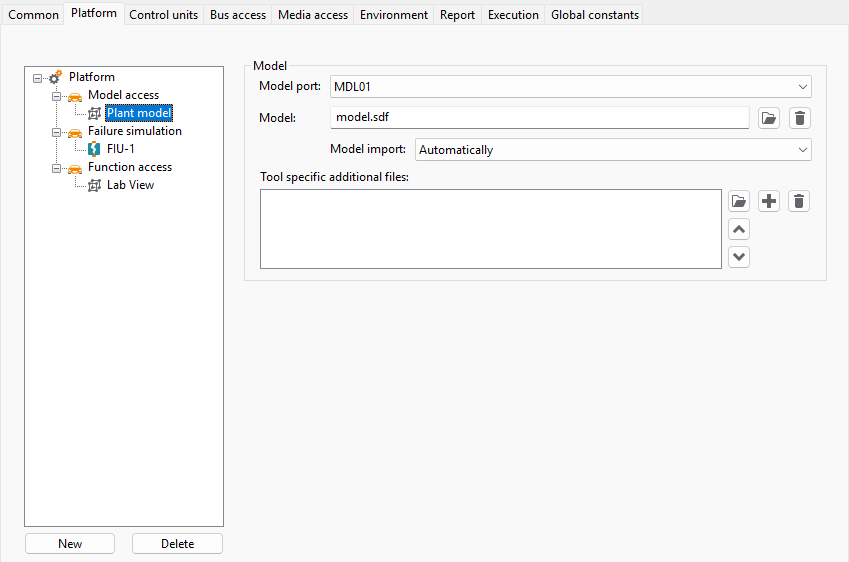
The tab Platform serves to select and configure the utilized HiL/SiL models, failure simulations and other function accesses. The procedure is always the same:
After setting up a new model/failure simulation or function access by means of New a corresponding port and a file can be chosen for access.
For choosing a port, a selection field is used which contains the following entries:
<Empty>
This information is shown if no port is yet chosen. The entry can be called again if software is to be configured in the HiL/vehicle mode but should not be started.
For the selection of files the corresponding workspace of ecu.test is used.
Test steps to access models, failure simulations and functions utilize for execution the port which is already selected in the test configuration. If no port has been chosen, the execution of the test step concerned will fail.
<Various ports>
The other fields contain the names of ports set up in the active test bench configuration.
If a port is selected and configured correctly you are also provided with a list of files contained in the search directory of the assigned tool.
Configuration of model access
In the tree structure it is possible, at Model, to indicate software simulating non-existent components (engine, gearbox etc.). Failure simulation software is selected at Failure simulation.
A file is specified for the selected model simulation software that describes the interface. That
file can then be entered directly into the text window arranged alongside.
Furthermore it is possible to specify Offline Model Files that were generated in the Model view Modell by
context menu.
Instead of making a manual entry it is possible to select the file by means of a dialog which is opened with the
file selection button ( ).
).
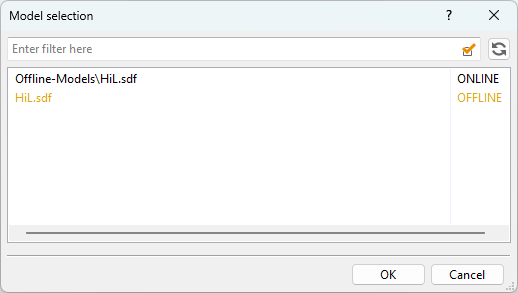
Model selection dialog
That dialog shows possible files for selection. An input field allows to filter the selection list. The use of wildcards ‘?’ and “*” and the linking of filters with “and” and “or” is possible. In the selection list different colors are used for distinction:
Black entries represent files which only exist on the remote computer (on which the assigned software runs). At the start of the test environment the files are copied locally to the computer on which ecu.test was started.
Yellow entries represent files which are already present on the local computer, i.e. they have been copied already.
Info
To retrieve simulation files from the remote computer, the model path (path on remote computer) for the desired tool has to be set in the test bench configuration. If it is not set or no port has been selected only the yellow, locally available, files are shown.
If a selected file is to be removed from the configuration, this can be done by deleting the entry
in the text field or by means of the delete button ( ).
).
Configuration of model import
The setting Model import allows you to specify the import of the model data for the tab Model.
- Automatic:
Use this setting to ensure the model data being up-to-date. This is useful if the model data changes frequently. The model data is always read either from the given model file or from the selected model port if supported.
- From cache:
Use this setting to accelerate the start of the application by using cached model data. If there is no model data cached for the given model file or test configuration and model port, the model data is read from the model file or from the interface and then stored in the model cache.
- Disabled:
Use this setting for test execution or if a mapping file is used on test creation. Then the model file is only used by ecu.test to configure the model port. The model structure is not inserted into ecu.test. The tab Model remains empty, and only mapping quantities which may be available can be used.
Tool specific additional files
Some tools might require additional files for certain functionality. These files can be added in
the field Tool specific additional files. E.g. *.esi files for
Silver, or *.sms files to
generate virtual signals can be specified here.
Furthermore, Python files can be specified here that define filters and aliases for model variables.
Configuration of failure simulation
For electric failure simulation there are several possibilities. Failures can be created in the
simulation model by writing model variables at the e.g ControlDesk. To do so, a
configuration file (e.g. *.cfg) has to be indicated for interface description.
Furthermore, failures can be created via different hardware components which may interrupt or
short-circuit wires.
For all simulations you have to select the corresponding port and then, by means of the
file selection button (), the configuration file contained in the scope of
supply.
Failure simulation selection
That dialog shows possible files for selection. An input field allows to filter the selection list. The use of wildcards ‘?’ and “*” and the linking of filters with “and” and “or” is possible. In the selection list different colors are used for distinction:
Black entries represent files which only exist on the remote computer (on which the assigned software runs). At the start of the test environment the files are copied locally to the computer on which ecu.test was started.
Yellow entries represent files which are already present on the local computer, i.e. they have been copied already.
The text field at the lower end of the dialog can be used to address a file explicitly in case the file to be used is neither on the remote computer, nor in the local workspace
Info
To retrieve files from the remote computer, the search path (path on remote computer) for the desired tool has to be set in the test bench configuration. If it is not set or no port has been selected only the yellow, locally available, files are shown.