Compatibility mode
Compatibility mode allows you to create individual artifacts or even an entire workspace in an ecu.test version while keeping them compatible with another ecu.test version. For example, you can create a package using the latest version of ecu.test, while at the same time ensuring that it can run using a previous ecu.test version. This facilitates collaboration among teams that use different versions of ecu.test.
Warning
Even in compatibility mode, there is no guarantee that two different ecu.test versions will behave 100% identically. Changes to the API, in tool behavior, new Python versions, etc., may still result in differences.
Enable and configure
Open and select Enabled in the Workspace settings section. Then select the ecu.test version with which the workspace shall be compatible.
The setting affects newly created or modified artifacts. Existing artifacts are not updated automatically.
If compatibility mode is enabled for the workspace, this is visible in the status bar: The term “Compatibility mode” as well as the selected compatibility version are displayed after the workspace path.
Compatibility mode can also be enabled in Library workspaces. To do this, you must open the library workspace itself - it is not possible to configure this setting from within the main workspace.
Making artifacts compatible
Not every feature or setting can be saved compatible to a previous version. When saving, ecu.test therefore checks whether an artifact is compatible with the selected ecu.test version. If there are elements that cannot be converted to the selected version, these elements are listed. If possible, the reason why the element is incompatible is also provided. At the same time, the minimum ecu.test version is automatically determined in which the artifact could be saved compatibly. The user then has the option to decide: a) save the artifact in this version instead or b) cancel the save operation. If the process is canceled, the incompatible elements can be manually checked and adjusted.
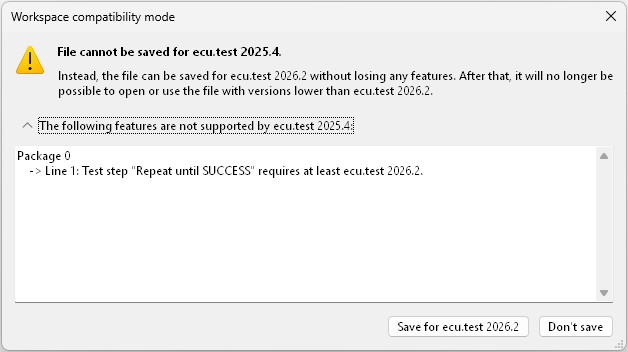
Dialog when trying to save an incompatible artifact: In compatibility mode, the target version is set to 2025.4, but a test step requires at least version 2026.2.
In Packages, incompatible test steps can be identified in advance using Check package.
A special case involves artifacts from integrated Library workspaces: First, it is important to note that the version of ecu.test set in the library workspace is decisive for the check, even if a different ecu.test version is set in the main workspace. If the artifact to be saved is incompatible, it cannot be saved. No minimum compatible version is suggested, as is the case for the main workspace. To edit these artifacts, the library workspace itself must be opened.
Info
In the workspace explorer, the ecu.test version with which an artifact is compatible is displayed in the Compatibility column. The column can be displayed via right clicking on the column header.
The extended filter can use Compatibility to filter by the saved
ecu.test version, for example Compatibility < 2026.3.
Migrate existing artifacts
To change existing artifacts to the configured ecu.test version, the Migrate workspace to compatibility version migration helper is available through . The migration can run only when compatibility mode is enabled.
The dialog scans the workspace for artifacts whose saved ecu.test version differs from the selected ecu.test version. Compatible artifacts are saved automatically. The log lists incompatible artifacts and errors.
Cancelling stops the migration only after the currently processed artifact.
Object API
The compatibility check also applies when saving through the
Object API. The
allowCompatibilityFallback parameter determines whether it is allowed to fall back to the minimum
supported ecu.test version when saving for the selected ecu.test version is impossible. This
is analogous to the behavior when saving in the GUI.
Limitations
Test bench configurations are currently not affected by compatibility mode. However, if you wish to keep your test bench configurations compatible, you should exercise caution when updating them, as incompatible properties may be added.