Interactive testing
Interactive testing means that the tester evaluates the test step during execution. Therefore actions and corresponding expectations are read loudly, the tester executes the action manually and decides whether the expectation was fulfilled. For this reasons this execution mode for example can be useful for tests in the vehicle or for manual tests. A combination with automatically executed test steps is possible.
How to execute a package interactively is described here.
Creating an interactive test step

By using the block test step from folder Structuring in the test steps an interactive test step can be added to the test case. Only the check mark for the User instruction has to be set. The contents that are inserted in Action/Name and Expectation/Value will later be read loudly as action and expectation. In order to customize these texts during execution it is possible to use variables as placeholders in curly braces as shown in the screen shot and described in the Block section. Additionally, you can specify an alternative text in square brackets, which will be read aloud in ecu.test drive instead of the preceding word.
Wait until speech output finished delays the start of contained test steps until the entire instruction has been read aloud.
To support several languages the translation of the contents has to be specified like described here.
Displaying images
It is also possible to display an image during the test execution. To do so, write the image path in the “parameter” text field. The path can either be absolute or relative to the workspace directory. You can also refer to a string variable using curly braces as described above.
Caution
The “parameter” text field must only contain the image path and no other notes for the image to be shown properly.
Settings in ecu.test
Since a computer voice reads the texts during the execution a SAPI5 (Microsoft Speech API) conform voice has to be configured. The operating system Microsoft Windows includes an english computer voice that will be used automatically for the interactive execution. If also texts in other languages shall be supported, a suitable voice has to be installed.
The configuration of the voices of the test case languages is done via in the Workspace settings in the section Interactive test execution.
Details about interactive execution
The tool bar of the test case editor and the project manager contain symbols for the interactive execution.

Block test steps that are marked as User instruction will be read loudly. If configured, the entry in Action/Name will be read as Action, the entry Expectation/Value as Expectation. The Comment for test step will be displayed as the headline of the test step window. Placing Action: and Expectation: before the corresponding contents may be deactivated via in the Workspace settings in the section Test execution.
In the same section of the settings, an automatic repetition of the read instruction can be set with an adjustable pause time between readings. With the button Repeat last instruction or the according shortcut Ctrl + 0 it can be repeated immediately.
The voice output can also be canceled. Either by clicking on the Stop speech output button or by using the keyboard shortcut Ctrl + 9. Canceling the speech output causes the next test step to be executed immediately. In addition, in the settings for test execution can be cofigured that the next test step is already executed while the corresponding speech output is still playing.
During the interactive execution a third button can be found on the lower left side of the execution dialog that switches the test case language on runtime. The contents can only be shown in the correct language, if they were translated in the block and in the Comment for test step by using the translation function. The computer voice will also switch the language according to the settings in Test editor.
Empty blocks can be evaluated manually by the tester. On the bottom of the execution dialog there are buttons that represent the available results (NONE, SUCCESS, INCONCLUSIVE, FAILED, ERROR with the according shortcuts Ctrl + 1 to Ctrl + 5). The tester has the possibility to explain his decision by using the text field Comment for test step. Additionally a more concrete verdict can be selected below the text field, which will be shown along with the comment in the report. With the evaluation of the test step its execution is completed and the next test step is executed, even if reading it aloud has not finished. Blocks that contain other test steps are read loudly but cannot be evaluated by the tester, the buttons are deactivated. In this case the block result is calculated from the results of the children test steps. It is possible to use automatic test steps in combination with interactive test steps. The automatic test steps, like loops, conditions or calculations will not be shown in the interactive view of the execution dialog and will be executed in the background.
A Comment for test case can be inserted below the project tree on the left side of the execution dialog.
A test case with interactive test steps can be executed in the automatic execution mode, too. In this case the blocks with User instruction will not be read loudly and are evaluated with NONE.
Interactive execution of test steps with time options
Automatically executed and evaluated test steps with Time Options are visualized during the interactive execution. The configured time-outs in read, Multi-Check and calculation test steps can be aborted manually. While the time-out of the time option decrements, next to the window a Continue button is displayed. Thereby unnecessary waiting time during the execution of test steps can be skipped. After clicking the button, a menu appears from that the tester has to choose an evaluation for this test step.

The chosen rating will be automatically represented as a revaluation in the test report and is marked by a report comment. The original result is set to FAILED since the test step was not executed as planned.
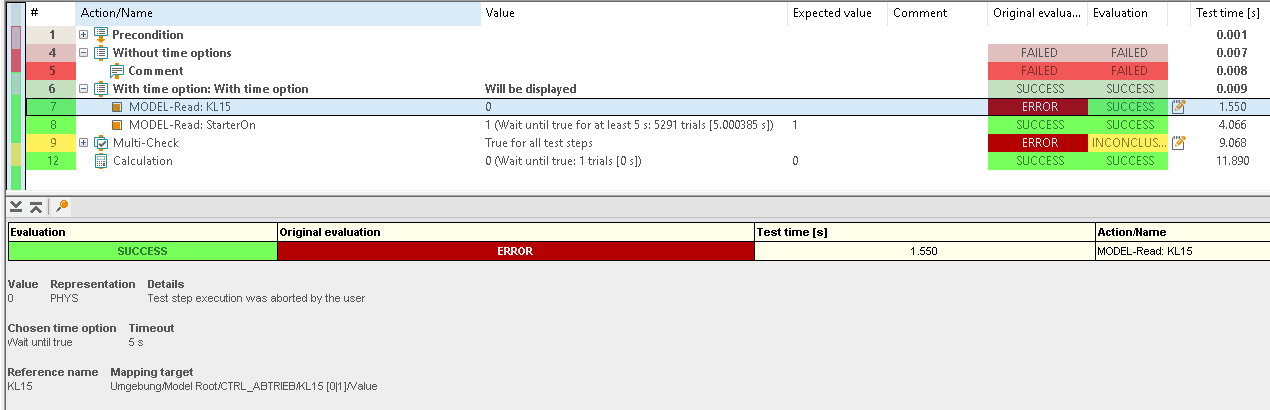
Behavior on abort
If the execution dialog is closed during execution or the button Cancel is used, the dialog Abort comment is shown. Like in the block the Abort-Code and Abort-Comment can be specified to give reason for the manual test termination.

Interpreting the test report
After finishing the interactive execution of a test case a Test report is created as usual.
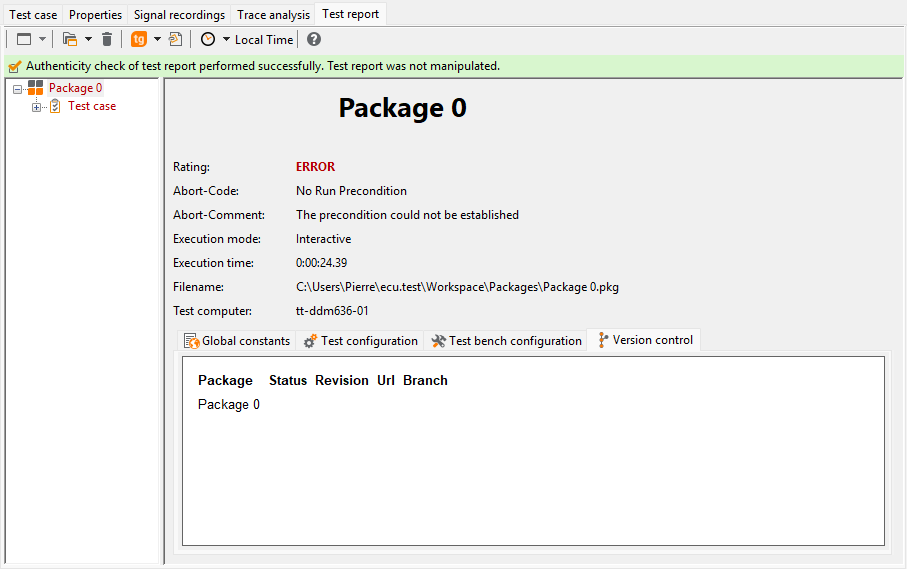
In the project and package summary the execution mode will be set to Interactive. Now it is easy to see that the report contains manually set evaluations. If the execution was terminated manually, an entry for the abort code and comment are shown on the summary. Furthermore a row 0 is inserted in the test case to signalize a Manual test termination.
Comments for test step and test case will be listed in the package summary in the section Report comments and revaluations. In addition the comments of the test steps are shown in the corresponding row in the test case.
