Usage of trace step templates
Trace step templates can be added to a trace analysis from the tab Trace step templates (left in explorer view) via the context menu or using drag-and-drop.
Trace step templates themselves are managed as files in directories whose contents are shown in the tab Trace step templates. There the datasets StandardTraceStepTemplates of an implicit library workspace (see section Standard trace step templates) and Templates are offered. The user defined directory provided at Templates can be modified at .
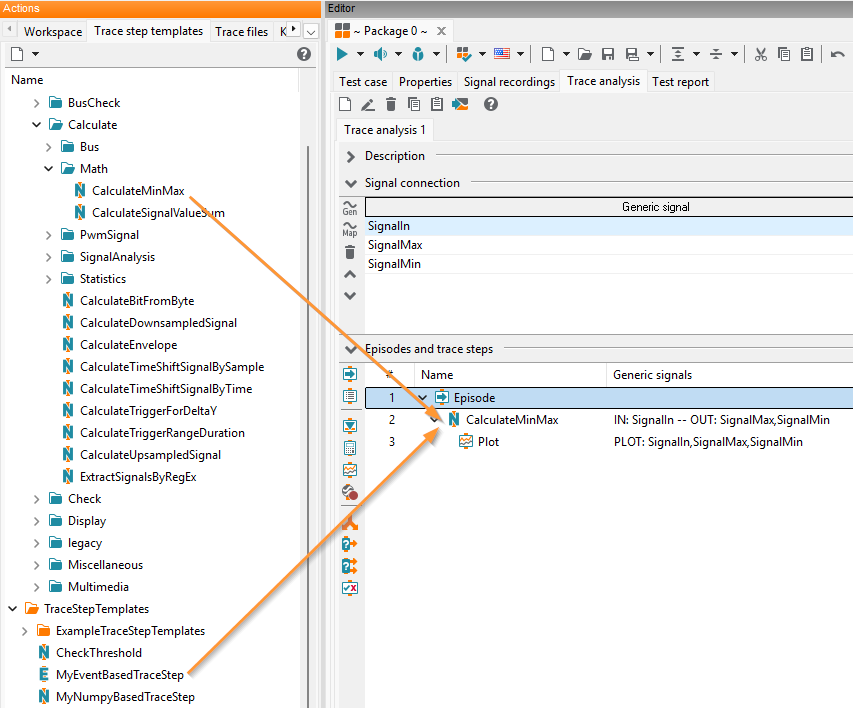
Adding new trace step templates via drag-and-drop
Adding a trace step template as a trace step requires parametrization of the signal and value parameters. The signal section allows the linking of input and output signals to generic signals. If a signal name is displayed in bold font, a generic signal must be bound to the signal. If a signal is not bold, the binding of a generic signal is optional. In case a generic signal is bound to a signal of the trace step template, there must not be any problems resolving the mapping or finding the signal in the recording; otherwise, the trace analysis stops with an error.
Info
Signals that are not bold can have an optional binding (setting of the trace step template). For those signals a check box will be shown in the column Optional. The check box indicates that the signal is optionally present. In case of problems with the generic signal that was bound to the trace step signal, no error will be reported. Instead, the signal will be handled like it had no samples in the recording. This option should only be used if it is expected that the signal may be missing in the recording under specific circumstances.
A physical unit can be specified for input signals. The value of a generic signal will be converted to the specified unit before it is passed on to the analysis within the trace step template. The automatic unit conversion only works for generic signals with information about units. This unit information can be stored directly in a file (MDF format) or can be determined for binary files if a bus data base is loaded. Calculated signals (output signals of a trace step) do not have units. Specifying a unit as an input signal which is calculated in a previous trace step, results in an error.
Every valid Python expression is allowed as an incoming parameter (i.e. parameter with direction IN). In particular variable names may be used. In Python-based trace step templates a return value (i.e. a parameter with direction OUT) may be associated with every existing variable. This variable will hold the newly assigned value in subsequent episodes.
If a default value is configured for an incoming parameter in the trace step template, this default is used if the value assignment of that parameter is empty (“None”) when using the template. If an explicit value is assigned for that parameter, the explicit value takes precedence over the configured default.
Info
In order to guarantee a well-defined behavior there are certain restrictions when incoming and outgoing parameters are used (similar to signals). If a variable value is set by the return value of a Python-based trace step template, then no reading access to the variable within the same episode is allowed. A subsequent trace step that uses the variable must therefore be placed in a new episode. Excluded from this is the update of a variable by a single trace step, i.e. a single trace step is allowed to associate the same variable to an incoming and outgoing parameter.
Furthermore a Python-based trace step template with return value is not allowed inside a trigger block.
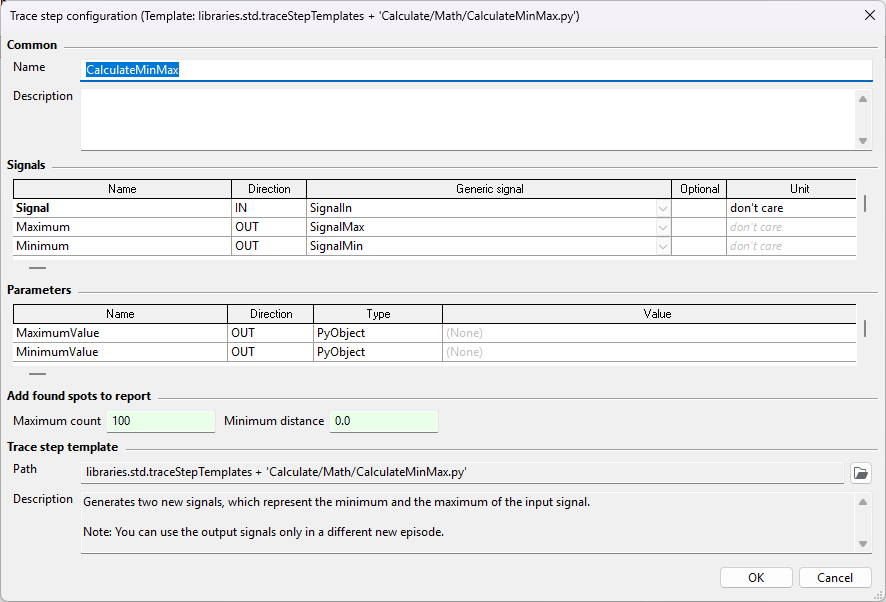
Parametrization of a trace step template, illustrated based on the default trace step template “CalculateMinMax”
In the section Report settings for spots the found spots in the report are configured.
A spot consists of a timestamp with an associated message.
In timing diagrams the spots
are generated automatically and are used to handle found spots in the traces where the timing
diagram was (not) fulfilled (depending on the settings).
When using
event-based Python trace steps,
the spots can be defined by means of the API method ReportSpot(time, message) by the user.
The option Maximum number defines how many spots will be shown at most in the report (beginning with the first spot). The setting Minimum distance specifies the minimal temporal distance between two successive found spots in the report: A spot will not be shown in the report if the difference between its timestamp and the timestamp of the previous spot is less then this minimal distance. Spots within this minimum distance are still reported if they have a worse verdict than the spot with the worst verdict previously displayed in the report.
If individual trace step templates are not be executed in the trace analysis, they can be disabled by means of the context menu (right-click) or via the shortcut <Space>:

Disable a trace step template