Trace step templates for video analysis
Among the standard templates provided with ecu.test the following templates for analyzing video signals can be found in the folder Multimedia:
In the following, the usage of these templates will be explained using exemplary analysis tasks.
Finding black frames in a video
Task
It shall be checked whether a video signal contains black frames. These indicate errors during video transmission and shall therefore be rated as FAILED.
Solution
The template CalculateBrightness calculates the brightness in the range between 0 (completely black image) and 1 (completely white image) for each frame of the video and writes the brightness values of all frames into the outgoing signal Brightness. A trigger block can then be used to check whether the brightness drops below a certain threshold value, for example 0.05.
For reporting from within video analyses the template ReportFramesAtStartTrigger can be
used. With default parameterization, it inserts the video frame that was valid at the beginning of
the trigger range into the report, in the example case the first one with a brightness < 0.05.
Since black frames have little meaning in the report, the parameter FrameOffset should
be changed from 0 to -1, which causes the last frame before the black frame to be reported.
Alternatively, by setting (-1, 0, 1) the black frame will be reported together with its
predecessor and successor frames. By setting the parameter Verdict accordingly, all
findings of black frames will be rated as FAILED.
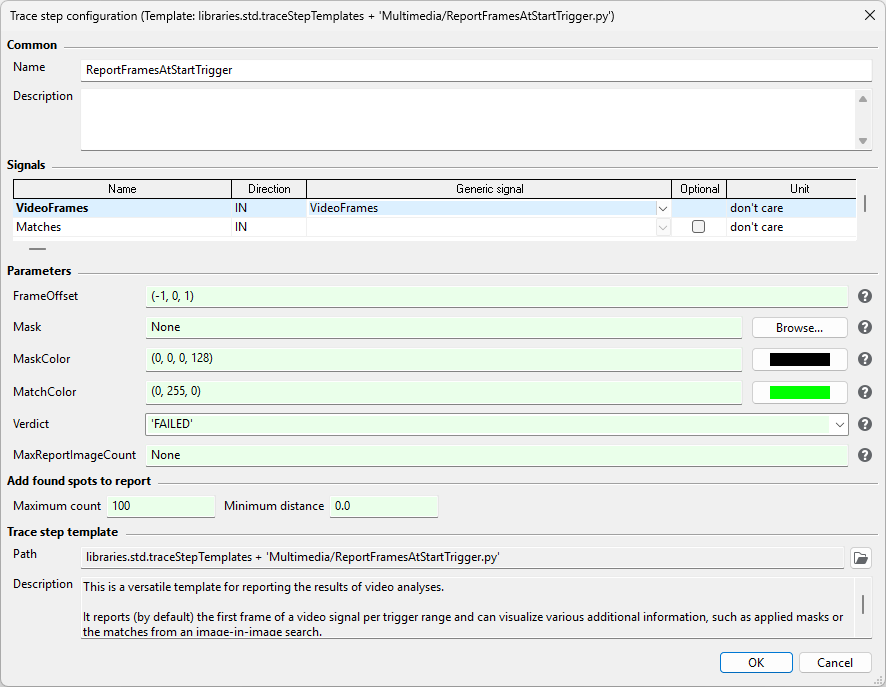
If the analyzed video was created by filming a display, then even if the image content was completely black, it probably has been captured as a dark gray area. In this case, the threshold value must be increased accordingly. Furthermore, surrounding elements such as the display frame may have been captured as well, but are irrelevant or even disturbing for the actual analysis. In this case, the Mask parameter can be used to limit the brightness calculation to the relevant part of the image. With ReportFramesAtStartTrigger the same mask can be specified such that it is drawn onto the images appearing in the report.
After completing the analysis, the result can be viewed in the trace.xplorer. There, the brightness curve can be visualized next to the video signal, black frames can be navigated to, and examined frame by frame, if necessary.

Locating GUI icons in a video
Task
In the video of a user interface the presence of certain icons, which are stored as reference images, shall be checked.
Solution
The template FindImage is suitable for such tasks. The template is similar in its parameterization to the eponymous function FindImage of the class Image for the analysis of single images. In addition to a reference image, a threshold value between 0 and 1 must be specified, which determines how similar an image must be to be considered a match. A threshold of 1 will search only for perfect matches, which are highly unlikely in videos, even if captured with a frame grabber, due to compression artifacts. Values of 0.9 and above will usually find closely matching regions in the frame while ignoring noise and compression artifacts; the default value is 0.98.
The template provides its results in the form of two output signals, which can be connected optionally:
The signal Contains returns the number of matches per frame. This signal can be used to make evaluations or formulate trigger conditions for invoking further analyses. In the simplest case, the expression
Containsis sufficient to check whether the reference image was found in the video at all. The expressionRisingEdge(Contains)can be used to check whether an additional match has been found.The signal Matches provides, in analogy to Image.FindImage, a MatchList [ ImageMatch ] per frame, from which detailed information about the individual matches can be taken. In particular, this output signal can be passed on to the template ReportFramesAtStartTrigger in order to visualize matches in the report. For this purpose, the parameter MatchColor of the template ReportFramesAtStartTrigger can be set to a color value which stands out well from the image content of the video and is used to draw a frame around the found matches.
In order to restrict the image search to parts of the video frames, a mask can be passed to the template FindImage. It is important that the same mask is also passed to the template ReportFramesAtStartTrigger to ensure correct visualization of the found matches.
Speeding up video analyses
Motivation
Image processing operations are often CPU intensive. Since they are executed on a large number of individual frames in a video analysis, analysis runtimes can quickly reach levels that are no longer feasible. A number of measures can be taken to counter this:
Masking
The templates mentioned above all offer the possibility to limit the image processing to a certain area of the video frames by using masks. This can be done due to contentual aspects of a video analysis, but also for runtime optimization.
Triggering
Different image processing operations sometimes differ considerably in their runtime. For example, searching for sub-images with FindImage is considerably slower than brightness calculation with CalculateBrightness. Therefore, it may be worthwhile to include the FindImage step in a trigger block that is executed only if the brightness in the considered image area suggests a potential match.
Data reduction
The runtime of image processing operations usually correlates directly with the amount of image data to be processed. Therefore the template ReduceVideo provides different means of data reduction:
By specifying a scaling factor or concrete target dimensions, the size of the individual video frames can be reduced - with great effect: Halving the edge length reduces the image size to a quarter, for example, and typically reduces the runtime of image processing operations to the same extent. However, it should be noted that reference images, for example, must be scaled to the same extent.
By specifying a lower frame rate, the runtime of the subsequent analysis can also be reduced. This optimization can be used if the time conditions under test do not require the original frame rate of the considered video signal.
Through the (very efficient) conversion of all video frames to grayscale images, accelerations by a factor of 3.5 can often be achieved, since not only the amount of data is reduced to a third, but also the effort of aggregating the results per color channel to an overall result is eliminated.
The template ReduceVideo creates a reduced video file in the report folder and outputs a corresponding video signal. The following must be taken into account:
The template ignores trigger ranges for technical reasons. It always processes the entire input video and writes a reduced output video.
When writing the output video, lossy compression is applied (again), which may lead to additional compression artifacts.