Speedgoat: SimulinkRealTimeXIL
Legacy/internal identifier: SimulinkRealTimeXIL
Vendor information
Vendor |
Web page |
Product name |
Version |
|---|---|---|---|
Speedgoat GmbH |
Simulink Real-Time |
from R2021b |
Categories
MDL 🛈 |
APL 🛈 |
BAN 🛈 |
BMA 🛈 |
SVC 🛈 |
DGN 🛈 |
FIU 🛈 |
EES 🛈 |
FCT 🛈 |
DBG 🛈 |
IMG 🛈 |
AUDIO 🛈 |
ENVSIM 🛈 |
ENVCOM 🛈 |
|---|---|---|---|---|---|---|---|---|---|---|---|---|---|
✓ |
✓ |
✓ |
Platform
Operating system |
Support |
|---|---|
Windows |
✓ |
Linux |
✓ |
Ports
Specifics
Speedgoat: SimulinkRealTimeXIL is a variant of ASAM: Generic XIL-API, customized to the functionality of Simulink Real-Time.
The interface to Speedgoat: SimulinkRealTimeXIL only supports the ports of the Generic XIL-API, which correspond to the functionality of Speedgoat and Simulink Real-Time.
Due to this distributed responsibility in the communication between ecu.test as XIL client and Speedgoat and MathWorks respectively as XIL server, we recommend for any questions regarding commissioning and problems with the use of Speedgoat: SimulinkRealTimeXIL to also involve the customer support of Speedgoat and MathWorks respectively.
Prerequisites for using Simulink Real-Time with ecu.test
An IMF file must be available on the system, in which an XIL server with the property VendorName=”MathWorks” is registered. Further information on the installation of the Simulink Real-Time XIL API support package and the requirements can be found in the following external sources:
Notes on building the real-time application
When building the real-time application (*.mldatx), make sure that no shorter stop time is set for the real-time application than the test case requires. This would result in the real-time application being terminated during test execution on the real-time system, even before the test case has been completed. For this reason, it is recommended to set the stop time to inf when building the real-time application. ecu.test automatically takes care of terminating and reloading the real-time application.
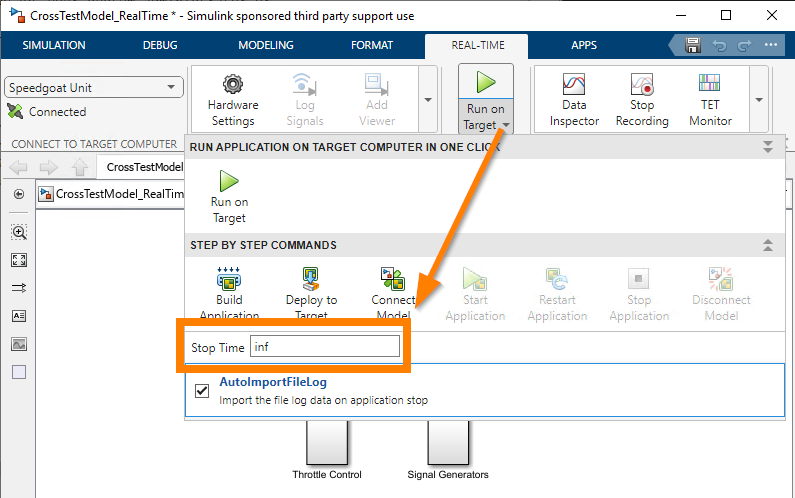
In addition to the real-time application, ecu.test also requires a port configuration file (*.xml), which can be generated in MATLAB using the following command when the real-time system is connected:
slrealtime.createPortConfigureFile(<portConfigFile>,<realTimeTargetIP>,<modelName>)
In the example from the figure, such a command could look like this:
slrealtime.createPortConfigureFile('CrossTestModel_RealTime.xml','192.168.142.29','CrossTestModel_RealTime')
Instructions for the test bench configuration
In addition to a MODELACCESS port, which obtains the model file via the test configuration, an APPLICATION port can also be used. This is necessary to access measurement and calibration variables of the real-time application. For correct configuration of the application access, the port configuration file (*.xml), which was previously generated as described under Notes on building the real-time application, must be specified under ECUCPort configuration file and ECUMPort configuration file.
For general instructions to set up a new test bench configuration, refer to What is a test bench configuration?.
Instructions for the test configuration
The port configuration file (*.xml) to be used for the MODELACCESS port can be selected on the Platform tab, which was previously generated as described under Notes on building the real-time application.
For general instructions to set up a new test configuration, refer to What is a test configuration?.
Notes on application access
If calibration variables are to be written via application access in the test case, calibration must first be activated. This can be done automatically by setting Calibration access in the test bench configuration (Automatic). If Manual has been selected, this can be done in the test case via the following port jobs:
Calibration variables only become active on the real-time system if the calibration for the real-time system has been switched to the work page. The corresponding port jobs are available for memory page management:
Properties 🛈
Name |
Available if |
Default value |
Valid values |
Type |
Description |
|---|---|---|---|---|---|
XIL-API Server |
[ONLINE] |
string |
Server or server version to be connected |
||
Model directory |
uri |
Base directory for searching MAPort configuration files. Absolute path or relative to the tool host base path. |
|||
Use .NET Runtime configuration |
☐ |
bool |
Determines if a specific .NET Runtime configuration should be used. |
||
.NET Runtime configuration |
Use .NET Runtime configuration |
uri |
Path to .NET Runtime configuration for running the XIL server. Path can be absolute or relative to the tool host base path. |
||
Timeout for tool call ❲in sec.❳ |
‘600’ |
string |
Timeout after which a tool call is aborted. |