IPG: CarMaker|RealTimeMaker
Legacy/internal identifier: CARMAKER
Vendor information
Vendor |
Web page |
Product name |
Version |
|---|---|---|---|
IPG Automotive GmbH |
CarMaker|RealTimeMaker |
CM 6.0, CM 7.0, CM 8.0, CM 9.0, CM 10.0, CM 11.0, CM 12.0, CM 13.0, RTM 13.1, CM 14.0, RTM 14.0.1 |
Categories
MDL 🛈 |
APL 🛈 |
BAN 🛈 |
BMA 🛈 |
SVC 🛈 |
DGN 🛈 |
FIU 🛈 |
EES 🛈 |
FCT 🛈 |
DBG 🛈 |
IMG 🛈 |
AUDIO 🛈 |
ENVSIM 🛈 |
ENVCOM 🛈 |
|---|---|---|---|---|---|---|---|---|---|---|---|---|---|
✓ |
✓ |
Signal recordings 🛈
File format |
Comment |
|---|---|
*.erg, *.erg.info |
CarMaker recording file with meta information |
Platform
Operating system |
Support |
|---|---|
Windows |
✓ |
Linux |
✓ |
Ports
Specifics
Basic information on dealing with environmental simulations can be found in section Tab Environment Simulation.
This tool connection allows loading of CarMaker TestRuns as well as starting and stopping the simulation. After loading a TestRun its parameters are available for reading and writing, as are its signals after the TestRun start. IPGMovie can be used during the simulation.
For the simulation of trucks and motorcycles IPG offers further tools, TruckMaker and MotorcycleMaker. These tools have the same interface as CarMaker and can therefore be controlled with this tool connection. If you have any problems, please do not hesitate to contact us.
Realtime-HILs can be connected with the tool RealTimeMaker. This tool also uses the same interface as the CarMaker and can therefore be controlled with this tool connection. The configuration of the RealTimeMaker connection will be explained in details in its own section.
Info
When using CarMaker under Linux, it is expected that the CarMaker installation is located in the directory “/opt/ipg”. This is the default setting when using the IPG installer.
Preparation when using CarMaker under Linux
For the use of the connection under Linux the following things must be considered:
The CarMaker installation must be located in the “/opt/ipg” directory. This is the default setting when using the IPG Installer.
The dynamic library “libapo-client-linux64.so” is required for use. Since this is currently not shipped with CarMaker, it must be created manually inside the CarMaker lib directory (e.g. “/opt/ipg/carmaker/linux64/lib”). For this, gcc in version 7.5 (e.g. installable under Ubuntu with the package gcc-7) or higher is needed. The creation is possible with the following call inside the CarMaker lib directory (please adjust the command if another GCC version is used):
gcc-7 -shared -o libapo-client-linux64.so -Wl,--whole-archive,-soname,libapo-client-linux64.so libapo-client-linux64.a -Wl,--no-whole-archive
Configuration
The TBC options should be configured beginning from the top. In particular, the information in the Common section must be set at the beginning. Depending on the use case, different settings must be made in the test bench configuration, which are described below.
MiL/SiL
In the MiL or SiL use case, CarMaker Office is used. Normally, Toolhost, CarMaker and also the system under test are located on the same system.
Use case 1: Automatic startup of CarMaker by ecu.test
ecu.test can automatically start CarMaker when the configuration is activated. This is recommended for most application scenarios. The test bench configuration must be filled as described below:
In the Common section fill the settings CarMaker Lib directory and CarMaker project directory.
Fill the setting Hostname with
localhost.Set the start mode in the section Tool connection to Start automatically with ecu.test.
Enter the path to the CarMaker program.
Optional: Specify command line parameters for starting CarMaker.
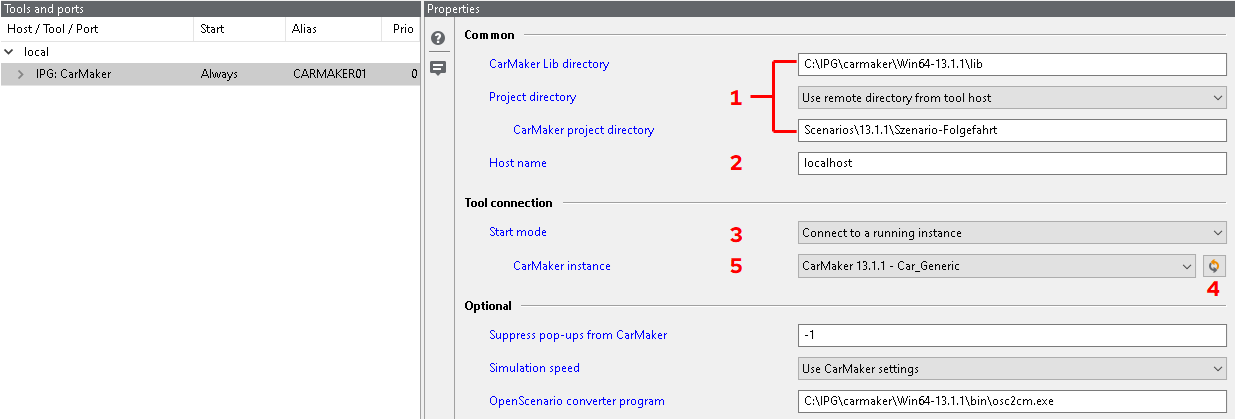
Use case 2: Connect to a running instance
The configuration of a connection to a running CarMaker instance requires an already started
instance in the state Idle. This can be achieved as follows:
Start CarMaker manually
Load the project: Choose the desired project via the menu File -> Project Folder -> Select.
Start the application: Choose the menu entry Application -> Start & Connect. The status in the box Simulation should subsequently change to Idle.
The test bench configuration must be filled as described below:
In the Common section fill the settings CarMaker Lib directory and CarMaker project directory.
Fill the setting Hostname with
localhost.Set the property Start mode in the Tool connection section to Connect to a running instance.
Refresh the list of available Carmaker instances by clicking the refresh button.
Select the CarMaker instance.
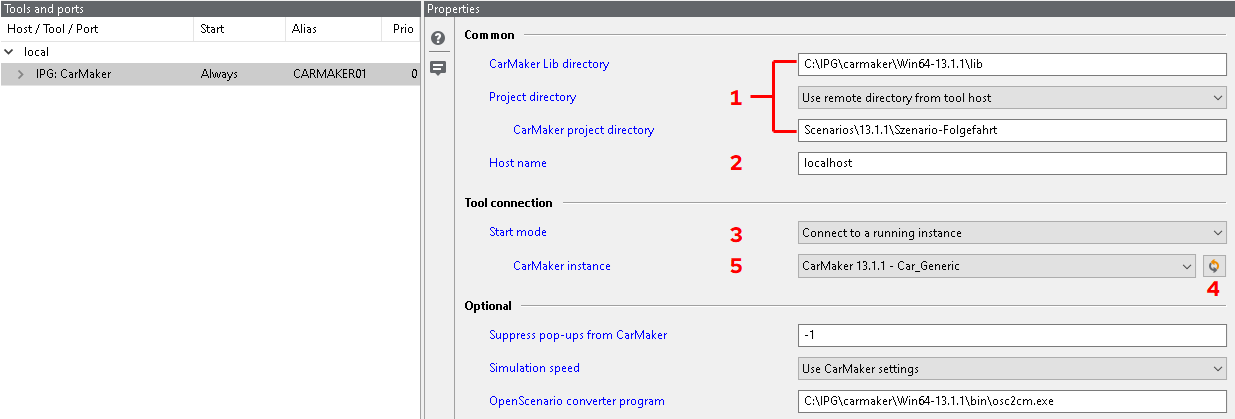
HiL
In the HiL use case, CarMaker HiL is used. In comparison to MiL/SiL, it is likely, that the system under test runs on its own system and is addressed as a CarMaker Xeno instance. In this case additional settings are required.
Use case 1: Automatic startup of the CarMaker GUI and real-time application by ecu.test
ecu.test automatically launches the CarMaker user interface and the real-time application when the configuration is activated. The test bench configuration must be filled as described below:
In the Common section fill the settings CarMaker Lib directory and CarMaker project directory.
Fill the setting Hostname with the hostname of the real-time system.
Set the start mode in the section Tool connection to Start automatically with ecu.test.
Fill the property CarMaker program with the absolute path to the
CM_HIL.exe.Activate the Checkbox HiL-Mode.
Fill the apphost option with the hostname of the realtime system in the same way as Hostname.
Set the property appuser to the name of the HiL user (See CarMaker GUI Realtime System -> Configuration / Status in the property HIL User).
In addition, the path to the real-time application that is to be started must be entered for Application Executable.
Optional: Specify command line parameters for starting CarMaker.
Optional: The setting Terminate real-time application before starting can be activated. This terminates any running real-time applications before starting the connection to CarMaker.
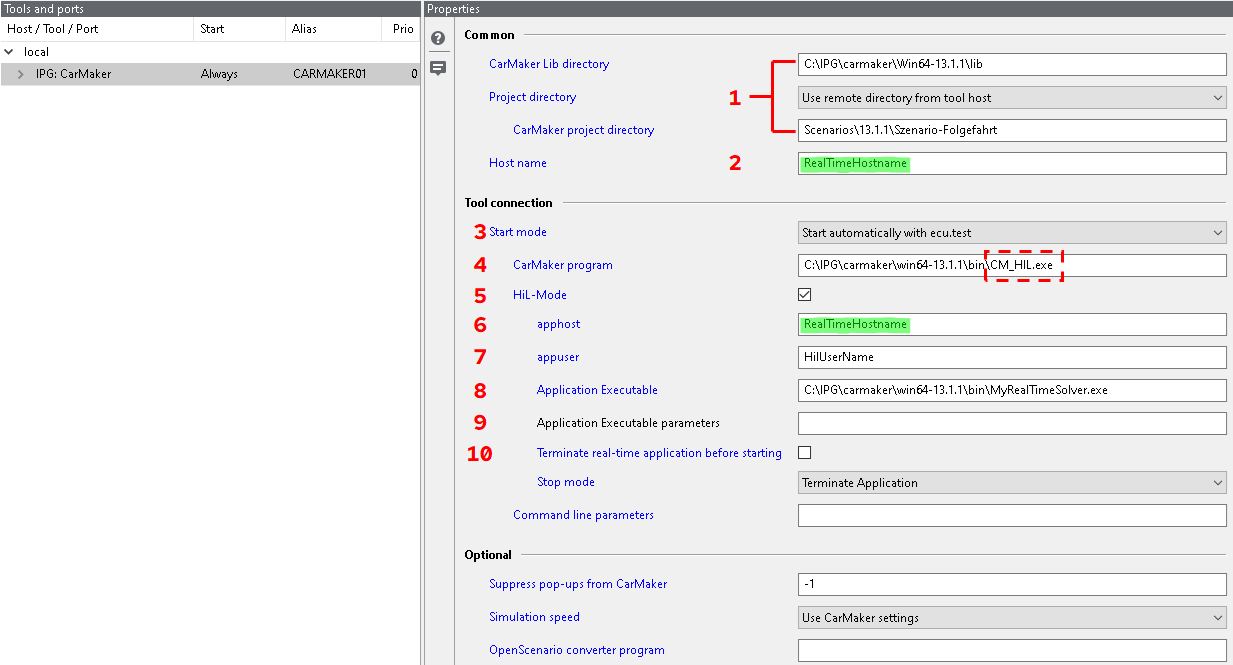
Use case 2: Automatic startup of CarMaker GUI by ecu.test and connection to a running real-time application
ecu.test only starts the CarMaker user interface automatically when the configuration is activated. Afterwards, a connection to an already running real-time application is established. The test bench configuration must be filled as described below:
In the Common section fill the settings CarMaker Lib directory and CarMaker project directory.
Fill the setting Hostname with the hostname of the real-time system.
Set the start mode in the section Tool connection to Start automatically with ecu.test.
Fill the property CarMaker program with the absolute path to the
CM_HIL.exe.Activate the Checkbox HiL-Mode.
Fill the apphost option with the hostname of the realtime system in the same way as Hostname.
The appuser setting must REMAIN EMPTY.
The Application Executable setting must REMAIN EMPTY.
The Application Executable parameters setting must REMAIN EMPTY.
The setting Terminate real-time application before starting must NOT be activated.

Info
The Stop mode always refers to the CarMaker application and determines how it is handled once the connection is closed. Also, if started by ecu.test the CarMaker GUI will be always terminated.
Use case 3: Connect to a running CarMaker GUI and real-time application
The connection to a running CarMaker GUI and real-time application can only be configured with an
already started CarMaker instance, which is in the Idle state.
The test bench configuration must be filled as described below:
In the Common section fill the settings CarMaker Lib directory and CarMaker project directory.
Fill the setting Hostname with the hostname of the real-time system.
Set the property Start mode in the Tool connection section to Connect to a running instance.
Refresh the list of available Carmaker instances by clicking the refresh button.
Select the CarMaker instance.
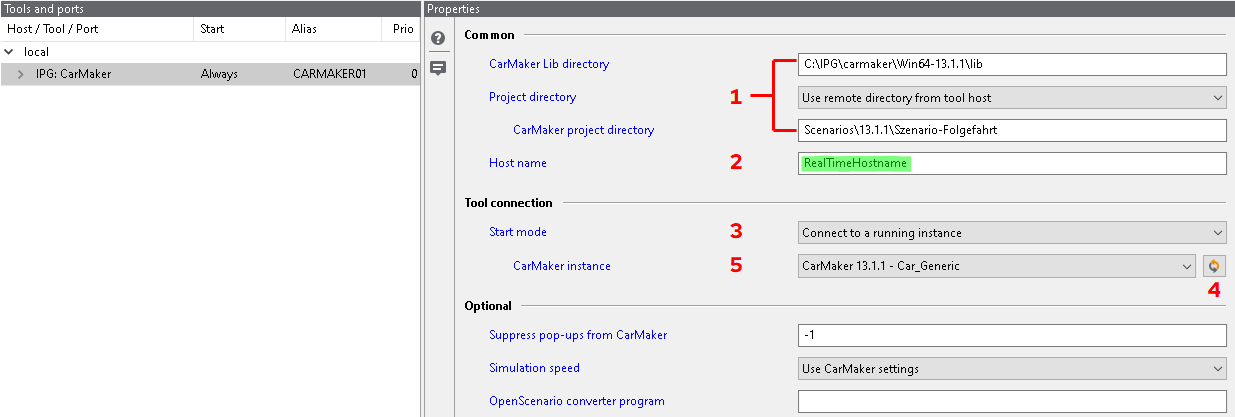
RealTimeMaker
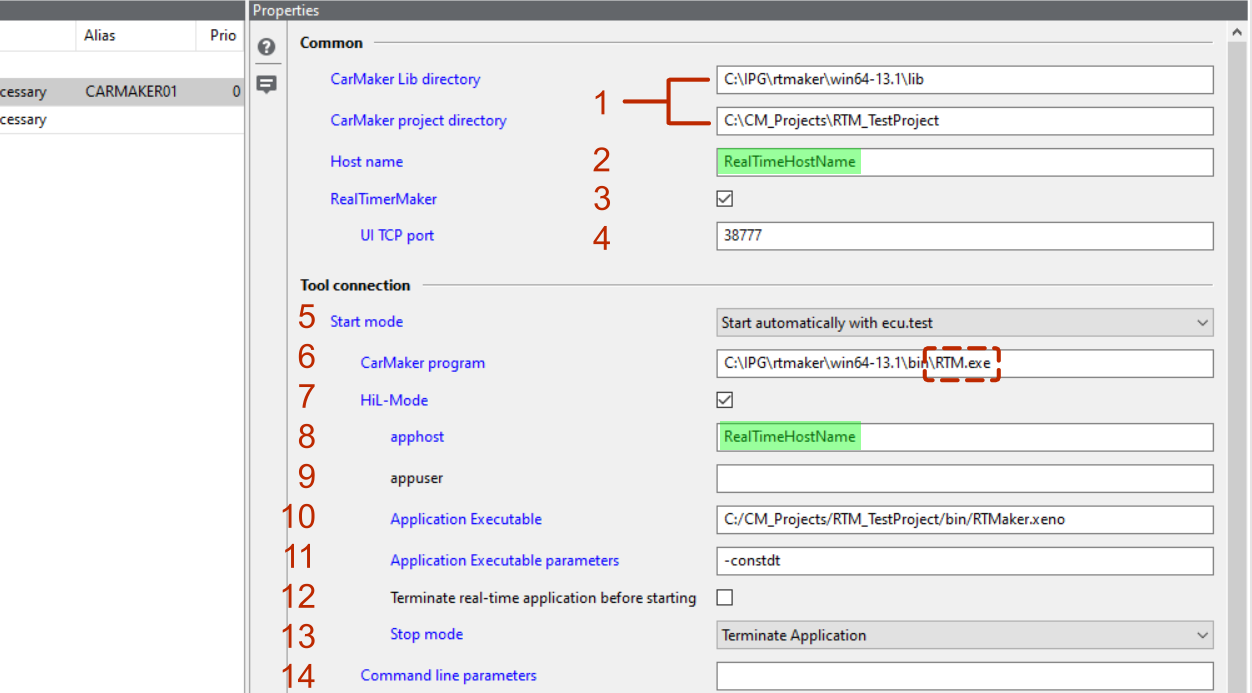
This toolconnection allows additionally to control the IPG RealTimeMaker tool. This option is at the moment only available for the Option Start automatically with ecu.test. The communication with the RealTimerMaker UI uses a TCP connection. This is why a port for this connection must be provided.
The test bench configuration must be filled as described below:
In the Common section fill the settings CarMaker Lib directory and CarMaker project directory.
Fill the setting Host name with the hostname of the real-time system.
Activate the option RealTimeMaker.
Fill the setting UI TCP port with the desired port number.
Set the start mode in the section Tool connection to Start automatically with ecu.test.
Fill the property CarMaker program with the absolute path to the
RTM.exe.Activate the Checkbox HiL-Mode.
Fill the apphost option with the hostname of the realtime system in the same way as Host name.
Fill the appuser setting with the user name that was configured for the HIL system.
Fill the Application Executable setting with the absolute path of the Xeno application to use.
Fill the Application Executable parameters with additional start parameters.
The setting Terminate real-time application before starting must NOT be activated.
The setting Stop mode shoulb be set to
Terminate application.The setting Command line parameters must NOT be filled.
Recording modes
This tool connection supports the recording via Auto-Start/Stop as well as manual recording control. When using Auto-Start/Stop, the system will automatically record the entire simulation. The simultaneous use of Start trace and Stop trace test steps is not allowed.
Manual recording control is possible by the individual use of Start Trace and Stop Trace test steps. The test steps must only be used between Start Simulation and Stop Simulation.
Recording of the IPGMovie
ecu.test supports the recording of the IPGMovie as a file. This functionality is available by using the image port and media access in the test configuration respectively the media access tab.
Info
The recording of the IPGMovie requires CarMaker version 8.0.0 or later.
Timing modes
The tool connection supports real-time and continuous simulation time mode (see Temporal behaviour). The timing behavior of the adapter can be configured via the execution tab in the loaded TCF.
Signal stimulation
The CarMaker tool connection basically offers various possibilities for the stimulation of signals. On the one hand, signals can be permanently set to a given value by using a Write test step. In this case, the signal is no longer updated by internal CarMaker functions but retains the set value. On the other hand, the Stimulus test step or Start Stimulus test step can be used to create more complex stimuli. Once the execution of either test step finishes, the stimulation of the affected signal ends too. The latest signal value is then held by CarMaker until the signal is changed again by external or internal functions.
The following segment types are supported in Stimulus test step or in .sti/.stz files (for the Start Stimulus test step):
Info
Using the Start Stimulus test step for stimulation, only one signal can be stimulated. Simultaneous stimulation of multiple signals is not supported.
Warning
A Stimulus test step or Start Stimulus test step with multiple segments should only be used for signals that are not periodically updated internally by CarMaker! Otherwise the signal might be overwritten by CarMaker’s internal functions for a short time period during the transition from one segment to the next. The actual signal values would therefore not correspond to the configured stimulus.
CarMaker for Simulink
With a combination of the Matlab/Simulink connection and the IPG: CarMaker|RealTimeMaker connection it is possible to connect CarMaker for Simulink. To set up the cluster, the following steps are necessary.
Create a CarMaker for Simulink project (CM4SL project)
A CarMaker for Simulink project (CM4SL project) must be created first. To do this, please follow the QuickStartGuide of CarMaker.
In addition, the following Matlab script must be created in the “src_cm4sl” subfolder of the CM4SL project:
     open_system('generic.mdl');
     open_system('generic/Open CarMaker GUI');
     addlistener(ecuTest.api.Events.instance, 'PreStopConfiguration', @(~,~)system('cmd /C taskkill /IM HIL.exe'));
The script opens the Simulink model generic.mdl and starts a CarMaker instance. It also adds an event hook that terminates the started processes again on TBC stop (see “Using events” in Matlab/Simulink).
Configuration of Matlab/Simulink
Both a Matlab/Simulink and a CarMaker connection must be configured. The connection for Matlab/Simulink must be created first. A model port must be added as a port. The following settings must be made:
Test bench configuration
The src_cm4sl subdirectory of the CarMaker project must be specified as model directory.
As MATLAB-Release a MatLab version supported by CarMaker must be used.
The option Model structure caching needs to be activated.
Model port:
The option Automatically start/stop simulation needs to be deactivated in the model port configuration.
The option Load model values successively needs to be activated in the model port configuration.
These two settings ensure that Simulink models are only loaded when they are accessed (e.g. when a node is expanded in the model access tab). Without them, an error appears when CarMaker is started for the first time, stating that a test run has not yet been loaded.
Test configuration
In the test configuration, the Matlab script startskript.m must be specified as model file.
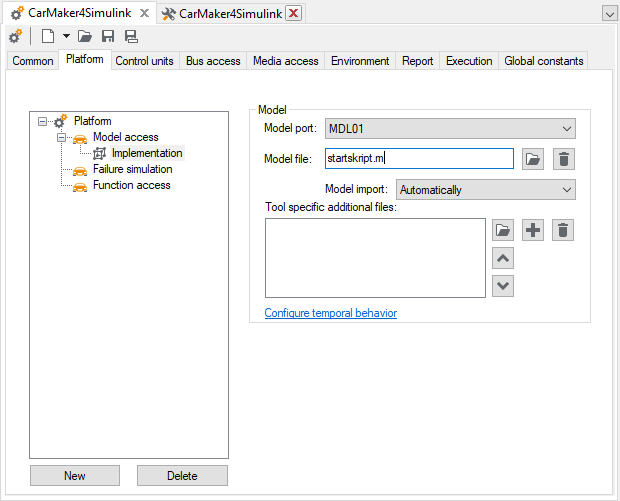
It must also be ensured that the time source is set to the Matlab/Simulink port in Execution tab of the test configuration. The simulation mode must then be set to continuous.
Starting Matlab/Simulink
Now the Matlab/Simulink configuration needs to be started. This is necessary so that a running CarMaker instance exists. We will connect to this running instance when configuring CarMaker in the next step.
Matlab, the Simulink model and the CarMaker GUI should start successfully.
Configuration of CarMaker
With the configuration running, the next step is to add a tool connection IPG: CarMaker with an Envsim port to the TBC. In the configuration, select connect to a running instance as startup mode. Afterwards, update the list of running CarMaker instances via the corresponding button. The instance started by Matlab should now be selectable.
It is also important to note that the same project directory as in the Matlab/Simulink configuration has to be selected.
To ensure that Matlab is started before CarMaker (and can connect to the running CarMaker instance), the priority must be adjusted in the test bench configuration.
Further notes
Before the Simulink model can be accessed in ecu.test, a testrun needs to be loaded in CarMaker (e.g. with a load scenario test step). If no testrun is loaded, an error message will be shown in CarMaker which blocks further test execution.
Writing parameters is only possible after the scenario has been loaded into CarMaker and before the simulation has started. If the simulation is started automatically by Simulink, there may be unexpected effects.
OpenScenario support
From CarMaker version 13 onwards, a converter for the OpenScenario format is available. ecu.test can use this converter to automatically convert OpenScenario files into the Testrun format before loading. To use this feature, the following conditions must be met:
OpenScenario files (*.xosc) are located in the project folder in the directory Data/OpenScenario/
all dependent files (e.g. road files *.xodr) are located in the project folder
the appropriate OpenScenario converter program was correctly specified in the test bench configuration
Editing OpenScenario with the scenario.architect from ecu.test
The CarMaker tool adapter also supports editing OpenScenario files with the scenario.architect directly out of ecu.test. To do this, the following conditions must be met in the test bench configuration in addition to the normal CarMaker configuration:
In the section Common select the option Copy local directory to tool host.
In the section Common fill in the option Local project source directory.
In the section Optional set the correct path to the OpenScenario converter program.

Further information can be found in Tutorial OpenSCENARIO Workflow with scenario.architect.
Version notes
Deprecated since version 6: The use of CarMaker 6 is no longer supported as of ecu.test 2021.4. Please use a newer version.
Properties 🛈
Name |
Available if |
Default value |
Valid values |
Type |
Description |
|---|---|---|---|---|---|
Common |
|||||
CarMaker Lib directory |
Common |
‘<online query>’ |
string |
Path to the library directory, that contains the libapo client DLL |
|
Project directory |
Common |
remote |
[local, remote] Display values:
|
string |
Copy project directory or use directory on CarMaker host. |
CarMaker project directory |
Common » Project directory: ‘remote’ |
string |
Project directory as an absolute path or as a relative path. Path can be relative to the tool host base path or to the workspace, if no tool host base path is set. |
||
Local project source directory |
Common » Project directory: ‘local’ |
string |
Path to a local project directory to be copied to the CarMaker host. The path can be absolute or relative to the workspace directory. |
||
Host name |
Common |
‘localhost’ |
string |
Name of the computer on which the CarMaker server is running; in the HiL variant, the name of the HiL must be specified. Note: Copying the CarMaker session log file to the report directory is only supported if a host name is specified and not if an IP address is used. |
|
RealTimerMaker |
Common |
☐ |
bool |
Activates RealTimeMaker mode. |
|
UI TCP Port |
Common » RealTimerMaker |
44111 |
int |
TCP port of the RealTimeMaker UI. |
|
Tool connection |
|||||
Start mode |
Tool connection |
Autostart |
[Autostart, Instance] Display values:
|
string |
ecu.test either starts a new CarMaker instance or connects to an already started instance |
CarMaker program |
Tool connection » Start mode: ‘Autostart’ |
‘<online query>’ |
string |
Path to the CarMaker program exe |
|
HiL-Mode |
Tool connection » Start mode: ‘Autostart’ |
☐ |
bool |
Activates the extended settings for HiL operation. |
|
apphost |
Tool connection » Start mode: ‘Autostart’ » HiL-Mode |
string |
Hostname or IP of the HiL system. |
||
appuser |
Tool connection » Start mode: ‘Autostart’ » HiL-Mode |
string |
User name of the HiL system. |
||
Application Executable |
Tool connection » Start mode: ‘Autostart’ » HiL-Mode |
string |
Optional path to the simulation backend executable. If not set, the default backend as set in CarMaker is used. |
||
Application Executable parameters |
Tool connection » Start mode: ‘Autostart’ » HiL-Mode |
string |
Optional command line parameters that are passed to the simulation backend set in Application Executable on startup. |
||
Terminate real-time application before starting |
Tool connection » Start mode: ‘Autostart’ » HiL-Mode |
☐ |
bool |
If this setting is activated, real-time applications that are still running are terminated before being started. |
|
Stop mode |
Tool connection » Start mode: ‘Autostart’ » HiL-Mode |
‘Terminate’ |
[‘Run’, ‘Terminate’, ‘Shutdown’, ‘Disconnect’] Display values:
|
string |
Stop mode for CarMaker when stopping the test bench configuration. It can be selected whether: * the application should continue to run * the application should be stopped * the entire system should be shut down * or the connection should be disconnected. |
Command line parameters |
Tool connection » Start mode: ‘Autostart’ |
string |
Command line parameters to be passed to the executable. |
||
CarMaker instance |
Tool connection » Start mode: ‘Instance’ |
[‘<online query>’, ‘<no toollib start>’] |
string |
CarMaker server instance on the tool host. |
|
Optional |
|||||
Suppress pop-ups from CarMaker |
Optional |
-1 |
int |
Popups are suppressed after the set time (time unit is seconds). A value of 0 does not display popups. A value of -1 shows all popups without oppression. |
|
Simulation speed |
Optional |
‘Use CarMaker settings’ |
[‘Use CarMaker settings’, ‘0.2x’, ‘0.5x’, ‘1x’, ‘2x’, ‘3x’, ‘5x’, ‘Max’] |
string |
Sets the simulation speed to the selected multiple of the real time or maximum possible speed for “Max”. “Use CarMaker settings” will maintain the speed set in CarMaker. |
OpenScenario converter program |
Optional |
‘<online query>’ |
string |
Path to the CarMaker open scenario converter program exe |
|
Timeout for tool call ❲in sec.❳ |
‘600’ |
string |
Timeout after which a tool call is aborted. |