Mathworks: MATLAB & Simulink
Legacy/internal identifier: MATLAB/Simulink
Vendor information
Vendor |
Web page |
Product name |
Version |
|---|---|---|---|
The Mathworks, Inc. |
MATLAB & Simulink |
Windows: R2015b (8.6) to R2024b (24.2) Linux: R2020b (9.9) to R2024b (24.2) |
Categories
MDL 🛈 |
APL 🛈 |
BAN 🛈 |
BMA 🛈 |
SVC 🛈 |
DGN 🛈 |
FIU 🛈 |
EES 🛈 |
FCT 🛈 |
DBG 🛈 |
IMG 🛈 |
AUDIO 🛈 |
ENVSIM 🛈 |
ENVCOM 🛈 |
|---|---|---|---|---|---|---|---|---|---|---|---|---|---|
✓ |
✓ |
Platform
Operating system |
Support |
|---|---|
Windows |
✓ |
Linux |
✓ |
Ports
Specifics
MATLAB is a software for solving mathematical problems, particularly in numerical simulation, data acquisition, data analysis and data evaluation.
The tool interface of ecu.test to MATLAB and Simulink offers various possiblities for testing Simulink models. Feature overview:
Reading and writing block parameters
Precise Simulation time control,
Remotely controlling ecu.test from within user MATLAB scripts
and many more.
A Playlist with introductory videos to the MATLAB tool connection is available in the tracetronic Youtube channel.
General information
Prerequisites for using MATLAB with ecu.test
Windows
ecu.test automates MATLAB using its COM API. It is required that MATLAB is registered as COM Automation Server in Windows. Details are described in the MATLAB help: Register MATLAB as Automation Server
By default, at configuration start, ecu.test will start a new instance of MATLAB.
Using the tool property MATLAB connection type, it is possible to enable
to connect to an already running instance. For that it is required that this instance
has its Automation Server activated (enableservice('AutomationServer', true)).
Linux
For ecu.test to access MATLAB under Linux, the following requirements must be met:
ecu.test is installed on Linux. See ecu.test on Linux.
Enabled X server and correctly set
DISPLAYenvironment variable. See also Start MATLAB on Linux Platforms. The environment variable can be read withecho $DISPLAY. If not already set, it must be declared withexport DISPLAY=valuebefore ecu.test or Tool Server is started.valueis often:0or:0.0.
Further informationen for using ecu.test on Linux:
Furthermore, the following restrictions apply in the tool properties of the test bench configuration:
On Linux the
<MATLAB installation directory>/bin/matlabmust be given in the test bench configuration. An explicit Auto can not be chosen and the release can not be determined automatically.On Linux, it is not possible to connect to a MATLAB instance that has already been started. Therefore only Auto or New can be used as MATLAB connection type.
Caution
Due to performance issues when using the MATLAB C++ Engine API the simulation modes “real-time” and “continuous” cannot be used on Linux. If these modes are needed or if there are further questions, please contact support@tracetronic.com.
All MATLAB versions are supported that are compatible with the Linux version specified in System requirements. For details, see the MATLAB help: System Requirements
Log-Files
In order to facilitate debugging errors, the MATLAB connection creates a log file.
At the end of each test case execution this log file is copied to the report folder. Another
copy is put into the log folder of ecu.test inside the
subfolder MATLAB.
For support requests, these log files should be considered.
Model structure caching
ecu.test stores information about the model structure of the model used and for each model referenced in it in separate cache files.
Info
For initial cache creation, or if the model or a model referenced within it has been modified, the model must be compiled once at configuration startup to determine the model structure. The compilation process can take some time, depending on the complexity of the models.
If the configuration was started and in the model access tab a node was unfolded, which is not contained yet in the cache, then the model is compiled, if it is not already in the compiled state and the cache is extended by the information of the unfolded model structure level.
Info
To load complete subtrees of the model and thus include them in the cache, the Load all subelements option can be used in the context menu of a node in the model access tab.
The cache files are stored in the .ecutest/<model name> folder next to the model.
Caches that have not been used for more than 30 days are automatically deleted after configuration
startup.
Caching of the model structure is enabled by default. If inconsistencies with the cache occur, the
corresponding cache files in the .ecutest folder can be deleted. Caching of the model
structure can also be completely disabled in the test bench configuration.
Instructions for the test bench configuration
For general instructions to set up a new test bench configuration, refer to What is a test bench configuration?.
Instructions for the test configuration
For general instructions to set up a new test configuration, refer to What is a test configuration?.
Selection of the test model
On the Platform tab, the Model-, Initialization- or Simulink-Project-file can be selected.
Info
On the Execution tab it can be set whether the model should be executed in “real-time”, “continuous” or “stepwise”. Details about the different execution modes are explained in the Simulation time control section.
As already mentioned, also m-files can be specified in Platform tab. This makes it possible to implement user-specific initialization routines to provide an executable Simulink model. After opening or executing the file referenced in Platform tab, ecu.test expects an opened, initialized, and executable Simulink model.
Example
The following code is intended to illustrate the use of an init script.
load('initData.mat');
myModelVariable = 1;
open_system('sldemo_autotrans');
Alternatively, instead of using the entire model, a subsystem can be cut out of the entire original model. The helper function provided with ecu.test can be used for this purpose.
sut = ecuTest.OpenModel('sldemo_absbrake', 'Wheel Speed')
Detailed documentation is available in MATLAB using the following command:
doc ecuTest.OpenModel
Hiding irrelevant model structures
When starting the configuration, the model structure is displayed in ecu.test inside the Model Access tab. In the case of very extensive models, the number of model paths to be displayed here is correspondingly large and can lead to an increased waiting time. If only some of the model paths are relevant to the tests, these model structures can be explicitly specified when loading the model. This causes the configuration to loads faster. Furthermore, only the previously specified elements including substructures will be displayed in the Model Access tab of ecu.test. This function has no influence on the model behavior but only affects the display of the Model Access tab.
ecuTest.Settings.ModelTree.Include(<subsystem path>)
Example
The function can be used in the initialization script as follows:
modelName = 'sldemo_auto_climatecontrol';
open_system(modelName);

ecuTest.Settings.ModelTree.Include('Heater Control');
ecuTest.Settings.ModelTree.Include('AC Control');
Dealing with special model components
Model Reference
Simulink models may contain other models as Model Reference blocks. ecu.test allows access to signals and parameters in referenced models. The following constraint applies:
Only uniquely referenced models may be accessed (If the same model reference is used at different locations within the model, no access to any of those model references is possible)
Model Reference in Accelerator Mode
Simulink models may contain Model References in Accelerator Mode, called Accelerated Models. In Accelerator Mode, the model methods are separated from the Simulink software. With ecu.test it is possible to access input and output signals as well as Mask Parameters of the Accelerated Model. Inner signals and parameters have only restricted interactions.
The following restrictions apply to internal signals and parameters of Accelerated Models:
All restrictions that do also apply for Model References.
Up to MATLAB R2020a applies:
Reading/writing/stimulating/recording internal parameters and signals is not possible.
From MATALB R2020b applies:
Reading internal signals and reading/writing internal parameters are possible, as long as the simulation is stopped.
Stimulation of internal signals is not possible.
Recording of internal signals is possible.
Protected Model
Simulink models may contain Protected Models as referenced models. With ecu.test it is possible to access input and output signals as well as Mask Parameters of the Protected Model. The following constraint applies:
All restrictions apply that do also apply for Model References
In addition, when creating the Protected Model, it must be ensured that the following model parameters are set as specified. The values of the model parameters are required for the simulation with ecu.test, but cannot be changed by ecu.test within Protected Models because once created, they are read-only.
set_param('<MODELNAME>', 'SignalLogging', 'on')
set_param('<MODELNAME>', 'OptimizeBlockIOStorage', 'off')
set_param('<MODELNAME>', 'SaveFormat', 'StructureWithTime')
set_param('<MODELNAME>', 'StopTime', 'inf')
set_param('<MODELNAME>', 'SignalLoggingSaveFormat', 'Dataset')
Configuration Reference
Using models with Configuration Reference is natively supported by ecu.test. Necessary changes to the model configuration are also applied when referenced configurations are used.
Info
The user no longer has to convert the referenced configuration into a normal model configuration with the help of a model init script, since ecu.test will already do this.
Simulation time control
See also: Temporal behaviour: Real time and simulation time modes.
The following points should be noted.
Stepwise execution in simulation time
In this mode ecu.test is in control of the model simulation progress. This mode should be used preferably as it offers the best feature support of this tool connection.
Info
In order to let time pass in the model, the Wait test step must be used.
The wait time should be a multiple of the model step size (when using fixed-step solvers) or of the minimum step size (when using variable-step solvers).
Real-time mode
This mode is used if the model is simulated in real-time without it being pause in between. E.g., when Simulink is used in a co-simulation together with another tool.
Info
If the model is already simulating at package start, it is not possible to write or stimulate signals as this would require the insertion of instrumentation blocks.
If Simulink is used in External-Mode, it usually has to be executed in real-time mode.
Caution
Due to performance problems, the real-time mode cannot be used on Linux. If this mode is required or if you have any further questions, please contact support@tracetronic.com.
Continuous execution in simulation time
In this mode, the model streams the current simulation time to ecu.test. The same restrictions apply as for real-time mode.
Caution
Due to performance problems, the continuous simulation mode cannot be used on Linux. If this mode is required or if you have any further questions, please contact support@tracetronic.com.
Usage of model values
In principle, a distinction is made between these types of model values:
- Signals
Data flow between Simulink blocks, represented by connection lines in the model.
- Parameters
Parameters of Simulink blocks (e.g. for constant or gain blocks)
- States
Internal states of specific block types (e.g., integrators, delays, S-Functions etc.)
The available model values can be selected using the Model Access tab. Depending on the type of the respective model value, different actions are available: (read/write, signal recording, stimulation):
- Signals
read, write, recording, stimulation
- Parameters
read, write
- States
read, recording
In order to enable the writing and stimulation of signals, ecu.test automatically creates an Instrumentation block inserted in the Simulink model at the respective signal connector.
Supported representations:
- Physical
Numerical value (integer or floating point)
- Interpreted Text
Value label for enumeration data types
- Raw value
Text representation of the parameter in the block mask (only for scalar parameters)
Info
If a signal is only read or recorded it is not necessary to insert an instrumentation block into the model. An exception to that rule is if reading with time options is used.
Info
When writing a block parameter in which a variable is referenced, the phsyical value is written directly to the block mask. In order to change the value of a parameter used in the block mask, the parameter or variable from the BASE WORKSPACE, MODEL WORKSPACES or DATA DICTIONARIES node can be used.
Signals with branches
Inserting an instrumentation block into the model unavoidably leads to a modification of the model structure. ecu.test always tries to avoid consequences that might lead to a loss of data integrity.
For unbranched signal connections (one Source-Outport connected to one Destination-Inport), the port properties of the source port will be moved automatically to the right side behind the inserted instrumentation block to obtain the signal properties for subsequent model parts.
However, in the case of a branched signal connection (one Source-Outport connected to multiple Destination-Inports), if an Inport is referenced in the test case, it is not possible to move the signal properties from the source Outport. Therefore it is recommended to always use the source Outport when writing and stimulating model signals.
Parameters, signals and variables in the MATLAB workspace
On configuration start, ecu.test checks all variables in the MATLAB workspace for variables of type Simulink.Parameter and Simulink.Signal. They are displayed in a separate BASE WORKSPACE node in the model tree. Furthermore, ecu.test searches the model for used variables and displays them in another node.
This facilitates access to parameters, variables and signals that are normally scattered over various places in the model.
The following applies:
- Simulink.Parameter or general variables
May be read or written to
If the value is changed the model will be updated automatically (
set_param(model, 'SimulationCommand', 'update')), in order that the new value takes effect in the simulation.
- Simulink.Signal
Reading, writing, recording and stimulation is possible
For writing and stimulation, the signal that is connected to the Simulink.Signal object, will be instrumented
- Model Workspaces
If the main model or any of the referenced models make use of a Model workspace, those are displayed as separate nodes under a MODEL WORKSPACES node. They only contain entities that are actually used in the respective model.
- Data Dictionaries
The main model or any of the referenced models can be linked to Data Dictionaries. Variables, parameters and signals, stored in one of those, are also displayed in a seperate DATA DICTIONARIES node if they are used in the respective model.
Reading with time options
If a signal is read and the expectation contains a time option, it means that the simulation is continued during the read test step until
either the expectation is fulfilled
or the time out is exceeded.
The time option is evaluated directly in the Simulink model, provided that the expectation is composed of a combination of comparison operators and logical operators (this includes comparisons with tolerances). For this purpose, ecu.test inserts an instrumentation block for the signal to be read into the model.
For Multi-Check test steps, evaluation of the time option directly in the Simulink model is only possible if the following conditions are met:
Read test steps only (no Calculation or Job test steps) where Execute all n iterations is not active.
Per signal mapping no more than one read test step
polling cycle disabled
For more complex expectations (e.g. comparisons that contain function calls) or if one of the constraints for Multi-Check test steps does not apply, the expectation is evaluated within ecu.test. The simulation is then paused and resumed very frequently, which usually leads to a significant loss of speed. To keep the performance impact as low as possible in this case, a polling cycle as high as possible should be selected for the time option.
Stimulation of signals
The first sample of a stimulation (at time 0) is only active in the model if the stimulation in the test case has already been defined before the simulation starts. At the end of the stimulation, the last value is held until it is overwritten by either a write test step or another stimulation, or until the value is recalculated by the model via the reset test step.
Start Stimulus
The Stimulation of signals is done by an analytical calculation of the segments, that have been created with the Signal Editor (e.g. for Sine, Ramp or Const segments). This allows a sample accurate replay of the signal shape, especially when using Variable-Step solvers, without the need of sampling the signal. DataFile segments will be sampled with the minimum step size of the solver.
In addition to using STI/STZ files, all of ecu.test readable trace formats can be used for stimulation. ecu.test will convert those signals to a format that is compatible for use within Simulink.
Info
Only scalar signals may be stimulated. Stimulating vectors, matrices and bus signals is not possible.
Stimulus Dialog
In addition to the Start Stimulus test step, there is also the possibility to define stimulations using the Stimulus dialog.
Usage of States
Optionally, it is possible to use model states from within ecu.test. For this, the appropriate port property must be set in the test bench configuration. In the Model Access tab the states are accessible via a separate node and can be read and recorded.
The tool properties for the sample rate reduction as well as for the maximum number of data points to be buffered per signal are also effective for the states recording.
Info
When recording states it is necessary that they are put in a separate signal group with no other type of signals in it (see here).
Signals with physical units
Since MATLAB R2016a it is possible to define physical units for model signals. If set, they will be automatically detected by ecu.test and may be converted to other units when reading or writing (see also: units.spec).
Changing the sample time when writing signals
If necessary, when writing a signal, its sample time in the model can be set explicitely to a different value by setting the Acqusition rate in the dialog of the mapping.
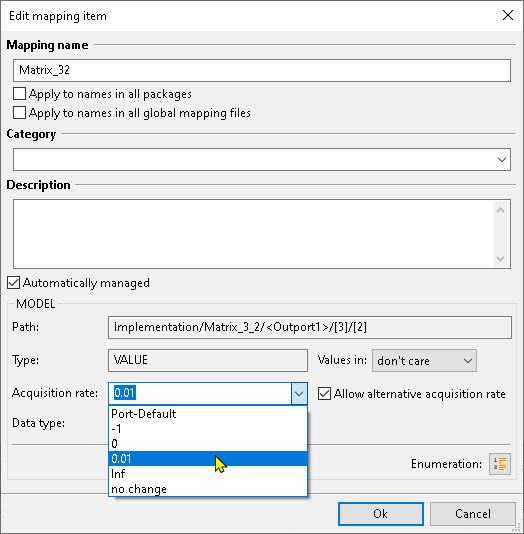
Initially, the list only contains Port-Default, -1 and no change. The sample times from the model are added, if the coresponding option in the test bench configuration is activated. Furthermore, an arbitray expression that is valid in MATLAB may be used. If, however, a value is to be used that is not present in the given list, the option Allow alternative acquisition rate must be unchecked.
The default value of Port-Default does not change the sample time at all. Instead, the value that is already configured will be kept (by default -1 or the value that has been set in a previous test run). The value no change has the same behavior.
Using the Fast Restart mode
Using the Fast Restart mode of Simulink together with ecu.test is possible with some restrictions. In order to activate it, the respective port property must be set. If set, ecu.test will automatically activate Fast Restart when the simulation is started for the first time and will keep it active for following simulations. Because of restrictions of an active Fast Restart, accessing signals is restricted as follows:
Writing, stimulating and recording of signals is only possible for those signals that had been recorded or written/stimulated in the very first simulation. (See details about the grouped project execution in order to circumvent these restrictions.)
Reading of signals is not restricted, as long as the option “Force instrumentation” is set to False (in this case the same restrictions as for writing apply).
Reading with time options only works for signals that are read with time option in the very first package.
Accessing parameters is not restricted.
The Fast Restart mode is especially helpful in tests with many repetitions where the same signals are altered.
Info
In a test scenario where Fast Restart is enabled and the written and recorded signals change in each test run, it may be useful to take advantage of the grouped project execution.
Info
For more sophisticated use cases the port jobs FastRestartOn, FastRestartOff,
and FastRestartStatus may be used.
Notes on integration with MATLAB and Simulink
There is an integration of ecu.test in Simulink. The aim of this integration is the simplified connection of already opened Simulink models to ecu.test. The user is assisted in creating a suitable test bench configuration as well as a test configuration for the respective model.
You can also create global mappings directly from the Simulink context menu of the model. Mappings can be created for signals as well as for inputs, outputs and parameters of a block. The mappings are created in a global mapping file (<ModelName>.xam), loaded automatically in ecu.test and then are available for test case creation.
To be able to make these features available from Simulink, the matlab folder within the
ecu.test installation path (for example: <installation path>/ecu.test 20XX.Y/matlab))
has to be added to the
MATLAB Search Path.
This can be done via the MATLAB Set Path menu or alternatively by
executing of the following code in MATLAB. (Adjust the installation path accordingly)
addpath('<installation path>/ecu.test 20XX.Y/matlab');
sl_refresh_customizations;
The ecu.test-integration is now available from the menu of an open simulink model:
Clicking on will open ecu.test and a test bench configuration and a test configuration will be generated. This configuration is started automatically, so that a connection from ecu.test to the Simulink model is established.
To generate the required artifacts, a number of templates and MATLAB functions are provided
inside the Templates folder within the the ecu.test-Workspace. These serve
to control the generation of artifacts. For example, the generation of the startup m-file
referenced by the test configuration can be influenced this way.
Info
The generated artifacts are saved within the current ecu.test-workspace, named accordingly to the Simulink model. These files are merely examples. They may be adjusted and manipulated after the generation as needed.
Further possibilities to control ecu.test from MATLAB and the user-specific generation process of artifacts arise with the use of special MATLAB functions, which are provided with ecu.test resources. Detailed documentation is available in MATLAB via the following command or alternatively via .
doc ecuTest.api.EcuTestController
Info
The integration is only available on Windows with local tool connection.
Usage of Events
It is possible to register user-specific function callbacks for certain events of the package execution lifecycle. Therefore, one must register own function handles as described in the Event and Listener Concept of MATLAB.
For further details, refer to the documentation available in MATLAB with a started configuration.
doc ecuTest.api.Events
Using Export-Function Models
Restrictions
Export-Function Models are restricted to some extent. When used together with ecu.test, the following should be noted:
All function call triggers must be triggered periodically. Event based triggering is not supported, e.g., using State flow charts.
Signals cannot be written or recorded at the root level of the model
Reading signals at the root level is only possible without instrumentation
Alternative approach
In order to overcome these restrictions, the port option Replace Function-Call-Inports in the test bench configuration may be set. When activated, ecu.test will replace all Function-Call-Inports with Function-Call-Generators. In such a model, manipulations at root level are possible and using certain source blocks is not restricted.
In order for the model to be simulated without further changes to the model structure (e.g., inserting Rate Transition blocks), the model configuration is changed by ecu.test as following:
Solver: Activating Automatically handle rate transition for data transfer
Solver: Setting Deterministic data transfer to Never (minimum delay)
Info
Whether these changes are valid for the simulation behavior and data integrity of the model must be checked individually by the user.
Considerations for improving test performance
The following points should be considered if tests are running with poor performance.
Reading with time option
Reading with time options describes how to prevent that the simulation is paused and continued many times during a read test step.
Simulate model in background
When simulating the Simulink model, it makes a difference in some cases whether the respective model window is open or not visible during execution. A visible model window often causes the simulation to run slower. This behavior is independent of ecu.test, but can be controlled via the Simulate in background option in the test bench configuration.
The difference is whether the model is opened with open_system (with window)
or load_system (in background). A model loaded with load_system
can be opened at any time afterwards with open_system (e.g. for debugging purposes).
Activating the option is only recommended from MATLAB R2015b onwards,
since in earlier versions some model callbacks are not
executed in the load_system case when loading.
Grouped project execution
If a model is to be tested in a project context with many test cases, the Fast Restart mode is useful in order to prevent that the model is recompiled between test cases.
Although, this leads to problems if a signal is written for the first time in a later packages and therefore needs to be instrumented. This instrumentation fails if the model is in Fast Restart mode or simulating.
In order to circumvent this problem, ecu.test detects if those signals may be instrumented already before the first package is executed and the simulation is started.
The following criteria must be fulfilled for this to work:
A configuration must be started in which only the MATLAB/Simulink tool and its model port is used.
The project must not contain any of the following
Project reference that is executed as separate subproject
Info
When doing grouped project execution, all contained packages and parameter sets are already loaded once and its write steps and signal recordings are instrumented before the actual project execution is started. This may take some time, especially for projects with many steps.
Application type: MATLAB Automation-Server.
By setting the MATLAB application type to MATLAB Automation-Server in the port properties of the test bench configuration MATLAB can be started with a reduced GUI. This setting leads a significant performance gain, especially under Linux.
Load sample times only if required
In the TBC, deactivate the option Get sample times from model to prevent the model from being compiled in advance to load sample time information. The sample times values are for information purposes only and is only required in a few applications.
Load Base workspace only if required
If no variables, signals or parameters of the MATLAB Base workspace or the Model workspace of the main model need to be read, the tbc option Load base workspace can be deactivated to avoid loading these workspaces.
Hide irrelevant model structures
Hiding irrelevant model structures describes how to hide unnecessary parts of the model. This can speed up the configuration start.
Avoid using model workspaces and SLDDs from referenced models
The variables and parameters in model workspaces and Simulink Data Dictionaries (SLDDs) from referenced models are now only read in if required. If variables from these sources are not used in the test, this automatically leads to a faster configuration start. If this type of variable is accessed from a large number of referenced models, consideration should be given to breaking down test cases and implementing individual unit tests for each referenced sub-model. The internal parameters are then only accessed there. Access to the internals of the referenced sub-models can then be avoided within a higher-level system test.
Supported .mat file formats
For stimulating signals and for use in the trace analysis, ecu.test natively supports the reading of .mat files. Such a file must meet one of the following format requirements.
Info
In ecu.test, only signals with numeric data type (double, int32,
uint8 etc.) can be processed. Values that at least have a numeric representation
(such as enumerations or embedded.fi) should be converted in MATLAB already via
int32(values) or double(values) respectively.
“Structure With Time” with common time axis
This format is similar to the one that is created by Simulink in case Save to workspace is activated for States or Output data in the Model Configuration (and, obviously, Format: Structure with time is selected).
In the trace analysis, signals of scalar, vector or matrix shape are supported. For stimulation only scalar signals may be used.
Example
The following script describes how to create such a .mat file:
matFileData = struct('time', [], 'signals', []);
matFileData.time = 0:0.1:1;
matFileData.signals = struct();

% Scalar Signal
matFileData.signals(1).values = 0.5*matFileData.time;
matFileData.signals(1).dimensions = 1;
matFileData.signals(1).label = 'ScalarSignal1';

% Vector Signal
matFileData.signals(2).values = [sin(matFileData.time)' cos(matFileData.time)'];
matFileData.signals(2).dimensions = 2;
matFileData.signals(2).label = 'VectorSignal1';

% Matrix Signal
matrixData = rand(2, 3, numel(matFileData.time));
matFileData.signals(3).values = matrixData;
matFileData.signals(3).dimensions = [2 3];
matFileData.signals(3).label = 'MatrixSignal1';

traceFileName = 'MatTraceFile.mat';
save(traceFileName, 'matFileData', '-V7');
“Structure With Time” with separate time axes
This format defines a time axis for every individual signal. Apart from that, the same restrictions apply as for the format with common time axis.
Example
matFileData = struct('time', [], 'signals', []);

% Scalar Signal
time = 0:0.1:1;
values = 0.5 * time;
signalStruct = struct('values', values, 'dimensions', 1, 'label', 'ScalarSignal1');
dataStruct = struct('time', time, 'signals', signalStruct);
matFileData(1) = dataStruct;

% Vector Signal
time = 0:0.2:1;
values = [sin(time)' cos(time)'];
signalStruct = struct('values', values, 'dimensions', 2, 'label', 'VectorSignal1');
dataStruct = struct('time', time, 'signals', signalStruct);
matFileData(2) = dataStruct;

% Matrix Signal
time = 0:0.25:1;
values = rand(2, 3, numel(time));
signalStruct = struct('values', values, 'dimensions', [2 3], 'label', 'MatrixSignal1');
dataStruct = struct('time', time, 'signals', signalStruct);
matFileData(3) = dataStruct;

traceFileName = 'MatTraceFile.mat';
save(traceFileName, 'matFileData', '-V7');
Other formats
Basically, it is also possible to use a format as described here. But as for it being a bit dated, the formats described above should be preferred.
Troubleshooting
Inserting the |Produktname| instrumentation block when writing results in a problem where Simulink cannot calculate the correct sample time of a signal (error message ‘Inconsistent sample times’)
In order to set the signal sampel time manually, the correct value may be explicitly set as “Acquisition rate” in the signal mapping.
Properties 🛈
Name |
Available if |
Default value |
Valid values |
Type |
Description |
|---|---|---|---|---|---|
Model directory |
uri |
Root directory for the model search on the tool host (DBC-files). If the path is relative, the base path of the tool host settings is used and will be extended by the root directory. |
|||
MATLAB release |
Auto |
[Auto, Path to the installation directory, R2015b, R2016a, R2016b, R2017a, R2017b, R2018a, R2018b, R2019a, R2019b, R2020a, R2020b, R2021a, R2021b, R2022a, R2022b, R2023a, R2023b, R2024a, R2024b] |
string |
MATLAB release which should be used. ‘Auto’ chooses the default installation on the Tool Server. ‘Path to the installation directory’ allows to provide a path to the MATLAB installation. Using Linux, it is not possible to use a MATLAB instance by specifying the release or determining it automatically. |
|
Installation path |
MATLAB release: ‘Path to the installation directory’ |
uri |
The MATLAB installation folder to be used. |
||
MATLAB instance |
‘MATLAB Desktop’ |
[‘MATLAB Desktop’, ‘MATLAB Automation-Server’] |
string |
Select, whether MATLAB shall be started as desktop version or automation server. The setting ‘MATLAB Automation-Server’ leads to a significant performance gain, especially on Linux. |
|
MATLAB connection type |
‘New’ |
[‘Auto’, ‘Reconnect’, ‘New’] |
string |
NEW: Always use a new instance of MATLAB. RECONNECT: Reuse a running MATLAB instance of the same version. AUTO: Try to reuse an instance or create a new one, if none exist. Using Linux, it is not possible to connect to an existing MATLAB instance. |
|
Max. number of values recorded |
‘0’ |
string |
Maximal number of data points to be buffered per signal. (‘Limit data points to last’) |
||
Reduce signal recording sampling rate |
‘0’ |
string |
Can be used to reduce the number of buffered data points. Use any nth sample. (‘Decimation’) |
||
Data type source |
‘Model’ |
[‘Model’, ‘Mapping’, ‘Mapping (strict)’] |
string |
Specifies whether the data types from the model or the ecu.test mapping item are used. Optionally, the strict data type verification can be activated, which checks if model and mapping data type match. |
|
Integer rounding mode |
‘Floor’ |
[‘Ceiling’, ‘Convergent’, ‘Floor’, ‘Nearest’, ‘Round’, ‘Simplest’, ‘Zero’] |
string |
Specifies how to round between floating point values and integer values. |
|
Saturate on integer overflow |
☐ |
bool |
Prevent integer overflow when converting to integer values. (Only if data type source is mapping.) |
||
Force instrumentation |
☐ |
bool |
If signals are only read no instrumentation is necessary anymore. However, if problems occur, optionally the usage of an instrumentation can be enforced even for reading access. |
||
MATLAB working folder |
‘<modelroot>’ |
string |
Specifies where to change the MATLAB working folder. Available options:
It is also possible to use <modelroot> as part of a path. |
||
Model structure caching |
☑ |
bool |
Enables caching of the model structure information. This allows unmodified models to be loaded during configuration startup without compilation. |
||
Simulate in background |
☐ |
bool |
Use load_system instead of open_system to load the model. This keeps the model hidden and usually speeds up the simulation. |
||
Timeout for tool call ❲in sec.❳ |
‘600’ |
string |
Timeout after which a tool call is aborted. |
Jobs 🛈
ExecuteWorkspaceCmd
Execute commands in MATLAB.
Parameterization
Parameter
Name |
Available if |
Default value |
Valid values |
Type |
Description |
|---|---|---|---|---|---|
Command |
string |
Expression to be evalated in the MATLAB command line. A semicolon will be appended implicitely. |
Return value
Name |
Available if |
Default value |
Valid values |
Type |
Description |
|---|---|---|---|---|---|
result |
string |
Any output that is produced by disp(), warning() or fprintf() calls during the execution of the command. To fetch the result of the evaluated expression, assign it to a temporary variable and retrieve its value using the job ReadWorkspaceVar. |
GetModelParameter
Read model parameters.
Parameterization
Parameter
Name |
Available if |
Default value |
Valid values |
Type |
Description |
|---|---|---|---|---|---|
parameterName |
‘SimulationTime’ |
[‘SimulationTime’, ‘SimulationStatus’, ‘SimulationMode’, ‘Name’, ‘Tag’, ‘Description’, ‘MdlSubVersion’, ‘ModelVersion’, ‘Version’, ‘Type’, ‘Creator’, ‘Created’, ‘ModifiedBy’, ‘LastModifiedBy’, ‘LastModifiedDate’, ‘Solver’, ‘SolverName’, ‘SolverType’, ‘InitialStep’, ‘FixedStep’, ‘MaxStep’, ‘MinStep’, ‘RelTol’, ‘AbsTol’, ‘SaveFormat’, ‘SignalLoggingSaveFormat’, ‘SignalLoggingName’, ‘LimitDataPoints’, ‘UnderSpecifiedDataTypeMsg’, ‘UnnecessaryDatatypeConvMsg’, ‘SignalResolutionControl’, ‘EnableOverflowDetection’, ‘SignalRangeChecking’, ‘FixptConstOverflowMsg’, ‘IntegerOverflowMsg’, ‘IntegerSaturationMsg’, ‘Int32ToFloatConvMsg’, ‘ParameterDowncastMsg’, ‘ParameterOverflowMsg’, ‘ParameterUnderflowMsg’, ‘ParameterPrecisionLossMsg’] |
string |
Name of the parameter to be read |
Return value
Name |
Available if |
Default value |
Valid values |
Type |
Description |
|---|---|---|---|---|---|
result |
object |
Python representation of parameter value |
LoadMatFile
Load *.mat file into the MATLAB workspace. The file has to be located in the model directory or in the MATLAB path on the tool host.
Parameterization
Parameter
Name |
Available if |
Default value |
Valid values |
Type |
Description |
|---|---|---|---|---|---|
FileName |
string |
Name of *.mat file to be loaded |
Return value
Name |
Available if |
Default value |
Valid values |
Type |
Description |
|---|---|---|---|---|---|
result |
/ |
No return value |
ReadWorkspaceVar
Reading variable values from MATLAB workspace.
Parameterization
Parameter
Name |
Available if |
Default value |
Valid values |
Type |
Description |
|---|---|---|---|---|---|
VarName |
string |
Name of the variable |
Return value
Name |
Available if |
Default value |
Valid values |
Type |
Description |
|---|---|---|---|---|---|
result |
object |
Python representation of variable value |
SetModelParameter
Write model parameter.
Parameterization
Parameter
Name |
Available if |
Default value |
Valid values |
Type |
Description |
|---|---|---|---|---|---|
parameterName |
‘IntegerOverflowMsg’ |
[‘Solver’, ‘SolverName’, ‘SolverType’, ‘InitialStep’, ‘FixedStep’, ‘MaxStep’, ‘MinStep’, ‘RelTol’, ‘AbsTol’, ‘SaveFormat’, ‘SignalLoggingSaveFormat’, ‘SignalLoggingName’, ‘LimitDataPoints’, ‘UnderSpecifiedDataTypeMsg’, ‘UnnecessaryDatatypeConvMsg’, ‘SignalResolutionControl’, ‘EnableOverflowDetection’, ‘SignalRangeChecking’, ‘FixptConstOverflowMsg’, ‘IntegerOverflowMsg’, ‘IntegerSaturationMsg’, ‘Int32ToFloatConvMsg’, ‘ParameterDowncastMsg’, ‘ParameterOverflowMsg’, ‘ParameterUnderflowMsg’, ‘ParameterPrecisionLossMsg’] |
string |
Name of the parameter to set |
|
parameterValue |
‘warning’ |
[‘none’, ‘warning’, ‘error’, ‘on’, ‘off’, ‘0.01’, ‘ode3’] |
string |
Value of the parameter |
Return value
Name |
Available if |
Default value |
Valid values |
Type |
Description |
|---|---|---|---|---|---|
result |
/ |
No return value |
WriteWorkspaceVar
Write the values of the variables into the MATLAB workspace.
Parameterization
Parameter
Name |
Available if |
Default value |
Valid values |
Type |
Description |
|---|---|---|---|---|---|
VarName |
string |
Name of the variable |
|||
VarValue |
object |
Value of the variable |
Return value
Name |
Available if |
Default value |
Valid values |
Type |
Description |
|---|---|---|---|---|---|
result |
/ |
No return value |