Port IMAGE - Appium 🛈
Stimulation
This port has no stimulus capabilities.
Specifics
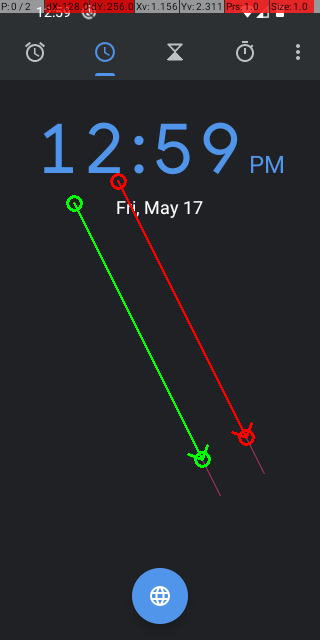
For precise touch inputs you should take care of the action duration. Appium sends a W3C action chain that contains all fingers, coordinates and durations for the movements at once to the device. Some devices might have problems with too short durations between movements and an exception will be raised or the movement will “overshoot” the end position.
For example a multi-swipe touch input with a duration of 100ms. The thin red line marks the overshoot of the movement that was produced by the Android emulator:
Properties 🛈
Name |
Available if |
Default value |
Valid values |
Type |
Description |
|---|---|---|---|---|---|
Appium |
|||||
IP of Appium server |
Appium |
‘localhost’ |
string |
IP address of Appium server. E.g. 0.0.0.0 |
|
Port of Appium server |
Appium |
‘4723’ |
string |
Port of the Appium server. E.g. 4723 |
|
Start Appium server |
Appium |
☐ |
bool |
Start Appium server on configuration start. |
|
Path to Appium CLI server |
Appium » Start Appium server |
string |
If Appium was installed via NPM on Windows, you can find the “appium.cmd” in the NPM install directory. The Appium server GUI doesn’t provide the auto start feature. |
||
Automation name |
Appium |
UiAutomator2 |
[Appium, UiAutomator1, UiAutomator2, Espresso, XCUITest, Instruments, YouiEngine, Chromium, Gecko, Safari, Mac2] |
string |
Automation to be used. As of Appium 2, some options are no longer available or must be installed manually. An overview of the available Appium automations can be obtained with the command “appium driver list”. |
System port |
Appium » Automation name |
‘8200’ |
string |
System port to connect when using Appium’s UIAutomator2 server or the Espressor driver. |
|
Timeout [s] for command execution |
Appium |
60 |
int |
This timeout defines how long Appium waits for a successful execution of a command. |
|
Connect device |
Appium |
‘on config start’ |
[‘on config start’, ‘never’] Display values:
|
string |
Defines if the connection is automatically established on configuration start. If this option is set to “Disabled”, you will have to use the tool job “ConnectDevice” to initialize the connection during the test execution. You can provide additional capabilities for starting Appium in the tool job. |
Additional capabilities |
Appium |
‘{}’ |
string |
Dictionary using the JSON-format with additional Appium capabilities. These capabilities may override the capabilities generated based on the definitions in this test bench configuration. E.g. {“platform”: “iOS”} |
|
Device |
|||||
Platform |
Device |
Android |
[Android, iOS] |
string |
Platform / Operation system to use |
Platform version |
Device |
string |
The platform / operation system to use |
||
Device name |
Device |
string |
Name of the mobile device or emulator. This option is currently ignored for Android devices because they can only be selected by the device identifier option. |
||
Device identifier |
Device |
string |
Only for physical devices: Device identifier of the connected device. Can be listed by running “adb devices” command for Android. |
||
App package |
Device » Platform: ‘Android’ |
string |
Name of the package of the installed app. E.g. “com.google.android.youtube” |
||
App activity |
Device » Platform: ‘Android’ |
string |
App activity, e.g. “com.google.android.youtube.HomeActivity” |
||
App path |
Device » Platform: ‘Android’ |
string |
Path or URL to the .apk file. This is optional, if you have specified an app package and activity. |
||
Start emulation |
Device » Platform: ‘Android’ |
☐ |
bool |
Automatically start the virtual device when connecting to Appium |
|
AVD name |
Device » Platform: ‘Android’ » Start emulation |
string |
Name of the virtual device (AVD) to be executed. You can list available devices using the command “avdmanager list avd”. |
||
AVD parameters |
Device » Platform: ‘Android’ » Start emulation |
string |
Optional: Command line arguments when starting the emulator. E.g. “-no-snapshot-load” |
||
Bundle ID |
Device » Platform: ‘iOS’ |
string |
Optional: App bundle id. E.g. “io.appium.TestApp” |
||
App path |
Device » Platform: ‘iOS’ |
string |
Optional: Path to URL or .ipa file to install before testing. |
||
Differing touch resolution |
Device |
☐ |
bool |
Resolution to use for touch events: Some high definition displays have a touch screen resolution that differs from the total display resolution. This leads to an offset when using touch and swipe gestures. In this case, you can manually set the touch screen resolution here. You can find the resolution in the device specifications. |
|
Resolution ❲x axis❳ |
Device » Differing touch resolution |
int |
Resolution of touch display (x coordinate) |
||
Resolution ❲y axis❳ |
Device » Differing touch resolution |
int |
Resolution of touch display (y coordinate) |
Jobs 🛈
CheckKeyboardIsShown
Checks whether the virtual keyboard is shown.
Parameterization
Return value
Name |
Available if |
Default value |
Valid values |
Type |
Description |
|---|---|---|---|---|---|
isKeyboardIsShown |
☐ |
bool |
Boolean; True if the keyboard is shown on the screen. |
ConnectDevice
Connects with the smartphone or emulator.
Parameterization
Parameter
Name |
Available if |
Default value |
Valid values |
Type |
Description |
|---|---|---|---|---|---|
capabilities |
object |
Additional capabilities of Appium given as Python dictionary. This way, you can change the behaviour of Appium. The capabilities are amended by the capabilities generated based on your test bench configuration and may override those. You can find a list of available capabilities on the website of Appium at https://appium.io/docs/en/latest/guides/caps/#common-appium-capabilities |
DisconnectDevice
Disconnects from the smartphone
GetScreenResolution
Returns the screen resolution.
Parameterization
Return value
Name |
Available if |
Default value |
Valid values |
Type |
Description |
|---|---|---|---|---|---|
resolution |
object |
Screen resolution as tuple (width, height). |
IsDeviceLocked
Returns whether the device is locked. Only available for Android.
Parameterization
Return value
Name |
Available if |
Default value |
Valid values |
Type |
Description |
|---|---|---|---|---|---|
isScreenLocked |
☐ |
bool |
True, if the screen is locked, otherwise False. |
LockDevice
Locks the device. Only available for Android.
StartActivity
Starts an app or activity
Parameterization
Parameter
Name |
Available if |
Default value |
Valid values |
Type |
Description |
|---|---|---|---|---|---|
activityName |
string |
App activity, e.g. “com.google.android.youtube.HomeActivity” |
|||
appName |
string |
Name of the package of the installed app. E.g. “com.google.android.youtube” |
SwipeOnScreen
Simulates a swipe on the smartphone screen.
Parameterization
Parameter
Name |
Available if |
Default value |
Valid values |
Type |
Description |
|---|---|---|---|---|---|
startPosX |
0 |
int |
Pixel position (x axis) |
||
startPosY |
0 |
int |
Pixel position (y axis) |
||
targetPosX |
0 |
int |
Pixel position (x axis) |
||
targetPosY |
0 |
int |
Pixel position (y axis) |
TouchPosition
Simulates a touch on the smartphone screen.
Parameterization
Parameter
Name |
Available if |
Default value |
Valid values |
Type |
Description |
|---|---|---|---|---|---|
duration |
0 |
int |
Holding time in milliseconds |
||
positionX |
0 |
int |
Pixel position (x axis) |
||
positionY |
0 |
int |
Pixel position (y axis) |
UnlockDevice
Unlocks the (physical) device. Only available on Android.